- First, install AirCard Watcher.
- Insert SIM card into MOBITEK S80 3G Modem and connect it to PC or laptop.
- A new modem in “Device Manager” will appear — “Sierra Wireless AirCard HSDPA Modem”.

- Run AirCard Watcher.
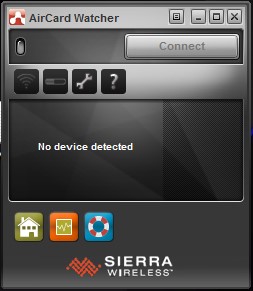
- AirCard Watcher will automatically detect the MOBITEK S80 3G Modem and show the name of TELCO. In this example, it is “U Mobile”. It will also show “3G”.

- Click “Connect” button to connect to 3G network. If successfully connected then the red signal bar will turn to green and the “Connect” button will change to “Disconnect”.

- Try accessing the internet via a web browser. AirCard Watcher will show the upload and download speed (refer to red box).

- To check data usage, click on the “meter” icon (red box)

Category Archives: IoT
How to Set-Up MOBITEK S80 Modem in VirtualBox
- Connect modem to host OS.Open VirtualBox, go to the setting of your virtual machine.

- Go to Serial Ports and set the setting as below:
- Enable Serial Port.
- Set Port Number: (port number inside the guest OS)
- Port Mode: Host Device
- Path/Address: (port number of modem that is connected to host OS)
Note: Windows provides legacy names only for COM ports 1 through to 9. For all other COM ports you must use the full device naming convention under Windows. So if you decide to use COM10 instead of COM9, using COM10 at Path/Address won’t work. Instead you have to use “\\.\COM10”. (source: https://stackoverflow.com/questions/37728628/connection-through-com-port-between-host-and-guest-in-virtualbox)
Click OK

- Note: if this step is skipped, hyper terminal will have no response if connected to the “Sierra Wireless AT Command Port”
- Run the virtual machine.

- Go to device manager in VirtualBox to check the COM Port. In this example, the MOBITEK S80 Modem that is connected to the USB port (COM6) of host machine, the USB port is then mapped serial port (COM1) of VirtualBox.

- In VirtualBox, the modem is connected to COM1 which is the serial port .
- In the host machine, the same modem is connected to COM6 which is the USB port.
USB Driver of MOBITEK S80 Supports Windows Server 2008, Windows Server 2012, Windows Server 2016 and Windows 10
We have conducted a test in 4 different OS which is:-
- Windows Server 2008 32-bit;
- Windows Server 2012 64-bit;
- Windows Server 2016 64-bit; and
- Windows 10 64-bit.
Note: all the above OS were running in a virtual machine (VirtualBox).
Then we left MOBITEK S80 running for 4 hours in each OS, and the COM Port DID NOT disappear.
MOBITEK S80 was not connected to power cable, it is using power from the USB cable.
The USB driver version is 11.5.
| OS | DID COM PORT DISAPPEAR AFTER 4 HOURS (YES / NO) |
SCREEN CAPTURE |
|---|---|---|
| Windows 2008 32-bit | No | 
|
| Windows 2012 64-bit | No | 
|
| Windows 2016 64-bit | No | 
|
| Windows 10 64-bit | No | 
|


Therefore the USB driver, version 11.5, for MOBITEK S80 works in these 4 OS:-
-
- Windows Server 2008 32-bit;
- Windows Server 2012 64-bit;
- Windows Server 2016 64-bit and
- Windows 10 64-bit.
MOBITEK S80 is 99% Compatible with Sierra Wireless FX100
Sierra Wireless FX100 3G Modem has reached end-of-life production cycle. It may be difficult to obtain a new unit. The good news is that MOBITEK® S80 is 99% compatible with Sierra Wireless FX100 3G Modem.
| SPECIFICATION |  MOBITEK S80 MOBITEK S80 |
 Sierra Wireless FX100 Sierra Wireless FX100 |
|---|---|---|
| SL8082T Module | Yes | Yes |
| GSM (2G) Network Quad Band | Yes | Yes |
| GPRS Network | Yes | Yes |
| WCDMA (3G) Network Dual Band | Yes | Yes |
| Serial Port (RS-232) 15-pin | Yes | Yes |
| USB Port | Yes | Yes |
| Sierra Wireless USB Driver | Yes | Yes |
| Open AT | Yes | Yes |
| GPS | No | Yes |
| Voice | Yes | Yes |
More Information
- MOBITEK S80 product page
- MOBITEK S80 GSM Modem Works with CCG SMS Gateway
- MOBITEK S80 Sends SMS Over 3G Network
- MOBITEK S80 is the Solution to Singapore Shutting Down 2G Network
- New Version of Command Line SMS and MOBITEK S80
- Introducing MOBITEK S80
- How to Install USB Driver of MOBITEK S80 and Find the COM Port Number
Fail-Over to 3G Network When Landline Fails
Problem
If your clients have mission critical applications that requires uninterrupted internet connection and your client’s landline (Unify or Streamyx) goes down.
Solution
MOBITEK F3427 allows uninterrupted internet access via 3G network in case Unify or Streamyx service goes down.

MOBITEK F3427 enables all your devices, computers, laptops in LAN to continue to have internet access via 3G network.
- insert 3G SIM card into MOBITEK F3427; and
- connect MOBITEK F3427 to your swtich (NOT router)
Yes, I am interested and I like to …
How to Set-Up Sierra Wireless GL6110 GSM Modem
- Connect the antenna to the modem

- Connect the power adapter to the modem.

- Plug in the power adapter, turn on power
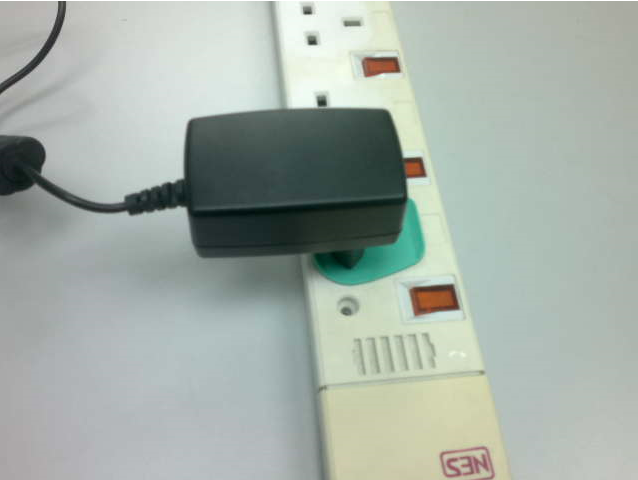
- Insert the SIM card, modem green LED will blink.

- Attach serial Cable to modem and the other end to the USB-to-serial converter.

- Plug the USB cable into the USB port of the PC.
The USB driver is the same as MOBITEK Q24 Modem.

How to Install MOBITEK Q24 GSM Modem Hub’s USB Driver in Linux
This guide applies to the following MOBITEK products:-
- MOBITEK Q24 GSM Modem
- MOBITEK Q24 GSM Modem Hub
USB Driver had been pre-installed in the following Linux Distro:-
- Ubuntu 11.10 and above
- Any distro based on Ubuntu 11.10 and above such as Linux Mint
For other distro, you may need to compile the driver into Linux kernel which is not covered in this guide.
HOW TO CONFIGURE MOBITEK IN LINUX MINT
- Optional — install “Cutecom” from Software Manager.
 Click on “install”
- Go to “User and Groups”.

- Click on the current user and then click on “Groups”.

- Assign the following “Groups” or permissions to the user:-
- dialout
- root
- sudo
- tty
- Restart Linux.
- Open terminal and enter “lsusb”.
- If MOBITEK Q24 GSM Modem Hub is detected by Linux, there should be 2 items listed on screen — “Future Technology Devices International, Ltd FT4232H”.

- Open CuteCom (or minicom).
- Manually type “/dev/ttyUSB0”
- Click on “Open device”.

- For the input method below, change the Input type from “LF line end” (default) to “CR,LF line end”.

- Enter “AT”, and if “OK” is returned or displayed then this mean that the modem is successfully connected to “/dev/ttyUSB0”.
- Click “Close device”.
- To check next modem in MOBITEK Q24 GSM Modem Hub, then type:-
- /dev/ttyUSB1
- /dev/ttyUSB2
- …
- /dev/ttyUSB7
and repeat Step 10 until 13.

U-Mobile Setting for MOBITEK C60T M2M Wireless Gateway
C60T’s Status Page

C60T’s 3G/4G Page

New Product: MOBITEK C60T M2M Wireless Gateway

MOBITEK C60T M2M Wireless Gateway

MOBITEK C60T M2M Wireless Gateway

MOBITEK C60T M2M Wireless Gateway

MOBITEK C60T M2M Wireless Gateway
What is MOBITEK C60T M2M Wireless Gateway?
It is a 3G, Wi-Fi and router device that allows your remote machines and terminals to be connected to the internet via 3G network.
How can MOBITEK C60T be used?
With MOBITEK C60T, you can use your PC in office to access these machines at remote sites:-
- Kiosk
- Vending Machine
- CCTV
- ATM
- Control Panel
- Utility Metering
- SCADA
Specification
- Model: C60T
- Connectivity Between C60T and devices:-
- RJ45
- IEEE 802.11b/g, Wi-Fi compliant
- Connectivity Between C60T and Internet:-
- UMTS 2100/1900/900/850
- GPRS/GSM 1900/1800/900/850 MHz
Yes, I am Interested and I like to …
How to Set-up MOBITEK C60T
MOBITEK C60T is a M2M Wireless Gateway having 3G, Wi-Fi and Router functions in one single device.
To set-up, connect MOBITEK C60T to the PC using the RJ45 via LAN2 port. The sim card is inserted and turned on the power.
The default gateway of MOBITEK C60T is 192.168.1.1
The IP address of MOBITEK C60T is type in the browser to access the administration web page.
The authentication required the username and password. The “admin” is put on both username and password.
.
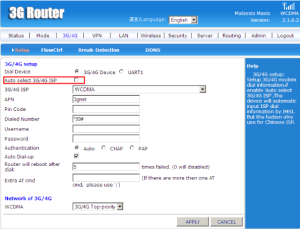
The “Auto select 3G/4G ISP” is unchecked.
The following setting is manually enter values to the TELCO/SIM (Maxis) using:-
- APN
- Dialed Number
- Username
- Password

Refer table below for list of TELCOs’ 3G Settings:-
 source: user manual of C60T
If the above table fail to work, then use this table:-

The configuration of MOBITEK C60T is successfully configured and verified by accessed the web page www.mobitek.com.my via 3G network.