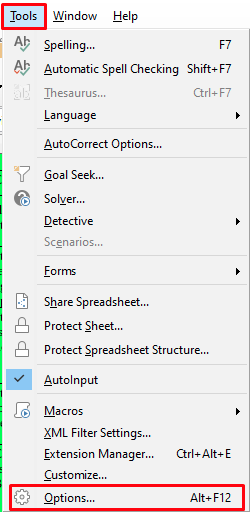
- Open LibreOffice -> “Tools” -> “Options…”; or
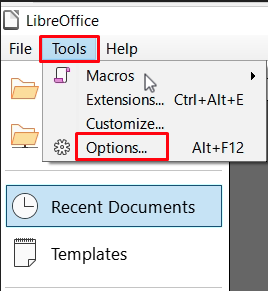
- If any LibreOffice document is opened, it can be accessed from “Tools” -> “Options…”.
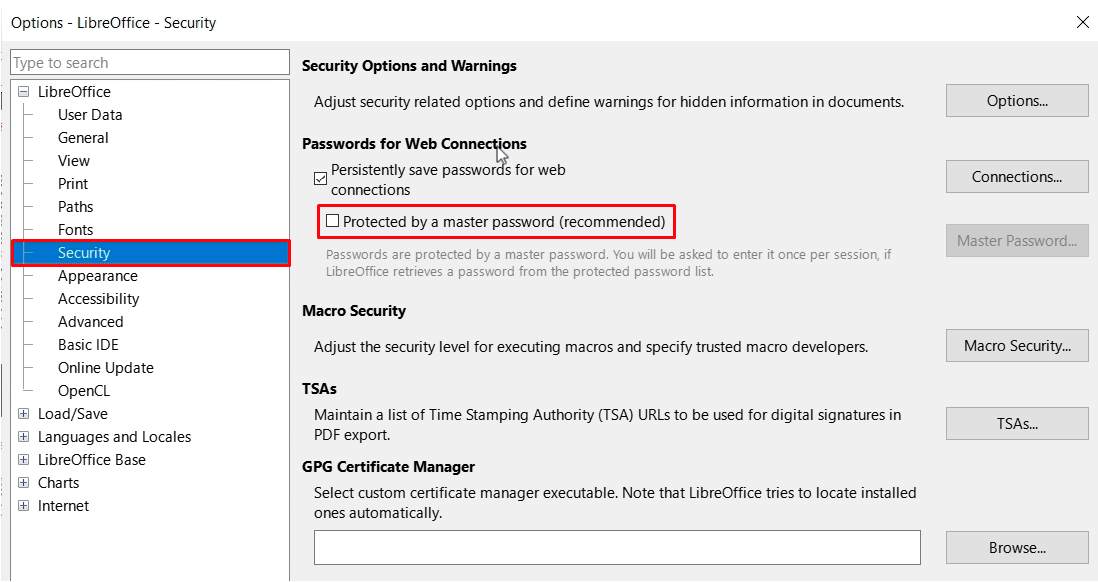
- Go to “Security” and uncheck “Protected by a master password (recommended)”.
| BEFORE | AFTER | REMARK |
|
|
|
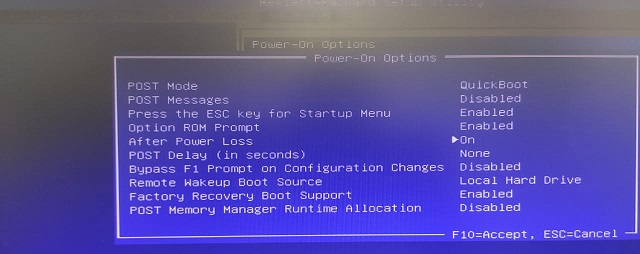
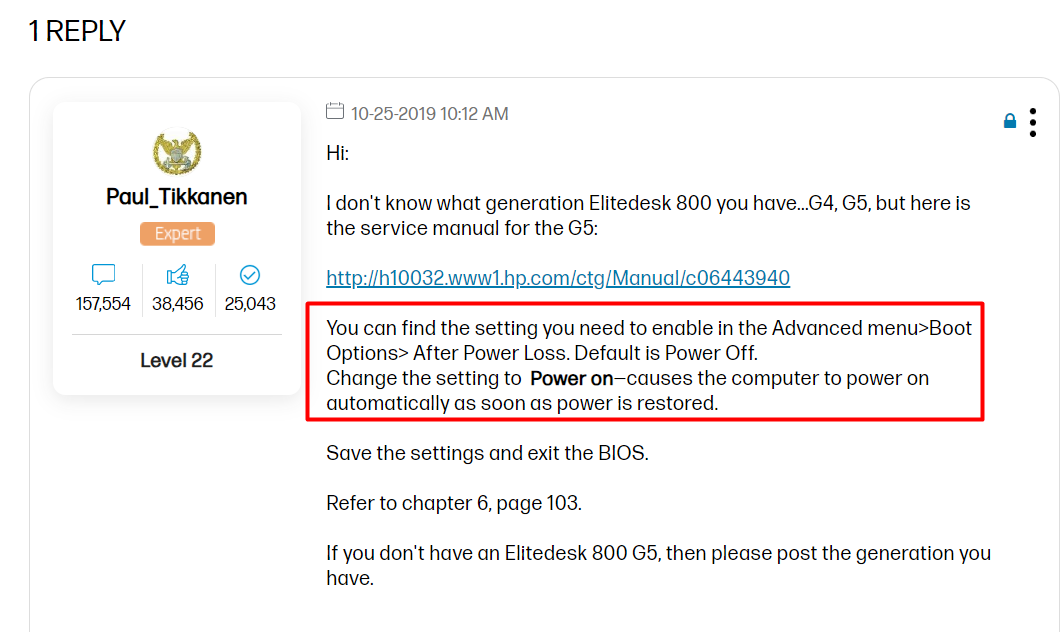
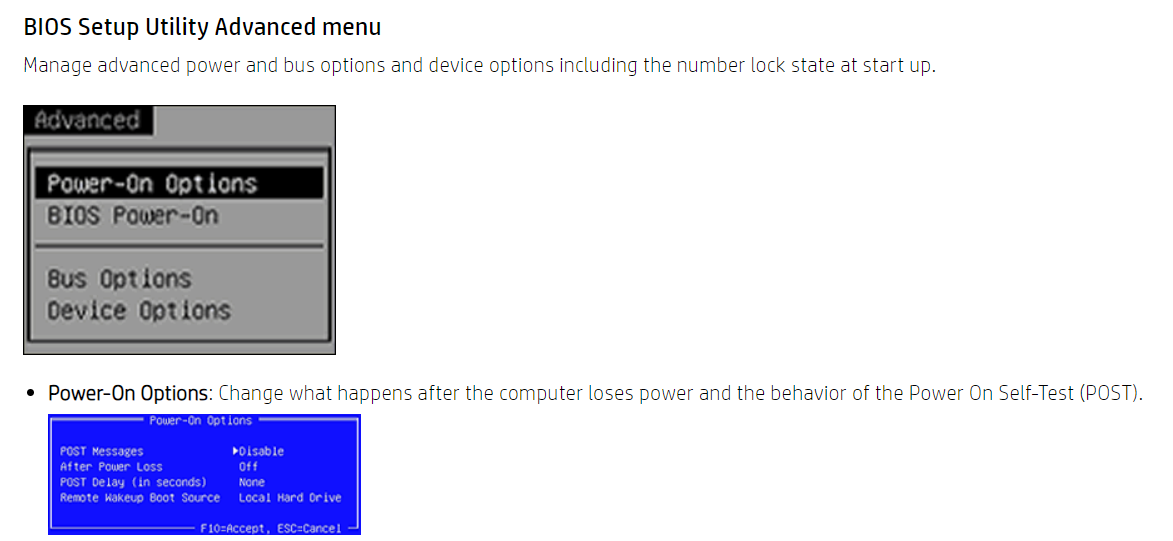
Set to reboot after power has restored by TNB.
source: https://support.hp.com/gb-en/document/ish_3912651-2318005-16 |
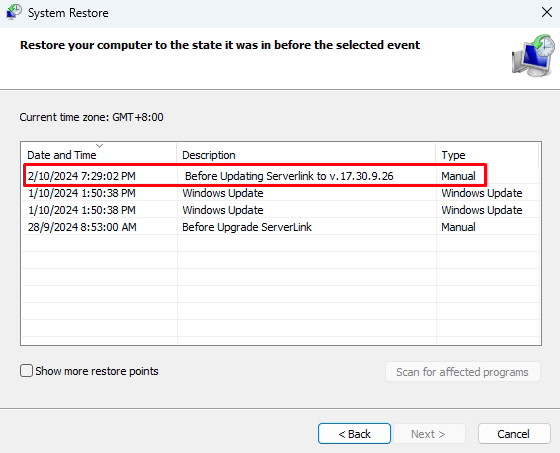
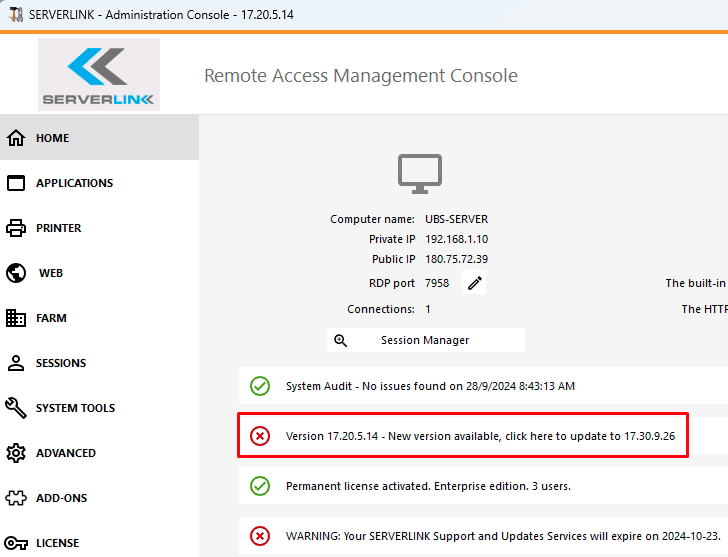
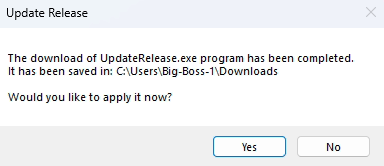
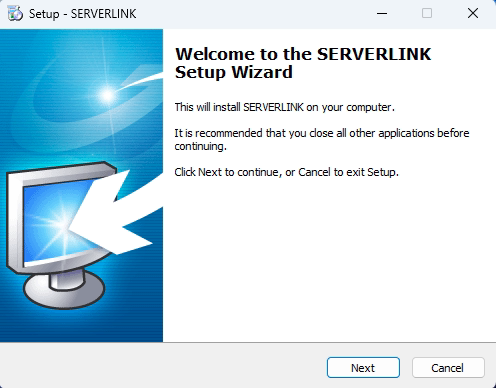
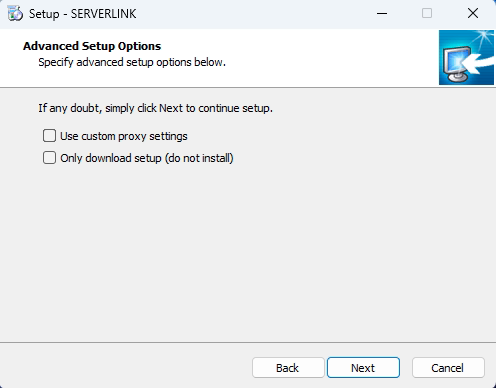
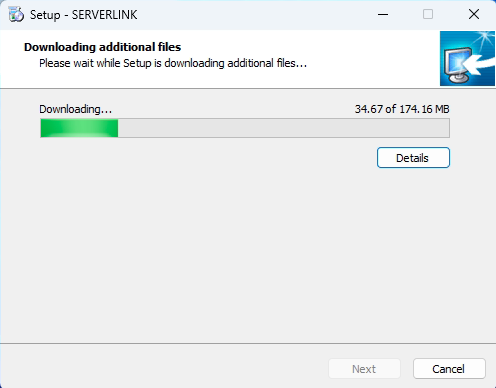
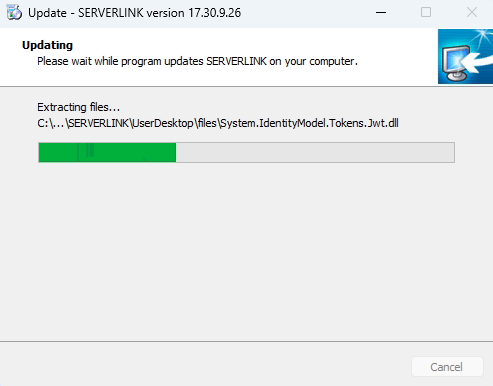
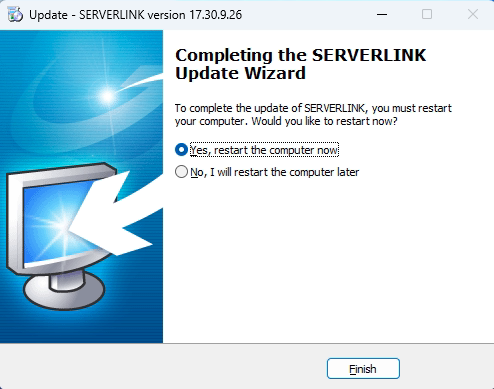
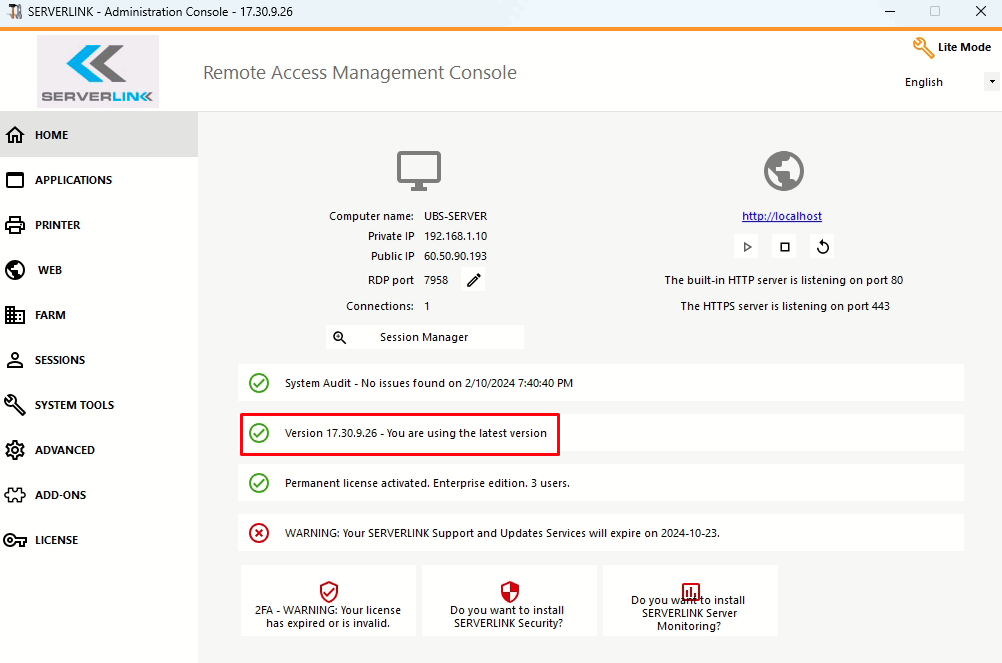
Note: if you choose “Only dowload setup (do not install)” , then the setup file is downloaded into this folder “C:\Users\…\AppData\Local\Temp\UpdateRelease.exe“. Run the “UpdateRelease.exe” at a later date.

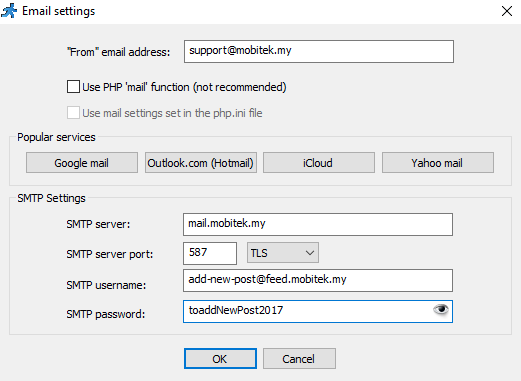
| Runner_Mail() | PHPMailer() | PHP Mail() |
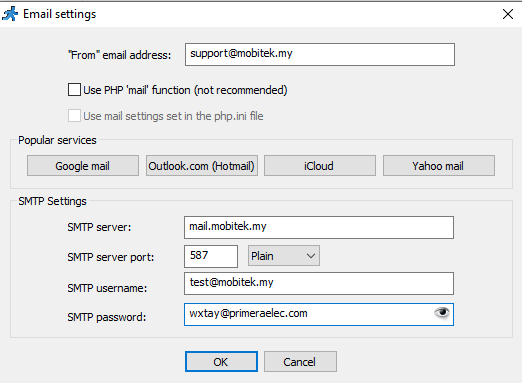
| SMTP, user name, password, port, etc. are set inside the PHPRunner UI
|
PHPMailer() is called by Runner_Mail()
SMTP is set inside the PHP code itself |
SMTP is set in “PHP.ini” |
| <?php
require_once(“include/dbcommon.php”);
$email = “t1@mobitek.my”; $msg = “”; $subject = “New data record”;
$msg.= “Message: [Message]\r\n”; $msg.= “Recipient: Recipient\r\n”; $msg.= “Date/Time: DateTimeQueue\r\n”; runner_mail(array(‘to’ => ‘$email’, ‘subject’ => $subject, ‘body’ => $msg)); ?> |
<?php include_once(‘libs/phpmailer/class.phpmailer.php’); include_once(‘libs/phpmailer/class.smtp.php’);$mail = new PHPMailer( true ); // Mail settings $mail->isSMTP(); //Send using SMTP $mail->Host = ‘mail.sweetco.com.my’; //Set the SMTP server to send through $mail->SMTPAuth = true; //Enable SMTP authentication $mail->Username = ‘factory@sweetco.com.my‘; //SMTP username $mail->Password = ‘2022@Beranang@Factory’; //SMTP password //$mail->SMTPSecure = PHPMailer::ENCRYPTION_SMTPS; //Enable implicit TLS encryption $mail->Port = 587; //TCP port to connect to; use 587 if you have set `SMTPSecure = PHPMailer::ENCRYPTION_STARTTLS` $mail->setFrom(‘support@mobitek.my‘, ‘MOBITEK Support’); $mail->isHTML(false);$mail->To = “t1@mobitek.my”; $mail->Subject = “This is Subject”; $mail->Body = “This the body”; $mail->Send();?> |
Open “php.ini” and search for “smtp” (there are no entries for no username and password)
[mail function] ; For Win32 only. ; For Unix only. You may supply arguments as well (default: “sendmail -t -i”). ; Force the addition of the specified parameters to be passed as extra parameters ; Add X-PHP-Originating-Script: that will include uid of the script followed by the filename ; The path to a log file that will log all mail() calls. Log entries include |
| TEST OBJECTIVE | TESTING METHODOLOGY | TEST RESULT |
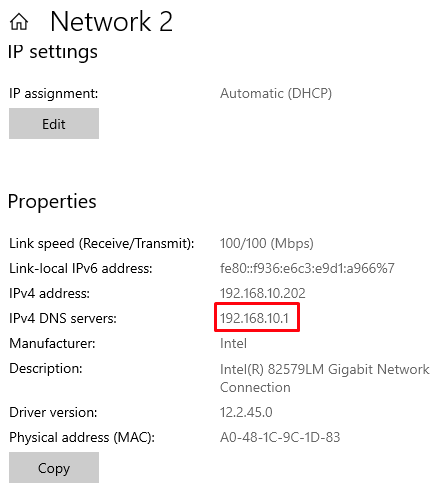
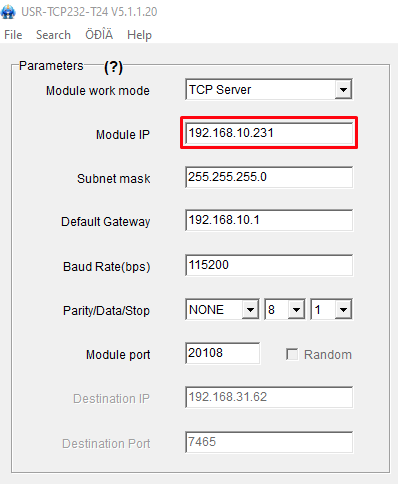
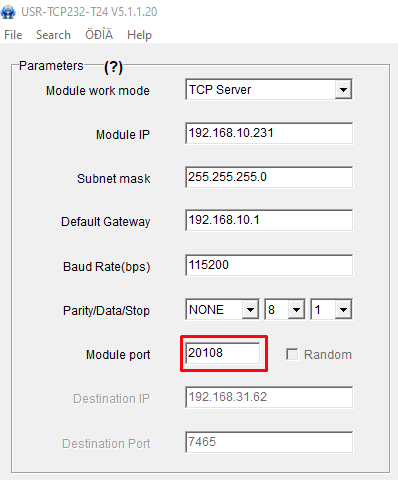
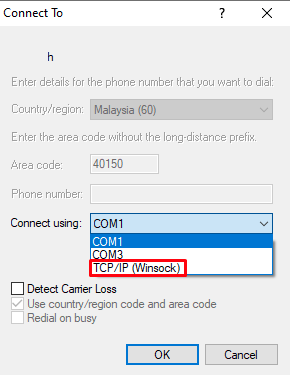
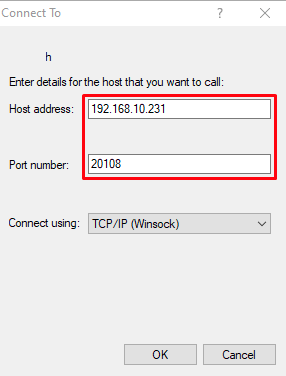
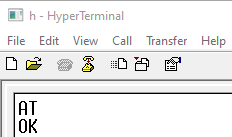
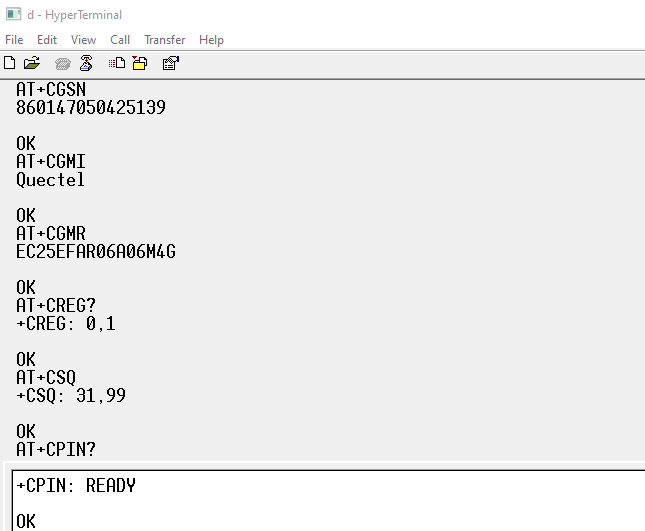
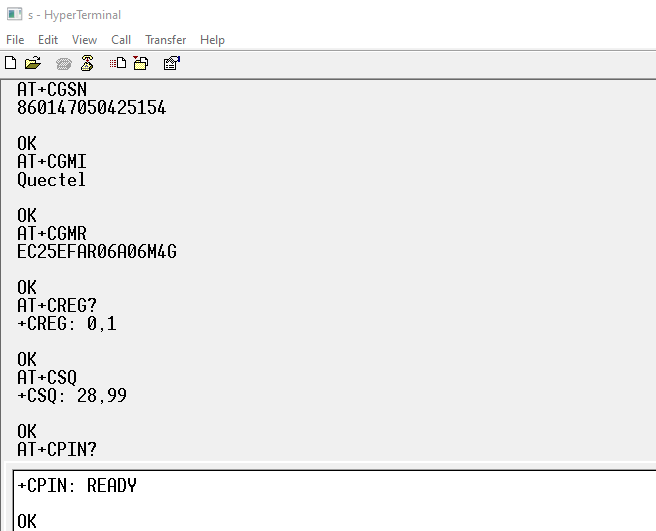
| Can hyper terminal connect to MOBITEK Q25 4G Modem via IP address instead of COM port and run “hyper terminal test“? |
|
|

| TEST OBJECTIVE | TESTING METHODOLOGY | TEST RESULT |
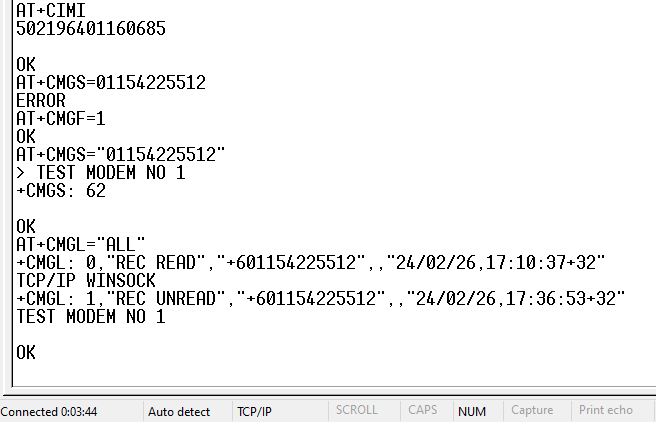
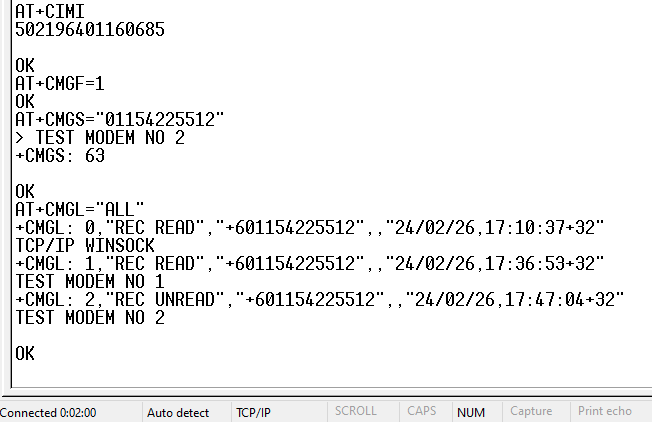
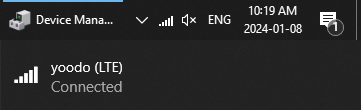
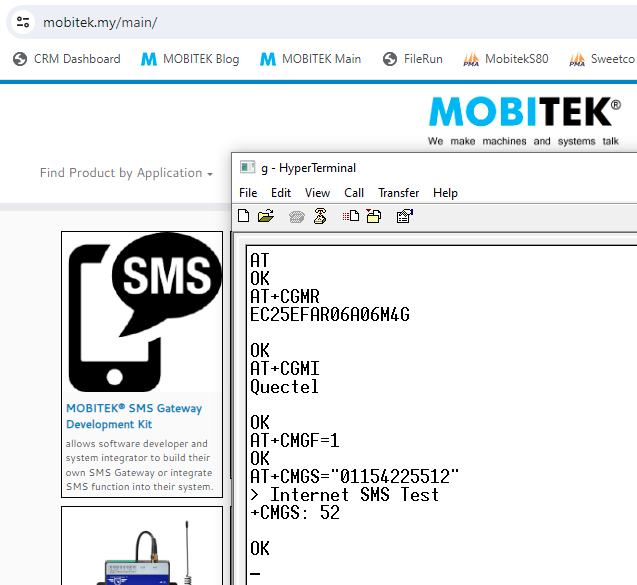
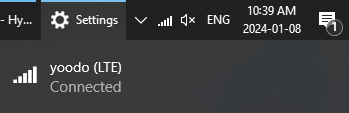
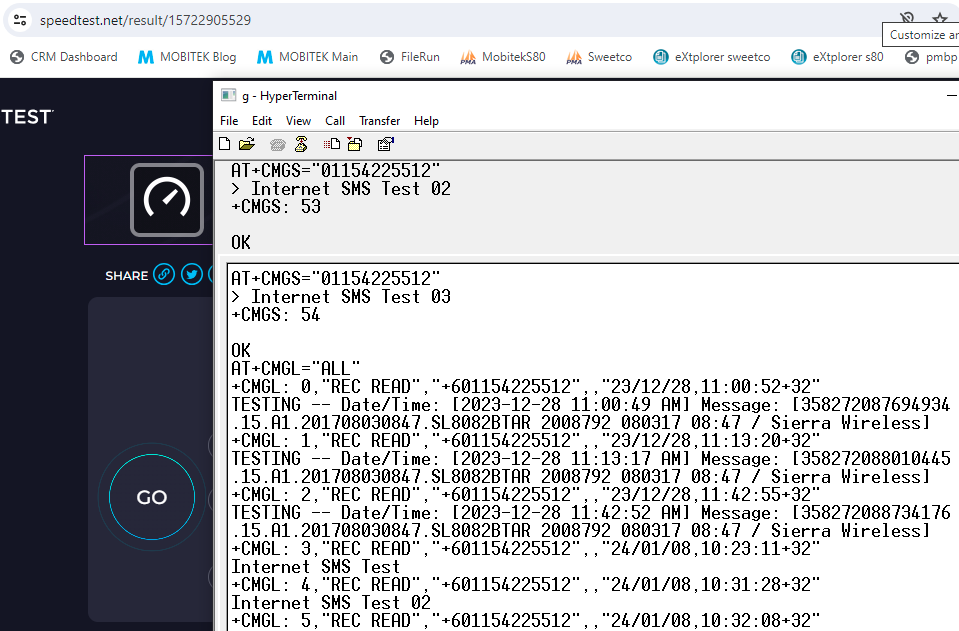
| Can MOBITEK Q25 connect to internet and send out SMS at the same time? |
|
TEST 1
TEST 2
|
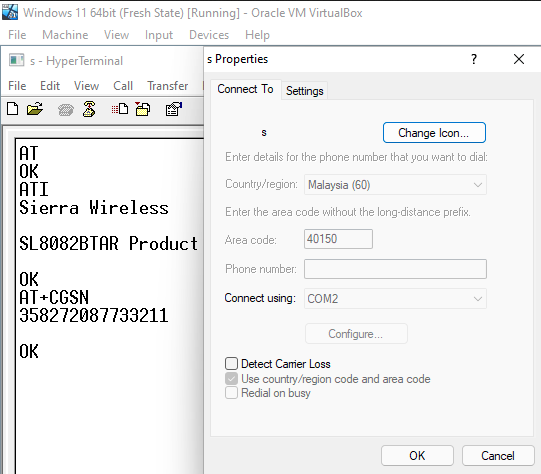
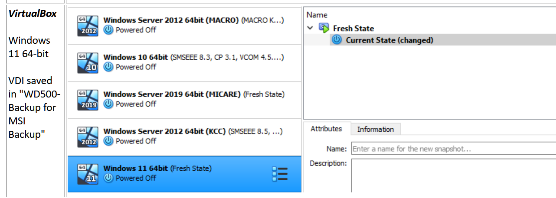
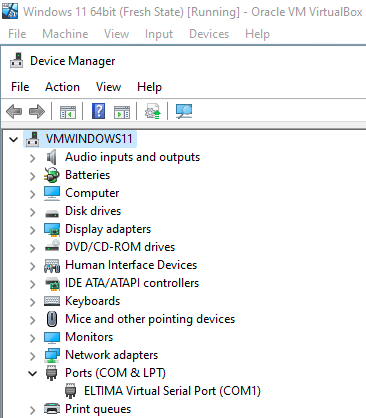
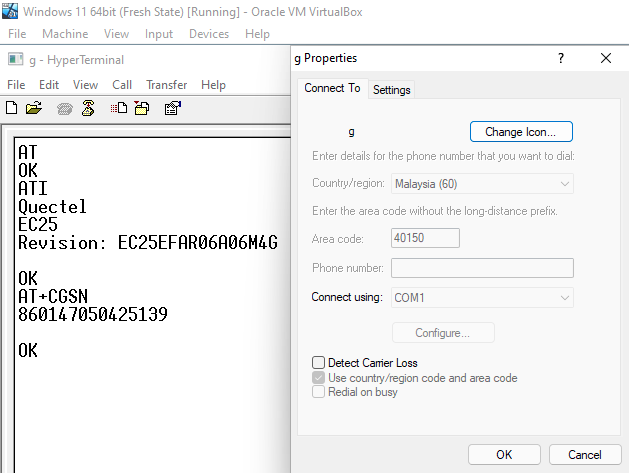
LAN driver (USR-VCOM) for MOBITEK S80 and MOBITEK Q25 supports Windows 11.
However, the USB driver of MOBITEK S80 3G Modem does not work in Windows 11. Use LAN port (LAN driver) of MOBITEK S80 instead.
| TEST OBJECTIVE | TESTING METHODOLOGY | TEST RESULT |
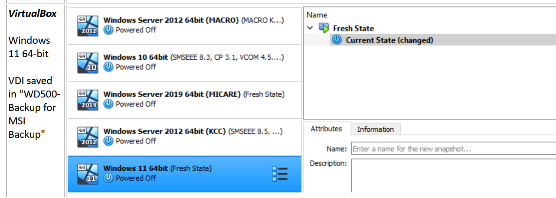
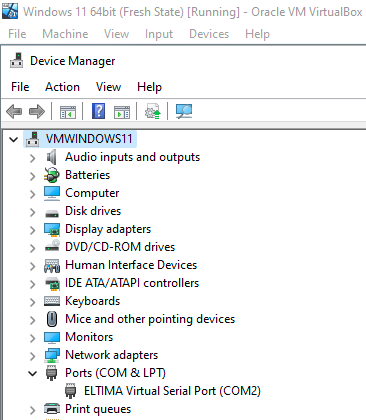
| Does MOBITEK S80’s USR-VCOM (ELTIMA virtual serial port) support Windows 11? |
|
USR-VCOM version = 3.7.1.520
|
| Does MOBITEK Q25’s USR-VCOM (ELTIMA virtual serial port) support Windows 11? |
|
USR-VCOM version = 3.7.1.520
|
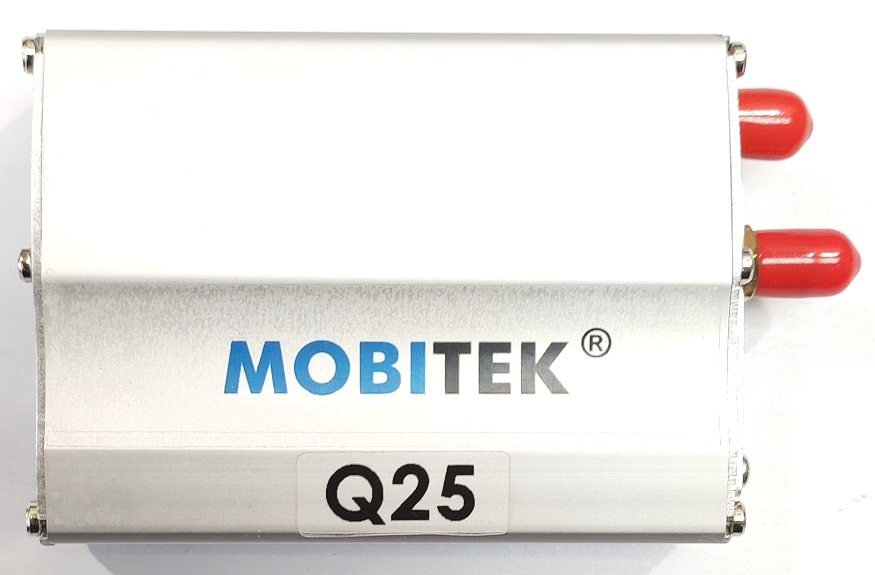
We are pleased to announce our new modem MOBITEK Q25 .
MOBITEK Q25 is a 4G Modem for IoT and SMS applications. Used by software developer to develop a SMS gateway, a SMS server, 2 factor authentication, one-time password, alert, notification and messaging solutions.
MOBITEK Q25 can replace these GSM modem models:-
For further information, please visit