Category Archives: SMS

How to Set-Up MOBITEK S80 3G Modem in Linux Running in VirtualBox

Note: this guide is mapping the serial port of VirtualBox with the USB port of the host machine.

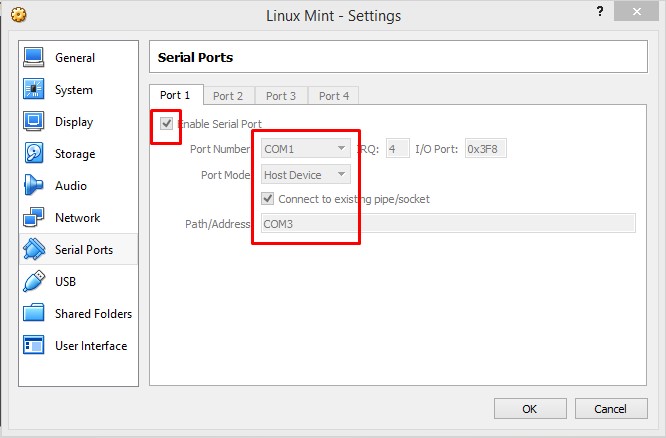
  1. In “Serial Ports” setting of VirtualBox, map the USB port of the host machine that is connected with S80 (COM3 in this tutorial) to COM1 (or any COM port number) in VirtualBox. If this step is missed, then MOBITEK S80 will not response in CuteCom or Putty (terminal).
    MOBITEK S80 3G Modem in Linux Running in VirtualBox-01
  2. To check if MOBITEK S80 is connected to the USB port, type “lusb”. It will show MOBITEK S80 Modem as “Sierra Wireless, Inc. MC8700 Modem”.
    MOBITEK S80 3G Modem in Linux Running in VirtualBox-02
  3. But in this  VirtualBox (virtual machine), MOBITEK S80 is connected via “Serial Ports” (as per step 1) and via “USB” of the VirtualBox. To check which serial port is MOBITEK S80 Modem connected, type in “dmesg | grep tty”. In this example, it shows “ttyS0” which is COM1 that was set in step 1 above.
    MOBITEK S80 3G Modem in Linux Running in VirtualBox-03
  4. Run CuteCom. Select “/dev/ttyS0” in device and click Open device. Then type the AT command.
    MOBITEK S80 3G Modem in Linux Running in VirtualBox-04

How to Set-Up MOBITEK S80 Modem in VirtualBox

  1. Connect modem to host OS.Open VirtualBox, go to the setting of your virtual machine.
    How to Set-Up MOBITEK S80 Modem in VirtualBox-01
  2. Go to Serial Ports and set the setting as below:
    • Enable Serial Port.
    • Set Port Number: (port number inside the guest OS)
    • Port Mode: Host Device
    • Path/Address: (port number of modem that is connected to host OS)
      Note: Windows provides legacy names only for COM ports 1 through to 9. For all other COM ports you must use the full device naming convention under Windows. So if you decide to use COM10 instead of COM9, using COM10 at Path/Address won’t work. Instead you have to use “\\.\COM10”. (source: https://stackoverflow.com/questions/37728628/connection-through-com-port-between-host-and-guest-in-virtualbox)
      Click OK
      How to Set-Up MOBITEK S80 Modem in VirtualBox-02
    • Note: if this step is skipped, hyper terminal will have no response if connected to the “Sierra Wireless AT Command Port”
  3. Run the virtual machine.
    How to Set-Up MOBITEK S80 Modem in VirtualBox-03
  4. Go to device manager in VirtualBox to check the COM Port. In this example, the MOBITEK S80 Modem that is connected to the USB port (COM6) of host machine, the USB port is then mapped serial port (COM1) of VirtualBox.
    How to Set-Up MOBITEK S80 Modem in VirtualBox-04
  5. In VirtualBox, the modem is connected to COM1 which is the serial port .
  6. In the host machine, the same modem is connected to COM6 which is the USB port.

How to Change the IP Address of MobiGATE Using “upgrade.exe”

Problem: unable to change the IP address via MobiGATE’s administrator web page (serial port server).

Applies to:

  • all models of MobiGATE SG-B-x-L-x and
  • MOBITEK Q24 STK Modem Hub B-8-L

Steps:

  1. Run the program “upgrade.exe”. Download from here … (upgrade.zip)
  2. Click “Search all devices” to find IP address of MobiGATE.
  3. Optional: click “connect to device” if want to connect to MobiGATE.
  4. If found, it will show a list of MobiGATE with IP address.
    Change the IP Address of MobiGATE-02
  5. Select MobiGATE (192.168.10.88).
  6. Click “Temporary change IP address”.
    Change the IP Address of MobiGATE-03
  7. Insert temporary IP address (192.168.10.98) and click OK.
    Change the IP Address of MobiGATE-04
  8. The new temporary IP address will be updated on the list. Note: it will revert back to its old IP address (192.168.10.88) after you power off.
    Change the IP Address of MobiGATE-05
  9. Now access the web menu of MobiGATE via web browser using the temporary IP address (192.168.10.98), change the IP address from 192.168.10.88 (old) to 192.168.10.98 (new), click on “Submit”.
    Change the IP Address of MobiGATE-06
  10. Then goto “Save Config” menu and click “Save”  to permanently change the IP address to 192.168.10.98 (new).

VCOM Showing “Connected” Then “Disconnected”

Issue: VCOM shows “Connected” then “Disconnected”.

Applies To:

  • MobiGATE Model SG-B-8-L-W
  • SMS Engine version 5 and 6

Cause:

  • if any modem does not have a SIM card inserted and engine is started, the engine  will try to initalise the modem, VCOM shows “Connected”
  • when the initialisation fails, VCOM shows “Disconnected”
  • refer video clip below, Modem ID 2 (COM port no. 17) has a SIM card inserted with blue LED blinking, but others do not have any SIM cards, only Modem ID 2 stays “Connected”, others will show “Connected” then “Disconnected”


SMS360 — E-Mail Edition Cannot Connect with POP3 Server of GMail

Note: this case remain unsolved as at 2020-03-09

SMS360 E-Mail Edition version 5.4.1(beta)
*** Log dated on 2017-08-10 10:30:06 AM ***
Error Location: EmailtoSMS.CheckEmail()
Error Number: 91
Error Description: Object variable or With block variable not set


Unable to connect to POP3 server of Gmail despite had set to “allow less secure app to access”.

SMS360 Cannot Connect with POP3 Server of GMail-01


All messages in the inbox remain unread. By right, all messages should be read by SMS360.SMS360 Cannot Connect with POP3 Server of GMail-02


Refer to https://devanswers.co/allow-less-secure-apps-access-gmail-account/

If you still can’t log into your account through your application after changing the “Allow less secure apps” setting, consider enabling 2-Step Verification and creating an application-specific password. If you cannot access your account using an app password, your application may not meet Google’s new security standards. For example, older versions of Outlook may no longer work with Google’s authentication system. Consider upgrading your application to the latest version and try logging in again.


Conclusion: we need to revise the VB6 code of SMS360 — E-mail Edition.

MOBITEK SMS360 is Now Part of MOBITEK SMS Gateway Development Kit

We are pleased to announced that MOBITEK SMS360 (Basic and E-mail Editions) are now bundled with MOBITEK SMS Gateway Development Kit.

MOBITEK SMS360 — Basic Edition is used for SMS broadcasting.

MOBITEK SMS360 — E-mail Edition is used for sending SMS via e-mail client or to integrate with any system via POP3 interface.

Existing customers whose warranty period still valid could request MOBITEK SMS360 at no extra charge.


MOBITEK MobiGATE as a Back-Up SMS Gateway

Do you face these problems?

Your SMSC is down and messages cannot be send?


Would you like us to solve your problem?

For a bulk SMS provider and SMS aggregator company who cannot afford downtime of SMSC, you can rely on MOBITEK® MobiGATE  which is a physical and private SMS Gateway, to play a critical role as a back-up gateway.


Why you should consider us?

MOBITEK MobiGATE SG-B-8

MOBITEK® MobiGATE  has been used by the following bulk SMS providers:-

  1. ICE mobile Sdn. Bhd.
  2. Macro Kiosk Berhad

MOBITEK® MobiGATE SMS Gateway


MOBITEK S80 is 99% Compatible with Sierra Wireless FX100

Sierra Wireless FX100 3G Modem has reached end-of-life production cycle. It may be difficult to obtain a new unit. The good news is that  MOBITEK®  S80 is 99% compatible with Sierra Wireless FX100 3G Modem.

SPECIFICATION MOBITEK-S80_backMOBITEK S80 Sierra Wireless FX100Sierra Wireless FX100
SL8082T Module Yes Yes
GSM (2G) Network Quad Band Yes Yes
GPRS Network Yes Yes
WCDMA (3G) Network Dual Band Yes Yes
Serial Port (RS-232) 15-pin Yes Yes
USB Port Yes Yes
Sierra Wireless USB Driver Yes Yes
Open AT Yes Yes
GPS No Yes
Voice Yes Yes

More Information