Category Archives: SMS
How to Insert SIM Card into MOBITKEK MobiGATE
Applies To These Models
- SG-B-8-L-W
- SG-B-8-U
- SG-B-8-L


Before you insert the SIM card, you must check the position of SIM Card. When insert the SIM Card:-
- the “gold area” of the SIM Card should be facing downward;
- turn on the switch button, if you can see the blue LED Blinking, this means MobiGATE is connected to the 2G/3G network
MOBITEK MobiGATE is an IP Based SMS Gateway

MOBITEK MobiGATE
MOBITEK® MobiGATE model: SG-B-8-L / SG-B-8-L-W / SG-B-4-L / SG-B-4-L-W
All these models have LAN connectivity and are IP based SMS gateway.
MOBITEK® MobiGATE has an IP address, e.g. 192.168.10.220
Each modem/SIM card has an IP address:port, e.g.
- modem/SIM card no. 1 <=> 192.168.10.220:961
- modem/SIM card no. 2 <=> 192.168.10.220:962
- modem/SIM card no. 3 <=> 192.168.10.220:963
- modem/SIM card no. 4 <=> 192.168.10.220:964
- modem/SIM card no. 5 <=> 192.168.10.220:965
- modem/SIM card no. 6 <=> 192.168.10.220:966
- modem/SIM card no. 7 <=> 192.168.10.220:967
- modem/SIM card no. 8<=> 192.168.10.220:968
System Architecture no. 1
MobiGATE can be scaled up. Multiple units of MobiGATE is connected to 1 server.

System Architecture no. 2
Multiple units of MobiGATES located in various countries (Indonesia, Philippines, Malaysia) are centrally controlled by 1 server in Singapore.

System Architecture no. 3
1 unit of MobiGATE can be shared by multiple servers in local area network.

More Information
- Visit web page of MOBITEK® MobiGATE here …
- MOBITEK MobiGATE as a Back-Up SMS Gateway
- Release Note of Control Panel for MobiGATE SMS Engine — Enterprise Edition
- User’s Guide for Control Panal for MobiGATE’s SMS Engine is Published
- How to Insert SIM Card into MOBITKEK MobiGATE
- Control Panel for MobiGATE SMS Engine — Enterprise Edition version 1.6.2 is Released
- MobiGATE SMS Engine — Enterprise Edition version 6.2.1 is Released
- MobiGATE SMS Engine — Enterprise Edition version 6.0 Now Supports Concatenate SMS
- How to Remove a Modem from MobiGATE
- MOBITEK MobiGATE — How to Send and Read SMS
- MobiGATE Has a Powerful SMS Engine
- How to Scale-Up MobiGATE
How to Import Numbers from Excel Into SMS360
- Use the Excel file that was installed. The Excel file is located in C:\Program Files\MOBITEK SMS360\Basic Edition.

- Insert contacts details into Excel File

- Save the Excel File, the extension should be .xls

- At SMS360 application, click this button to import contacts from excel into SMS360 address book

- Once, the contact manager tab appear click the browse button to search for the excel file and select it.

- The selected excel file will be shown in the textbox

- Click proceed

- Number of imported contacts will be shown

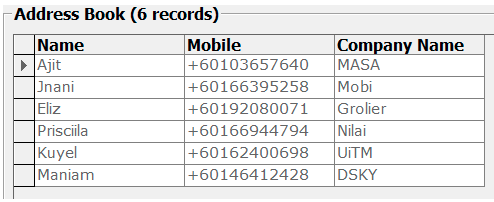
- The imported contacts will be shown at the address book of SMS360.
Control Panel for MobiGATE SMS Engine — Enterprise Edition version 1.6.2 is Released
Version 1.6.2: fixed “unhandled exception” bug when monitoring status of modem.
More Information
How to Send SMS Using Command Line (CLISMS version 6)
Install CLISMS version 6
- Install Setup.exe
 CISMS v6 wil be installed in C:/Program Files/Mobitek/CLISMS

- Open the Device Manager and look into the Ports to find the modem is connected in which port on “Sierra Wireless AT Command Port (UMTS)”.

How to Use CLISMS by Using “bat” File
- Open Right click on sms.bat. Then choose Edit.

- Then the notepad will display like this. Change the port, phone number and message with necessary. Save it.

- Go back to your path file C:/Program Files/Mobitek/CLISMS. Double click at sms.bat

- Then it will apear on command line form. This will automatically closed once the transaction of sending SMS is done.

- You can see the log file is generated on your path C:/Program Files/Mobitek/CLISMS.

- You may click on the log to see the transaction. Now you can see the record is there.

How to Use CLISMS in Command Line
- To sent out sms :-
clisms.exe /port=2 /to=0162211600 /msg=Alert [press “Enter”]
echo “sent” [press “Enter”]

More Information
Refer to the manual https://www.mobitek.my/main/how-to-send-and-read-sms-by-using-command-line/
MobiGATE SMS Engine — Enterprise Edition version 6.2.1 is Released
New: minor improvement; log file correctly state the version number.
Version 6.1: has fixed a bug — in the inbox table, both “scts” and “dateime_recv” have the same time stamp; by right “scts” should take the value from properties “scts” which is the time stamp of network operator.
Version 6.0: supports concatenation of multiple part of SMS when sending out, i.e. it can send SMS with more than 160 characters.
MOBITEK SMS Engine is able to work in Windows Server 2003 / 2008 / 2012, 32 bit and 6
MOBITEK SMS Engine — Enterprise Edition is a Windows Service that sends and receives SMS. System integrator and software developer do not need to write any code to build a SMS Gateway. The MOBITEK SMS Engine uses SQL Server database (MS SQL, MySQL, Oracle) to store incoming SMS, and to check if there is any pending SMS to be send out.
Your application or system just need to insert records into “outbox” table to send out SMS, and retrieve record from “inbox” table to read SMS.
MOBITEK SMS Engine has taken care all SMS transactions.
For Oracle support, separate license is required.
More Information
Memperkenalkan SMS Gateway Yang Pintar
MOBITEK® memperkenalkan kepada pengembang perangkat lunak di Indonesia SMS Gateway yang pintar dan mudah diintegrasi dengan apa-apa sistem dan aplikasi — MobiGATE serta SMS Engine Enterprise Edition
Untuk keterangan selanjutnya, sila mengunjungi laman-laman berikut:-
How to Remove Top Panel of Chassis
Applies to these products:-
- MOBITEK MobiGATE
- model: SG-B-8-L-W
- model: SG-B-8-U
- MOBITEK Q24 STK Modem Hub
- MOBITEK Q24 GSM Modem Hub
Manual for MOBITEK SMS Engine Enterprise Edition version 6, Edition no. 3 is Released
|
3rd |
3rd of December, 2016 |
|
- Manual: MOBITEK® SMS Engine – Enterprise Edition version 6.x
Manual for Software Developer and System Integrator - Edition Number: 3
- Download Link: http://mobitek.my/download/MOBITEK SMS ENGINE — ENTERPRISE EDITION/MOBITEK SMS Engine — Enterprise Edition v.6 Guide.pdf