| TEST OBJECTIVE | TESTING METHODOLOGY | TEST RESULT |
| Does MOBITEK S80’s USR-VCOM (ELTIMA virtual serial port) support Windows 11? | USR-VCOM version = 3.7.1.520 | |
| Does MOBITEK Q25’s USR-VCOM (ELTIMA virtual serial port) support Windows 11? | USR-VCOM version = 3.7.1.520 |
Introducing MOBITEK Q25 4G Modem to Replace GSM Modem for SMS
We are pleased to announce our new modem MOBITEK Q25 .
MOBITEK Q25 is a 4G Modem for IoT and SMS applications. Used by software developer to develop a SMS gateway, a SMS server, 2 factor authentication, one-time password, alert, notification and messaging solutions.
MOBITEK Q25 can replace these GSM modem models:-
- MOBITEK S80
- MOBITEK Q24
- Sierra Wireless FXT009
- Sierra Wireless FX100
- Wavecom M1306B / M1206B
- Wavecom Fastrack Go
- Wavecom Fastrack Xtend FXT001
- iTegno 3000
- iTegno 3800
Key Features
- 4G
- triple connectivity: USB Type-C, LAN and serial port
- communication method: SMS, E-Mail, MQTT and GNSS
- support MOBITEK SMS Gateway Development Kit
For further information, please visit
Change Log of SMS360
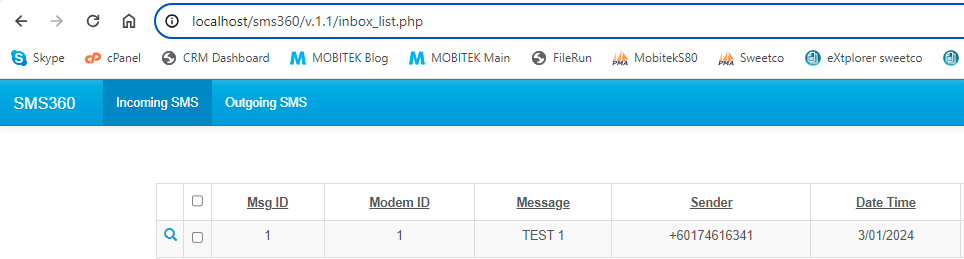
v. 1.1 2024-01-03 Kaizen Completed
Add “Incoming SMS” tab
| BEFORE | AFTER |
| “Incoming SMS” tab that display ‘Inbox” table in grid format. |

MODIFICATION in PHPRunner
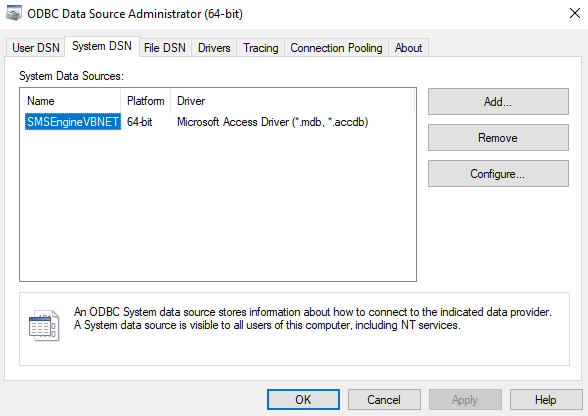
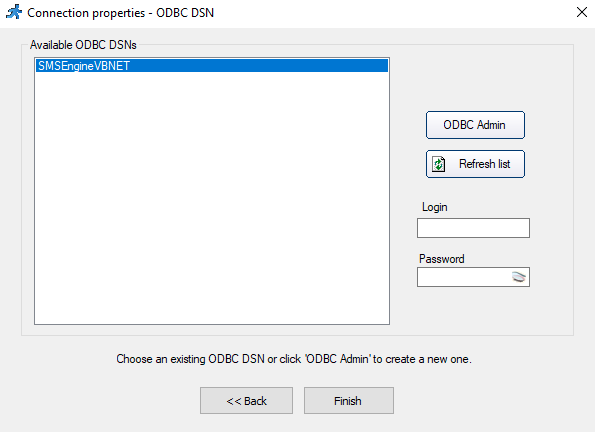
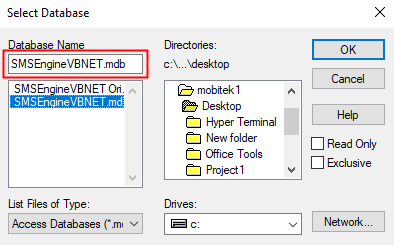
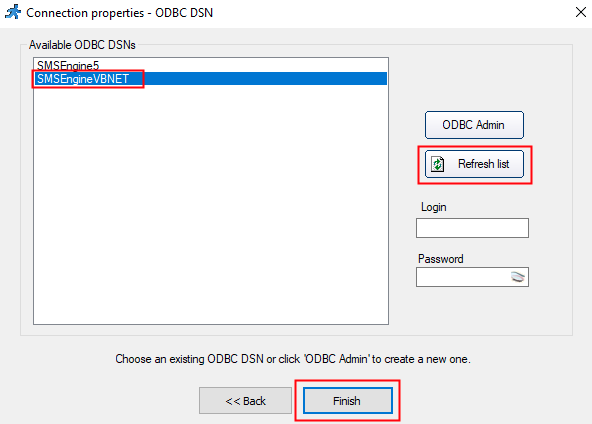
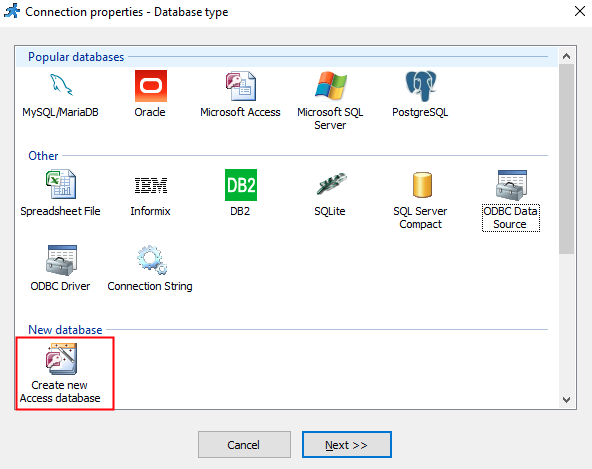
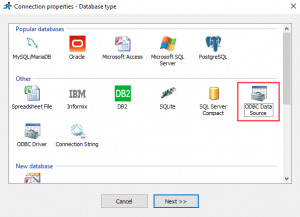
- Add new connection to “SMSEngineVBNET.mdb”
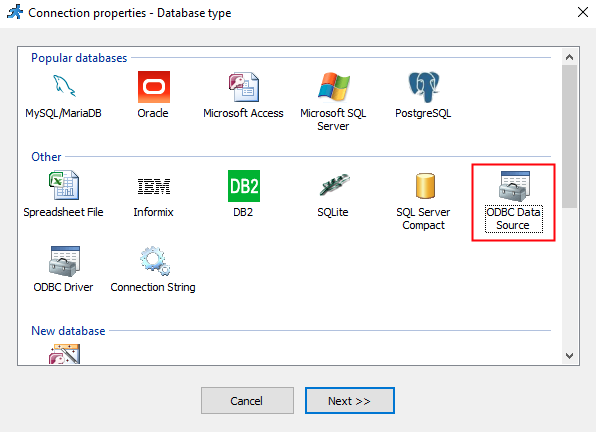
- Add “Inbox” table to the project.
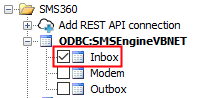
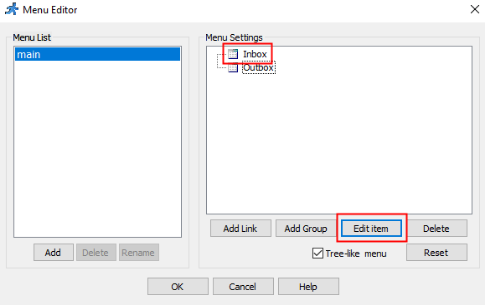
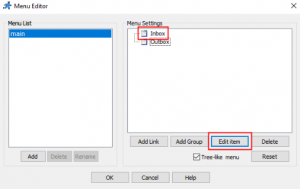
- Go to “Menu editor”. In “Menu Settings” section, select “Inbox” -> “Edit item”.

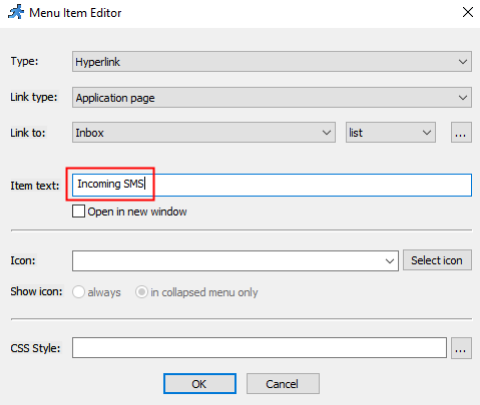
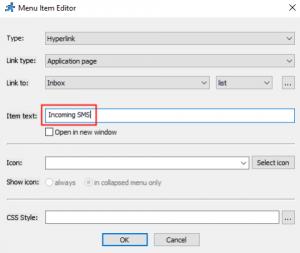
- In “Menu Item Editor”, rename the “Item text” to “Incoming SMS”.
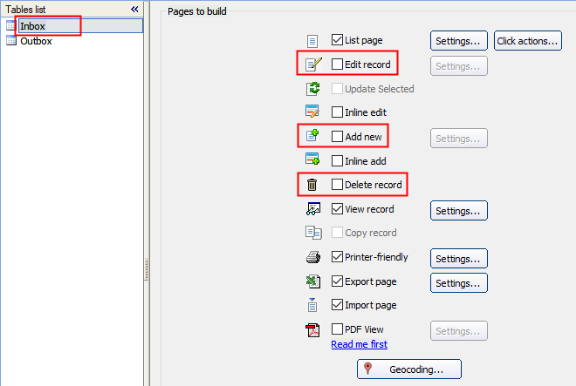
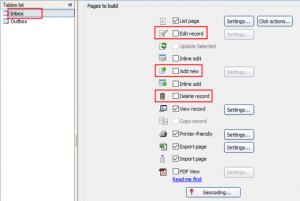
- Go to “Pages” tab. In Tables list, select “Inbox”. Uncheck “Edit record”, “Add new” and “Delete record”.
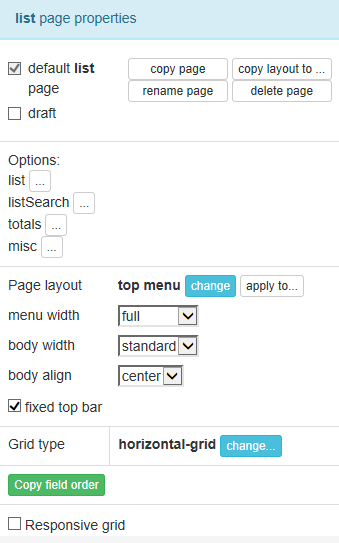
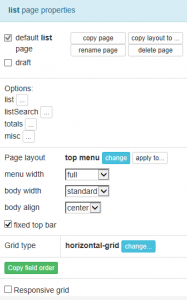
- Go to “Designer” tab, select “Inbox” in Tables list, set the page properties as below:
Add “Outgoing SMS” tab
| BEFORE | AFTER |
| “Outgoing SMS” tab that display “Outbox” table in grid format. |

MODIFICATION in PHPRunner
- Add “Outbox” table to the project.
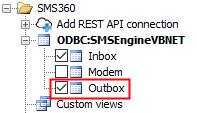
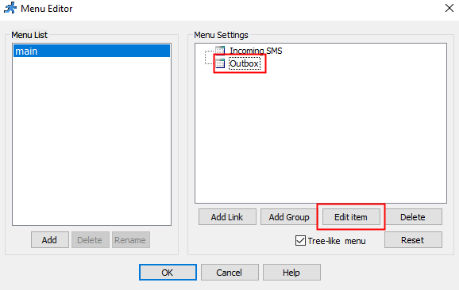
- Go to “Menu editor”. In “Menu Settings” section, select “Outbox” -> “Edit item”.

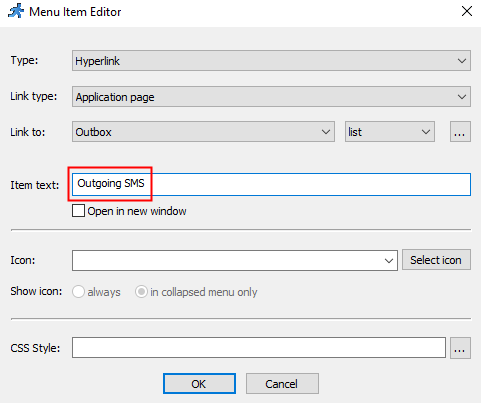
- In “Menu Item Editor”, rename the “Item text” to “Outgoing SMS”.
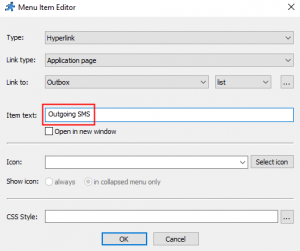
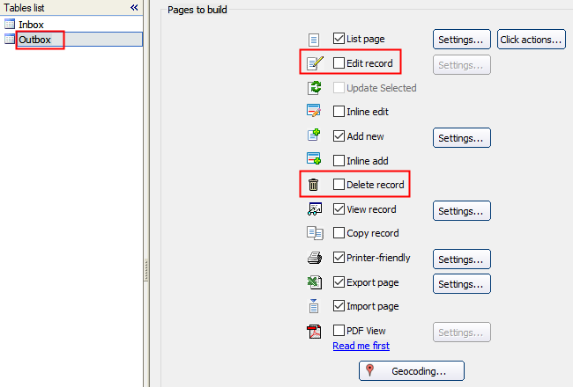
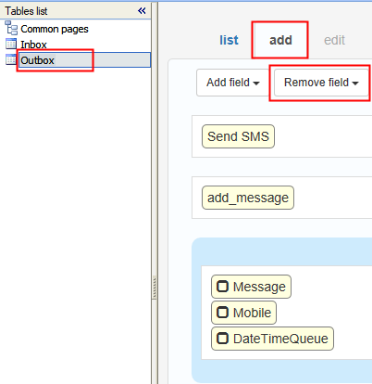
- Go to “Pages” tab. In Tables list, select “Outbox”. Uncheck “Edit record” and “Delete record”.
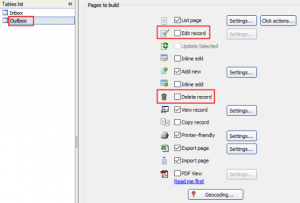
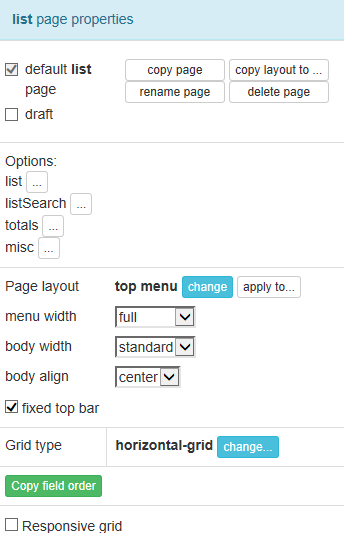
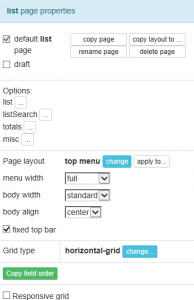
- Go to “Designer” tab, select “Outbox” in Tables list, set the “Page layout” as below:
Add button “Send SMS” into “Incoming SMS” tab
| BEFORE | AFTER |
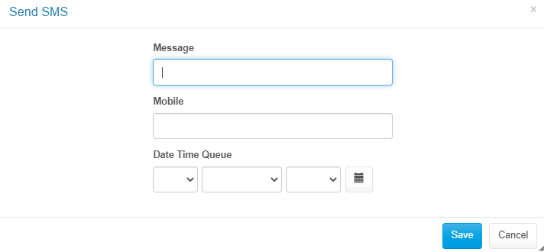
| “Outgoing SMS” tab has a button “Send SMS” that insert a new record into “Outbox” table so that a SMS can be send out by SMS Engine — Basic Edition. |
MODIFICATION in PHPRunner
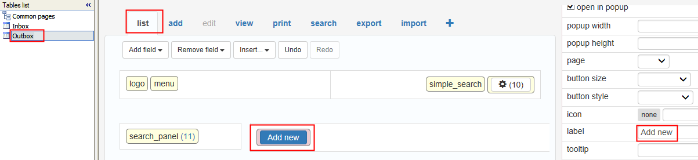
- Go to “Designer” tab. Select “Outbox” in Tables list. Click on “list” tab, click “Add new” button. Rename the text in “label” to “Send SMS”.
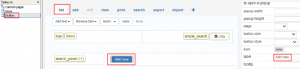
- In the same “Designer” tab, select “add” tab. Click “Remove field” dropdown and remove all fields except “Message”, “Recipient” and “DateTimeQueue”.

Add “http://localhost/sms360/v.1.1”
| BEFORE | AFTER |
| Localhost in HPC-8300 can access the PHP files on “http://localhost/sms360/v.1.1” |
MODIFICATION in PHPRunner
- Open “..\output\connections\ConnectionManager.php”
- Go to the line “$data[“ODBCString”]” and change the value to:
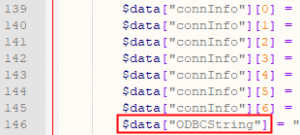
- “Provider=Microsoft.ACE.OLEDB.12.0;Data Source=C:\\Users\\mobitek1\\Desktop\\SMS360 v. 1.1\\SMSEngineVBNET.mdb;Persist Security Info=False;”;
- “Data Source” is where the “SMSEngineVBNET.mdb” located.
- Each directory must be separated by double backslash “\\”.
- Copy all files inside “output” folder to “C:\wamp64\www\sms360\v.1.1”
v. 1.1 2024-01-03 Beta Testing Completed
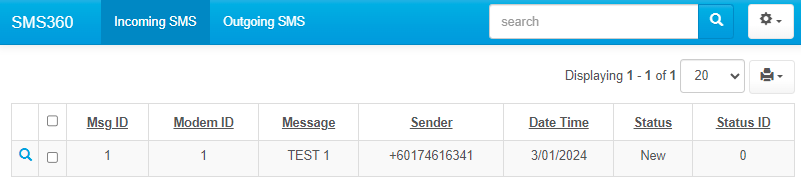
TEST OBJECTIVE: Can v.1.1 work with “SMSEngineVBNET.mdb”?
TEST OBJECTIVE: Can v.1.1 run in localhost of HPC-8300 (http://localhost/sms360/v.1.1) ?
| TESTING METHODOLOGY | TEST RESULT |
|
![]() |
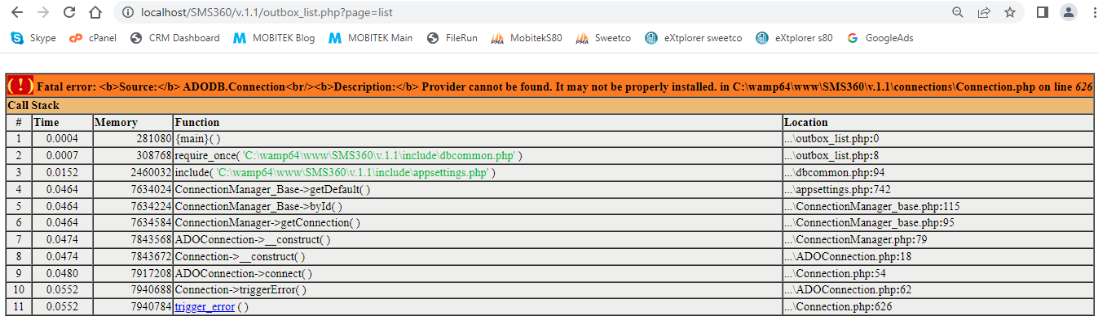
PROBLEM
| SOLUTION | SOLVED? |
| According to PHPRunner documentation, to use PHPRunner with Access database, we need to use 32-bit version (source: https://xlinesoft.com/phprunner/docs/connecting_to_ms_access_db.htm) |

Not tested |
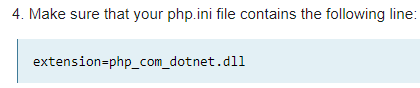
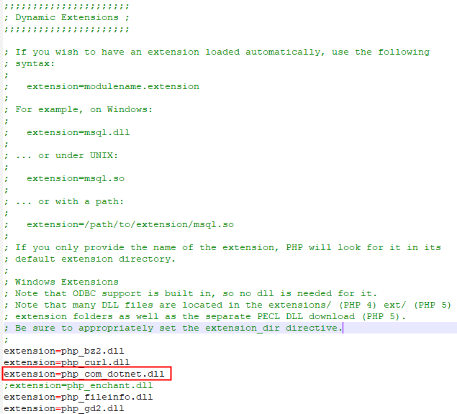
| Enable “php_com_dotnet.dll” extension in “php.ini” file (source: https://xlinesoft.com/phprunner/docs/connecting_to_ms_access_db.htm)
|
NO |
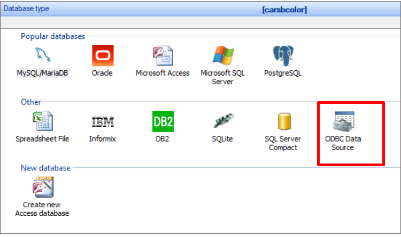
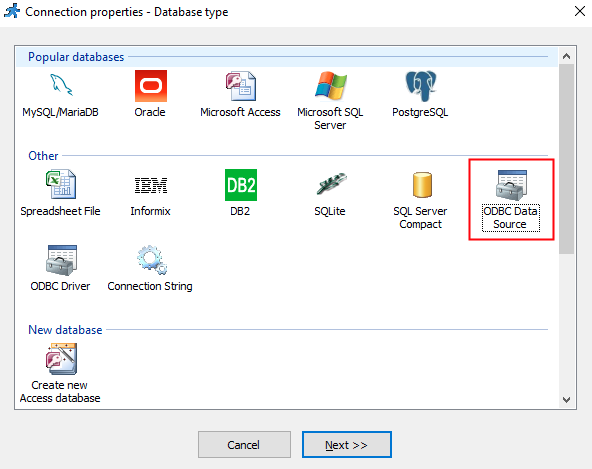
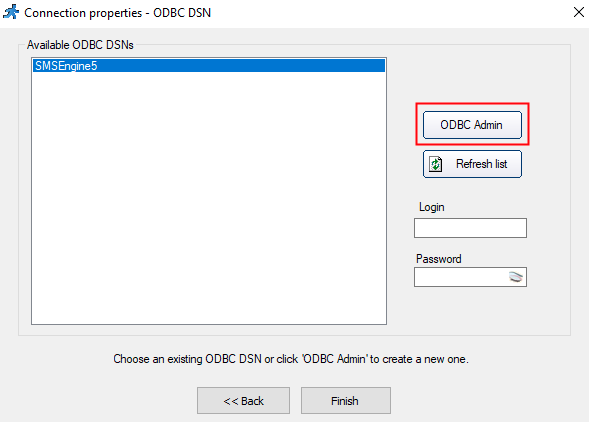
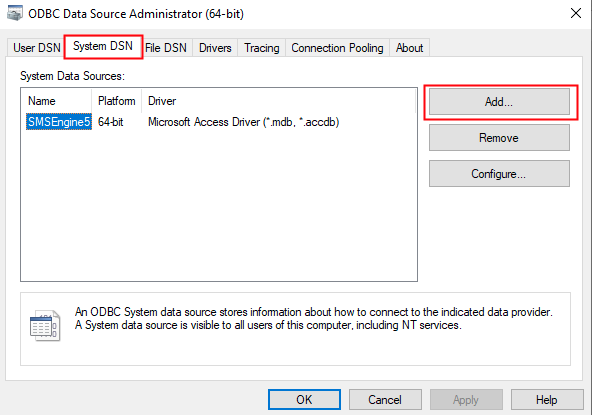
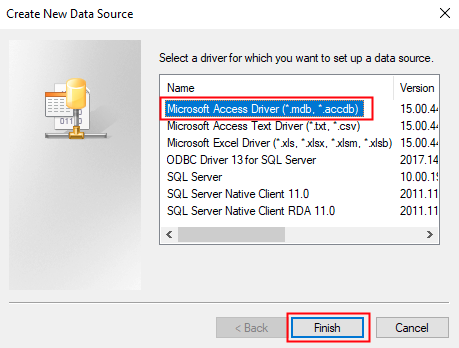
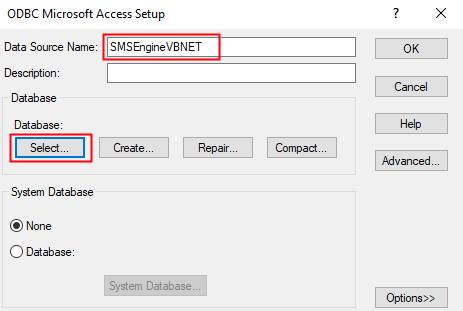
| Use ODBC in PHPRunner
refer to |
NO. ODBC does not work.
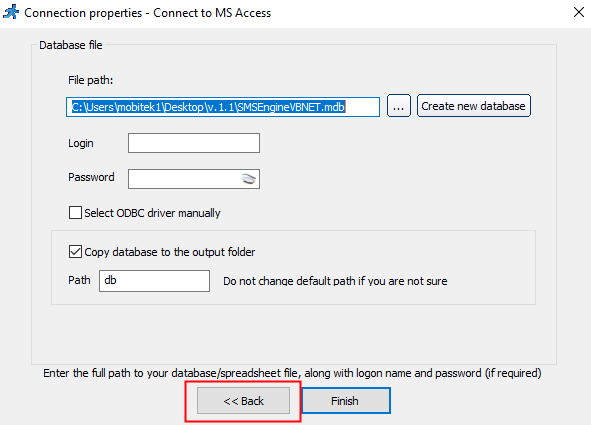
“ADODB.Connection” problem has disappeared but new error thrown Steps to use ODBC in PHPRunner:
It seems like PHPRunner still use Microsoft.Jet.OLEDB driver to connect to Access database which only work with 32-bit application as suggested by PHPRunner The problem with Microsoft.Jet.OLEDB driver also discussed by others
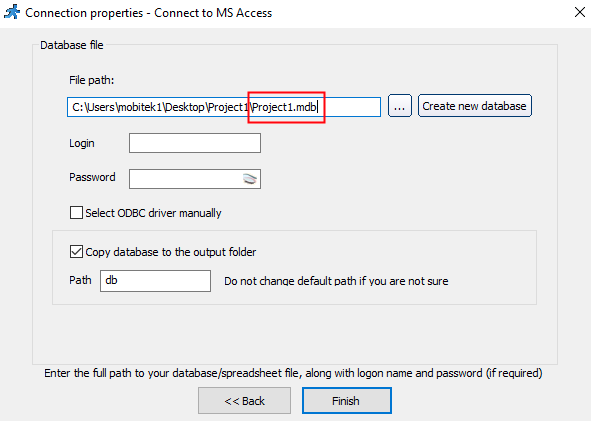
I’ve tried to create a new blank project using MS Access database in PHPRunner and also face the same problem:
The solutions to use Microsoft Access database in PHPRunner are:
|
| Edit the “ConnectionManager.php” to force it to use “Provider=Microsoft.ACE.OLEDB.12.0” instead of “Provider=Microsoft.Jet.OLEDB.4.0”
|
YES
Overwrite “..\output\connections\ConnectionManager.php” in line 146 from: Provider=Microsoft.Jet.OLEDB.4.0;DSN=SMSEngineVBNET;UID=;PWD=;Driver=C:\\PROGRA~1\\COMMON~1\\MICROS~1\\OFFICE15\\ACEODBC.DLL;DBQ=C:\\Users\\mobitek1\\Desktop\\SMS360 v. 1.1\\SMSEngineVBNET.mdb;DriverId=25;FIL=\”MS Access;\”;SafeTransactions=0″ to Provider=Microsoft.ACE.OLEDB.12.0;Data Source=C:\\Users\\mobitek1\\Desktop\\Project1\\SMSEngineVBNET.mdb;Persist Security Info=False; |
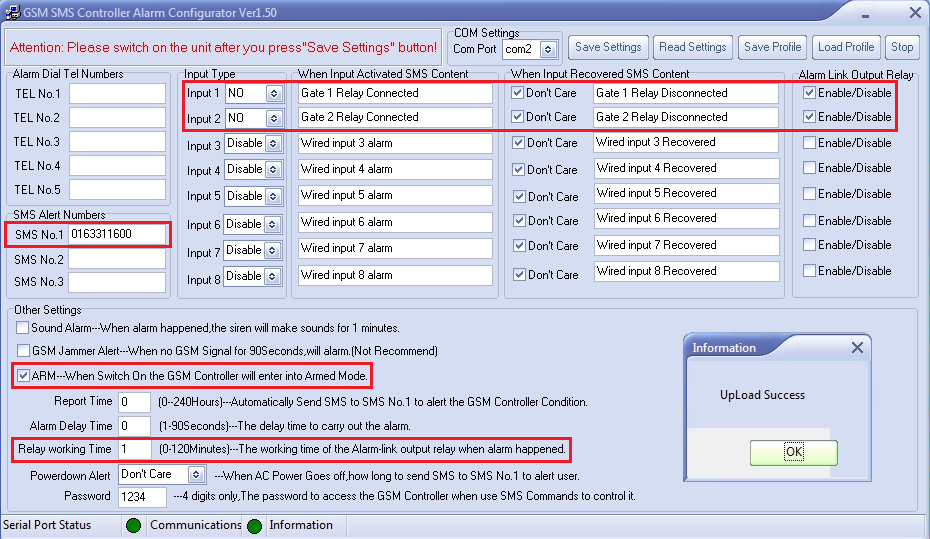
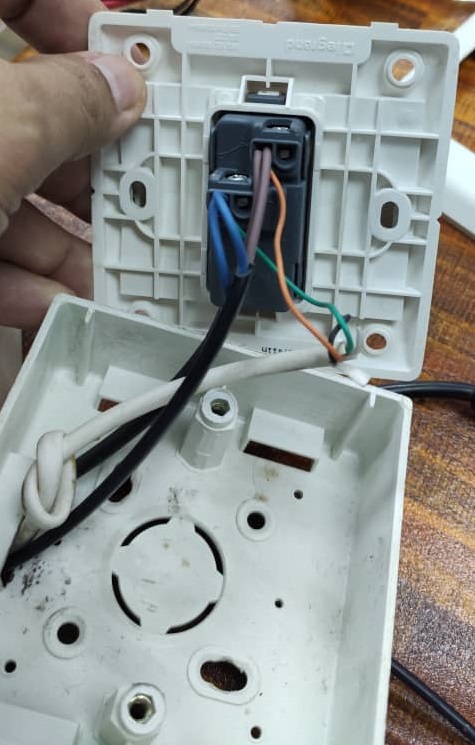
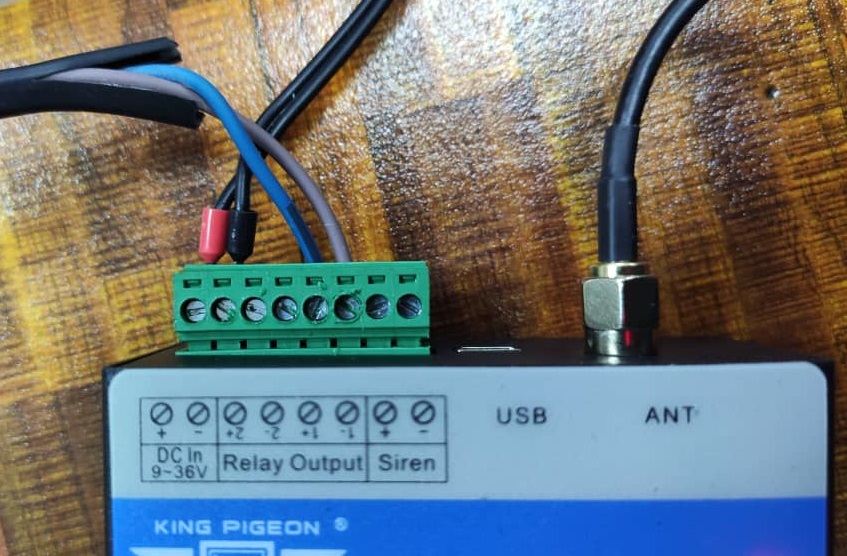
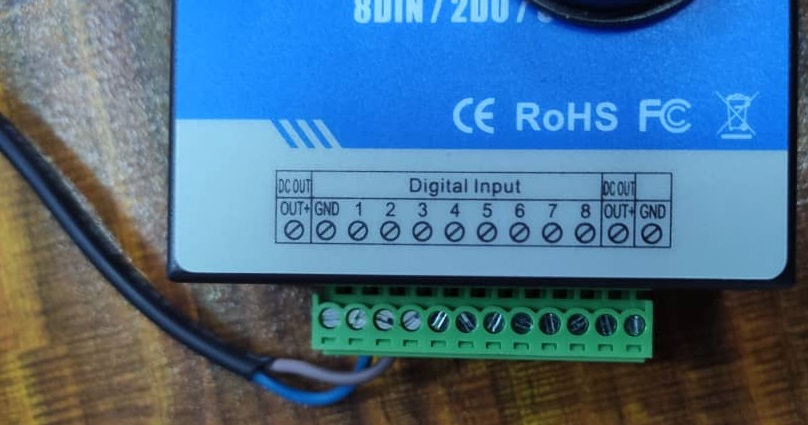
How Does MOBITEK S150 Remotely Open and Close Automatic Gate by SMS
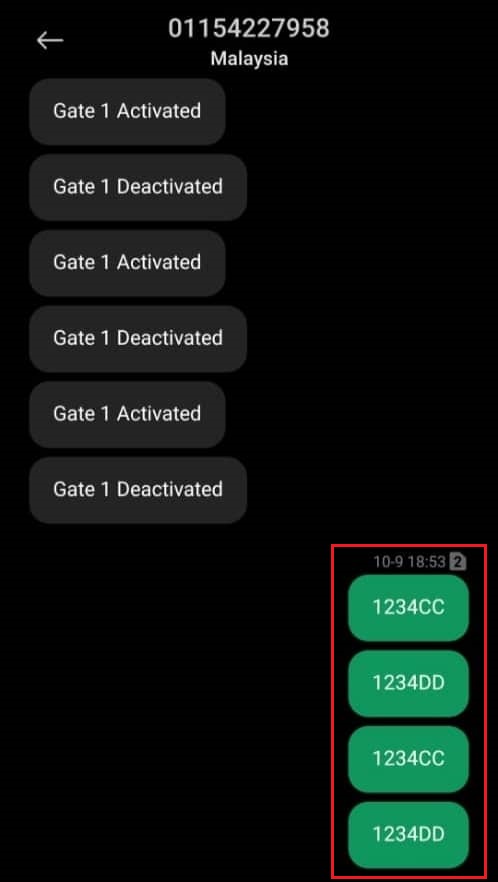
SMS Command
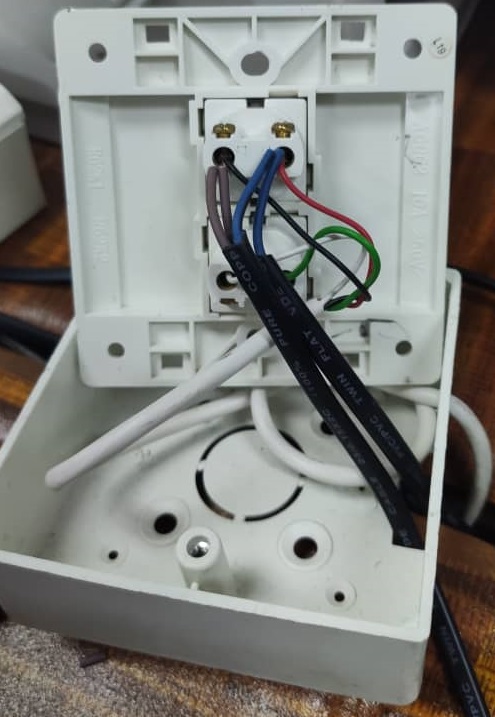
- To open the gate:
- send 1234CC to connect the relay
- send 1234DD to disconnect the relay
- To close the gate:
- send 1234CC to connect the relay
- send 1234DD to disconnect the relay
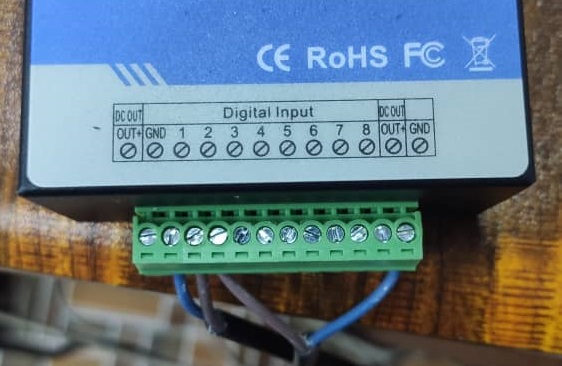
Steps — Wiring and Configuration
PHPRunner Allows Both Image and PDF File to be Uploaded
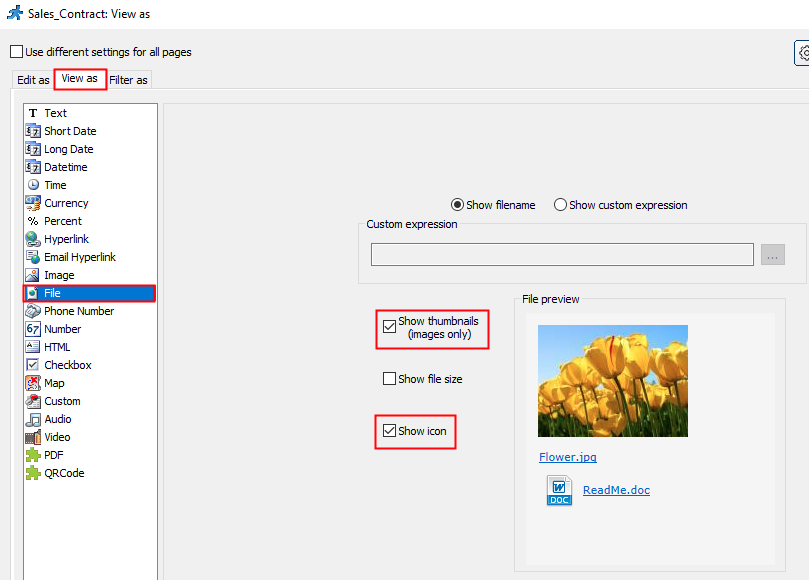
The Preferred Method — “View as File”
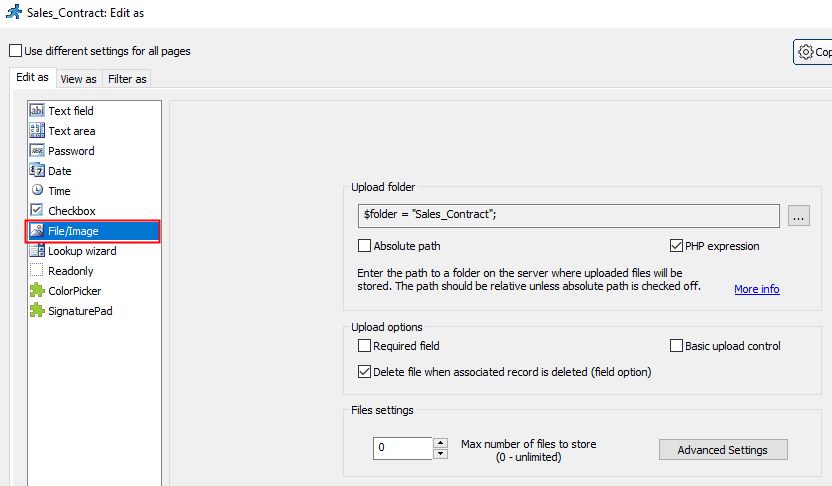
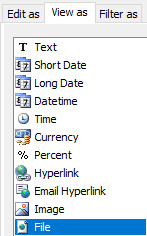
To set the field to allow both image and PDF file to be uploaded, go to “Designer” tab, select the field and click “View As/Edit As” button:
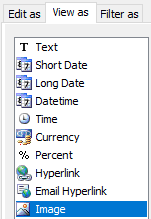
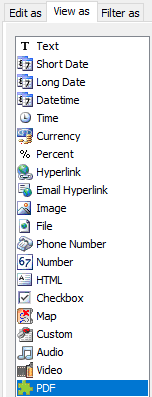
- In “View as”, set the field as “File”

- In “Edit as”:-

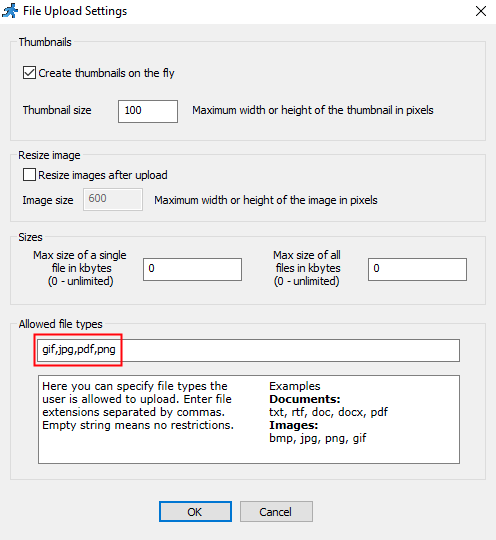
In “Advanced Settings”, set the “Allowed file types” to accept both image and document format or just leave it empty to allow all file formats:-


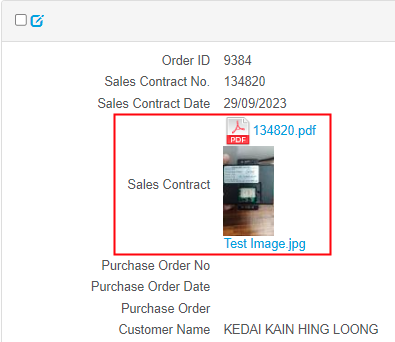
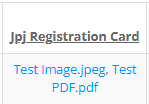
- The result:-

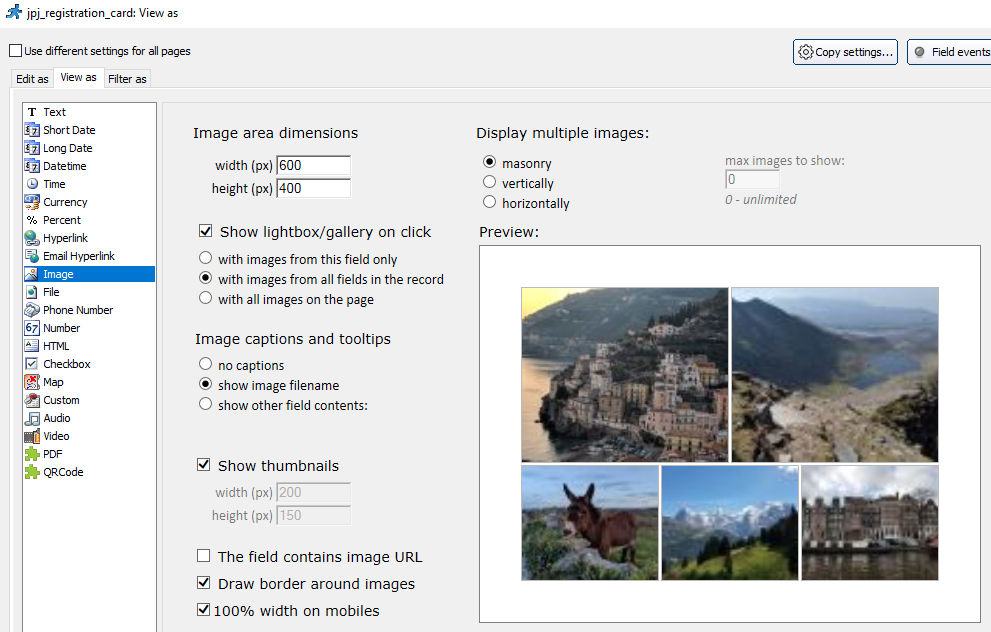
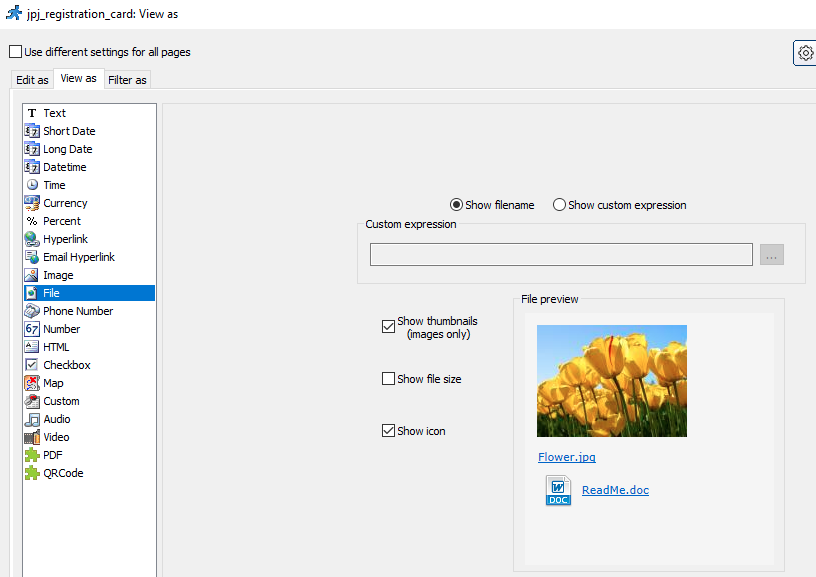
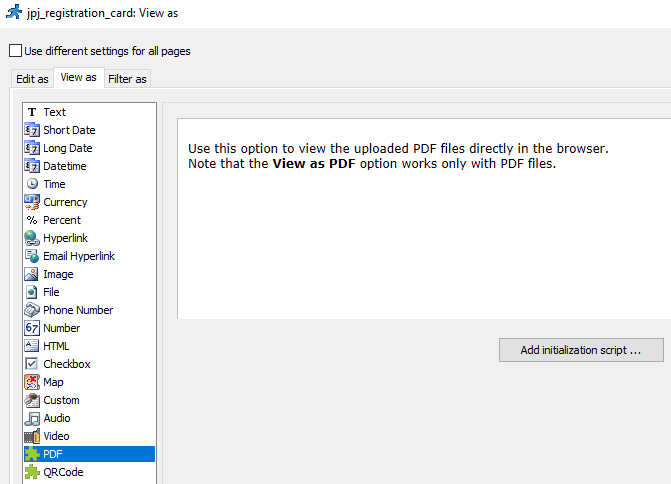
Difference Among “view as image”, “view as file”, “view as PDF”
View as “Image”

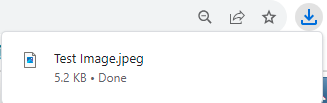
View as “File”

View as “PDF”

Conclusions on Both Image and PDF File Format
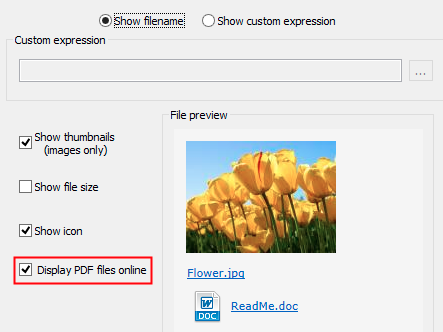
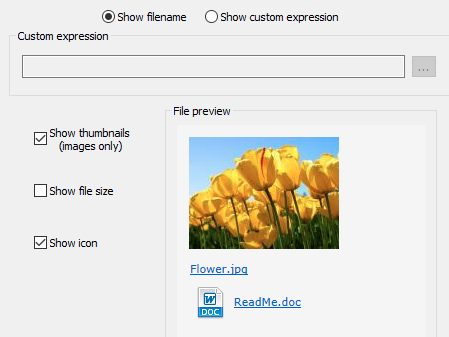
In the documentation (https://xlinesoft.com/phprunner/docs/view_as_settings_file.htm), there is “Display PDF files online” but not in our PHPRunner.
That’s the only way to view the PDF file uploaded online. But still the image file will be downloaded when clicked.
3 ways to show the uploaded image or file
SMS Engine Basic Edition version 7.4 is Released for MOBITEK Q25
Version 7.4: E-mail notification function was added. Notification is send out on these 2 conditions:
-
- when engine is stopped; and
- when any modem is unable to initialize.
Click on “Notification” menu.
MOBITEK® SMS Engine is provided for free with MOBITEK® Q25 4G Modem, Type M only.
MOBITEK® SMS Engine — Basic Edition is able to work in:
- Windows XP, Vista, 7, 8, 10 32-bit & 64-bit, 11 64-bit
- Windows Server 2003, 2008, 2010 R2, 2016, 2019 32-bit & 64-bit.
How It Works?
More Information
How to Solve MOBITEK S150 Rebooting Every 1 Minute
| PROBLEM | SOLUTION |
| Find out why S150 keeps rebooting every 1 minute.
|
The problem will occur when S150 is unable to reply by SMS to the “1234CC” and “1234DD” commands.
In our case, the cause is SMS quota in the Yoodo SIM card has been exchausted, so S150 is not able to reply via SMS to any command send to it. When it failed to send out SMS, it would self-reboot. This will be repeated for every 1 minute until SMS is successfully send out. Solution: Keep the credit balance available all the time to avoid the S150 rebooting every 1 minute in order to resend SMS. |
How to Use MOBITEK Q25 4G Modem as USB Modem for Internet Access
- Firstly, install USB Driver for MOBITEK Q25.
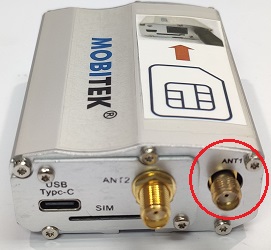
- Connect antenna to MOBITEK Q25. Use one antenna and connect it to “ANT1” is enough.

- Insert SIM card into the SIM card slot of MOBITEK Q25. Make sure the SIM card used has a subscription to internet.
- Connect MOBITEK Q25 4G Modem via the USB port.
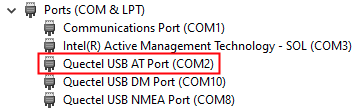
- Open Device Manager and check for COM Port of MOBITEK Q25 4G Modem. The installation of USB Driver of MOBITEK Q25 is successfull if the COM Port of MOBITEK Q25 4G Modem appear in Device Manager. For this example, the COM Port is “COM2”.

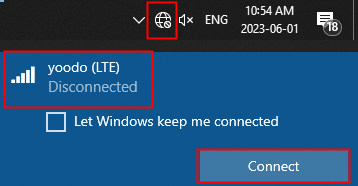
- Go to the Windows tray located in Windows taskbar.
- The TELCO of the SIM card in MOBITEK Q25 4G Modem will popup in the panel. For this example, it is “yoodo (LTE)”. Click “Connect” to connect to the TELCO network.

- If it successfully connected, the “network bar” icon will be shown in the Windows tray.

- To test the connection, open any browser and enter “www.mobitek.my“. The connection is successful if the page can load without error.
- Finally, Windows PC is able to connect to the internet.
For more information about MOBITEK Q25 Modem, visit :-
Introducing MOBITEK WhatsApp Notification Service — Receive WhatsApp Messages Sent from Any of Your System
This service allows you to receive WhatsApp messages sent from any systems.
Here is how it works:-
- You will be added into a WhatsApp group call “info@mobitek.my”.
- You can add anyone from your team into this group.
- Your system will direct e-mail notification to info@mobitek.my.
- Everyone in the group will receive WhatsApp notification sent by your system.
Note: this service does not support sending images and file attachments via WhatsApp.
Please contact us for a demonstration.
Moving Shared Folder to Another Disk Drive While Retaining Share Permission in Windows OS
How to move shared folder to another drive on Windows 11, 10
robocopy C:\SOURCE-SHARE D:\DESTINATION-SAHRE /R:5 /W:2 /Copyall /E /MIR
robocopy "K:\HPC-8300 Back-Up" "P:\HPC-8300 Back-Up" /R:5 /W:2 /Copyall /E /MIR