AirCard Wacther unable to detect Wavecom Fastrack Supreme 20 modem.
Category Archives: Support
How to Find the Version Number of SMS Engine — Enterprise Edition
Method 1: in log file
SMS Engine Enterprise Edition service (6.2.1) started
Method 2: in “Program and Features”
Method 3: in properties of “SMSSvc.exe”
More Information
Looking for STK API Sample Codes or STK Engine to Run Reload Transaction?
Looking for MOBITEK® STK API Sample Codes?
We have uploaded sample codes in VB.net and Java for MOBITEK® STK API version 6.5. You may download from here …
Don’t Want to Write Code? Then Use Engine
You can reduce development time by using MOBITEK® STK Engine version 4.5. Refer to user’s guide here …
MOBITEK® STK API version 5.0 End-Of-Life
We no longer support version 5, for more information, please read this …
MobiGATE: Monitor Your SMS Gateway (Modems) on Your Desktop
MOBITEK MobiGATE is a SMS Gateway (also refer as a modem pool or SMS channel) used for SMS broadcast. It supports 8 modems (SIM cards) and more.
Problem arises when there are too many modems to monitor and no centralised tool to assist.
The solution is a tool called “Control Panel”.
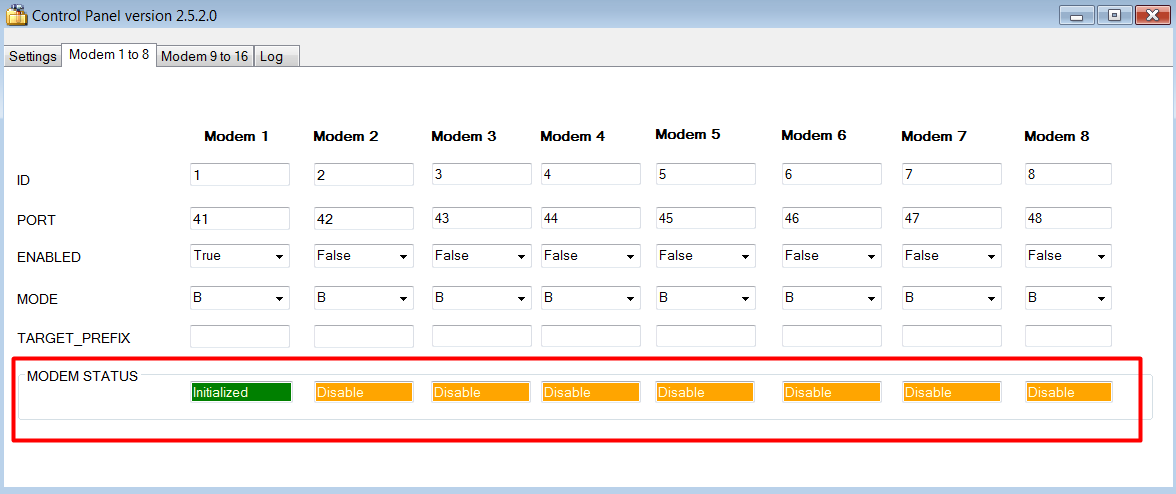
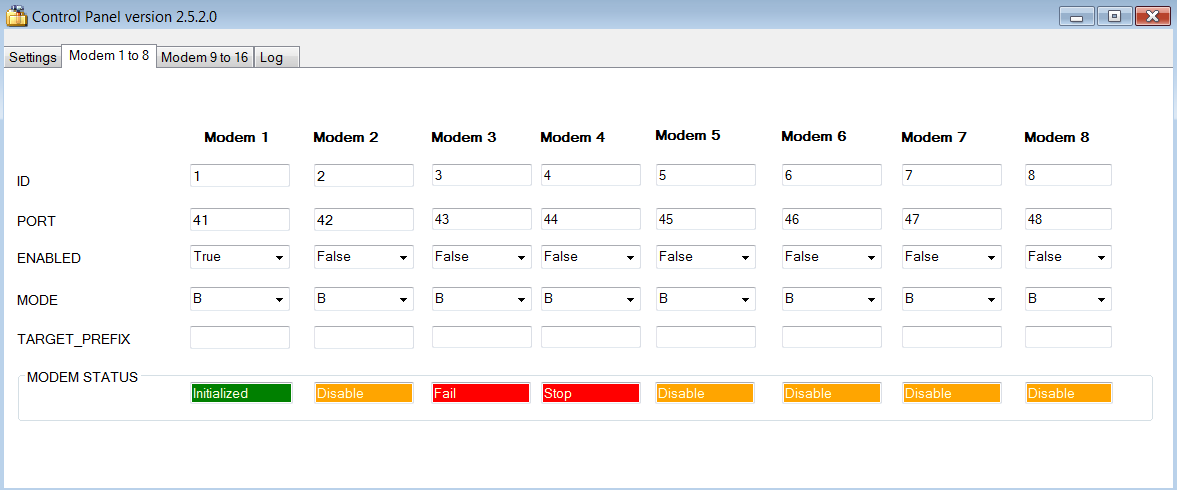
“Green” when modem is running; “Orange” when modem is disabled
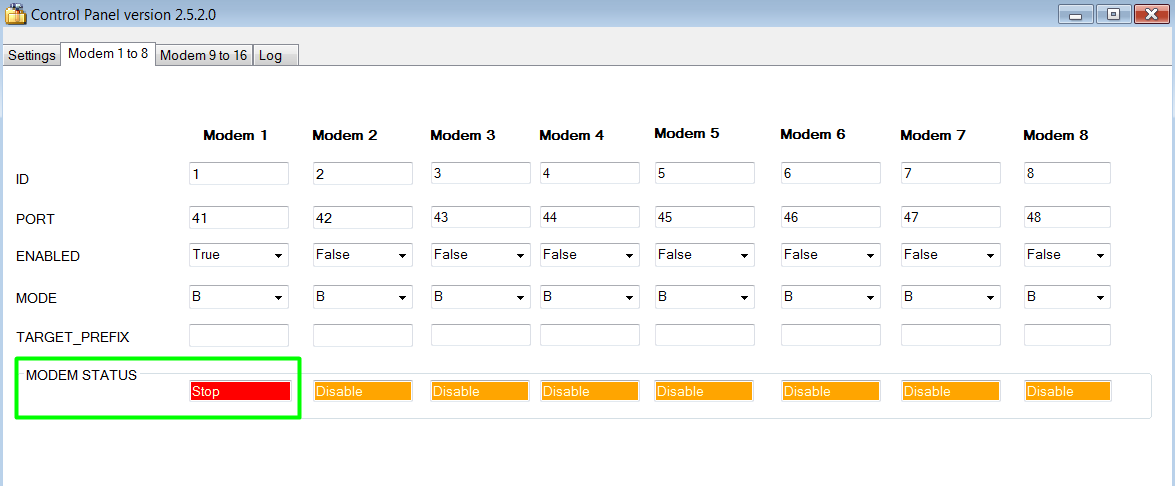
"Red" when modem is stopped or disconnected
We are pleased to announce version 3.3 of Control Panel has been released.
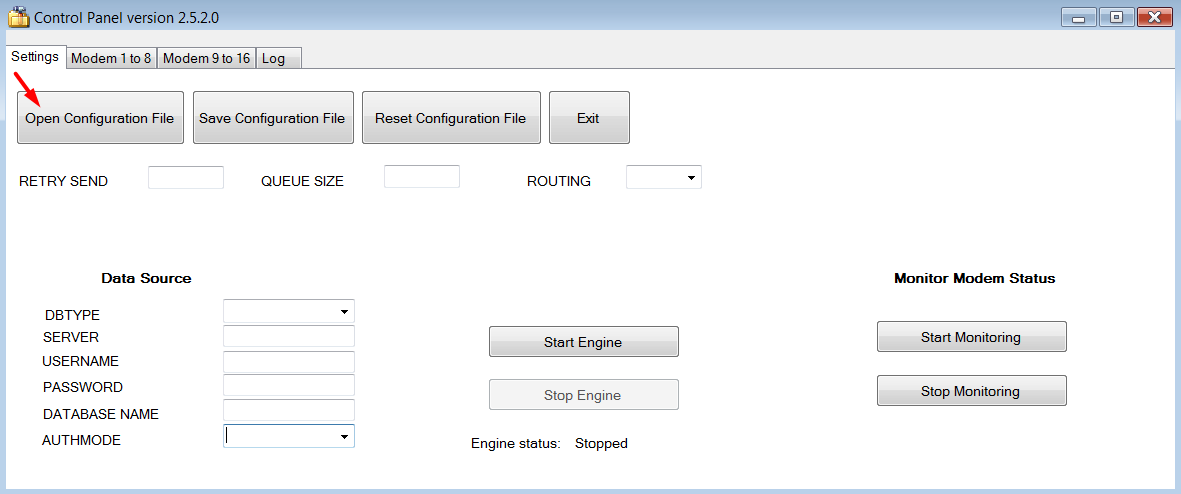
Features of Control Panel
- GUI tool to edit the “config.xml” (configuration file for MOBITEK SMS Engine — Enterprise Edition). Previously, notepad is being used to edit the configuration file;

- supports SMS Engine — Enterprise Edition version 6 and 7 (version 5 is NOT supported);
- to start and stop the service of SMS Engine;

- to monitor up to 16 modems or more;

- to view log file without the need of opening notepad

More Information
- Please refer to user’s guide .
- Find out more about powerful SMS Gateway — MobiGATE and SMS Engine.
Both AirCard Watcher and SMS360-Email Can Run at The Same Time
Both AirCard Watcher and MOBITEK SMS360-Email were started from 2018-7-17, 3:51 pm until 2018-7-18, 3:51 pm
During this time, AirCard Watcher is connected to 3G network with mobile data enabled.
Result: MOBITEK SMS360 E-MAIL is working, able to convert e-mail to outgoing SMS. Both AirCard Watcher and MOBITEK SMS360-Email were able to run at the same time.
START:
END:
MOBITEK SMS360 E-MAIL is working, able to convert e-mail to outgoing SMS. SMS is received:-
How to Solve “The user name or password is incorrect” Error in Windows 8
Problem: when assessing Windows XP PC from Windows 8 PC, Windows 8 PC always receive an error message “The username or password is incorrect” even though the user name and password is correct and previously Windows 8 PC can access or connect to the Windows XP PC.
Solution: the date and time of Windows XP PC is incorrect, change them to the current date and time.
Download AirCard Watcher for MOBITEK S80 3G Modem
Download link: https://mobitek-system.com/Download/blog/MOBITEK%20S80_AirCard_UMTS_Watcher_Generic_Build2584.zip
More Information
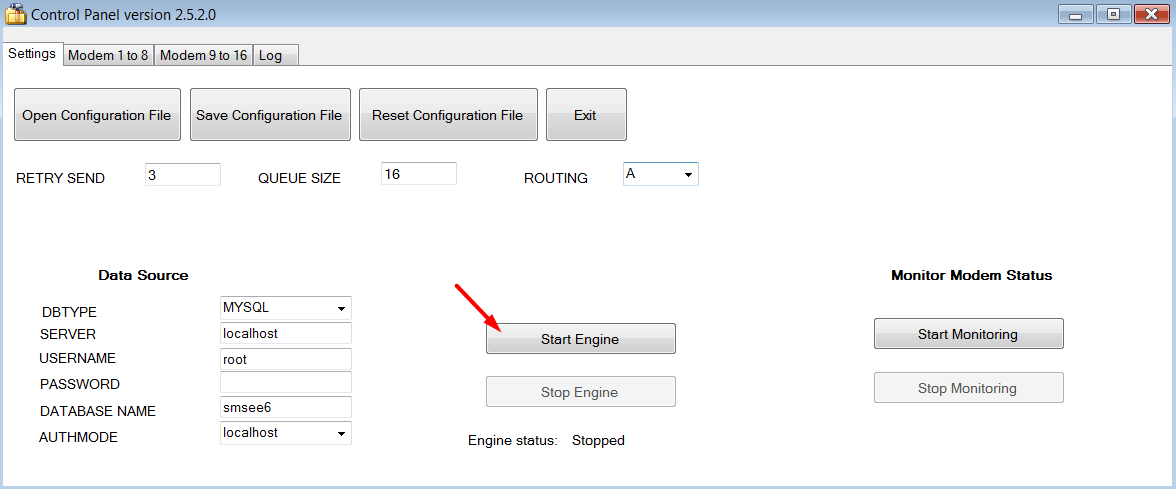
Edit “config.xml” File Using Control Panel for SMS Engine — Enterprise Edition
We are pleased to announce the release of version 2.4.1 of Control Panel for SMS Engine — Enterprise Edition.
The SMS Engine used by MOBITEK MobiGATE model SG-B series.
Benefits
- A GUI tool to edit the “config.xml” (configuration file for MOBITEK SMS Engine — Enterprise Edition). Previously, notepad is being used to edit the configuration file.
- To monitor the status of each modem.

User’s Guide
Please refer to https://www.mobitek.my/main/software-development-kit/users-guide-for-control-panel-version-2-4-for-sms-engine-enterprise-edition/
Download
Existing customer Please download the installer from https://www.mobitek.my/main/software-development-kit/users-guide-for-control-panel-version-2-4-for-sms-engine-enterprise-edition/#DOWNLOAD_THE_INSTALLER
How to Solve the Problem of VCOM is Connected But SMS Engine Fails to Initialized
Applies To
- MOBITEK MobiGATE Model SG-B series
- MOBITEK SMS Engine — Enterprise Edition version 5, 6 and 7
Problem
- Despite blue LED of MobiGATE is blinking (connected to mobile network), the log file of SMS Engine shows “Modem ID 1 : failed to initialize” or Modem ID 1 has no response in the hyper terminal; and
- VCOM shows NET Status is “Connected” and COM Status is “Open”.

Solution
- Reset all ports; or/and
- Configure the baud rate of all modems in MobiGATE to “115200”.
Reset all ports
- Open web browser, key in the IP address of MobiGATE.

- Goto “Reset Ports”.

- Click “All” then “Submit”

- Goto “Save Config” then click “Save”

Configure the baud rate of all modems in MobiGATE to “115200”
- Open web browser, key in the IP address of MobiGATE.

- Goto left side of navigation bar, select “Async”, to display “Port1”, “Port2”, … “Port8”.

- Goto “Port1”, set the “baudrate” to “115200”, check the box “Apply to all” and “Submit”. This will make all ports (modems) to have the same baud rate at “115200”.

- Next goto “Save Config” then click “Save” button.

How to Set-Up MOBITEK S52 3G Modem in Linux Running in VirtualBox
Configuring VirtualBox
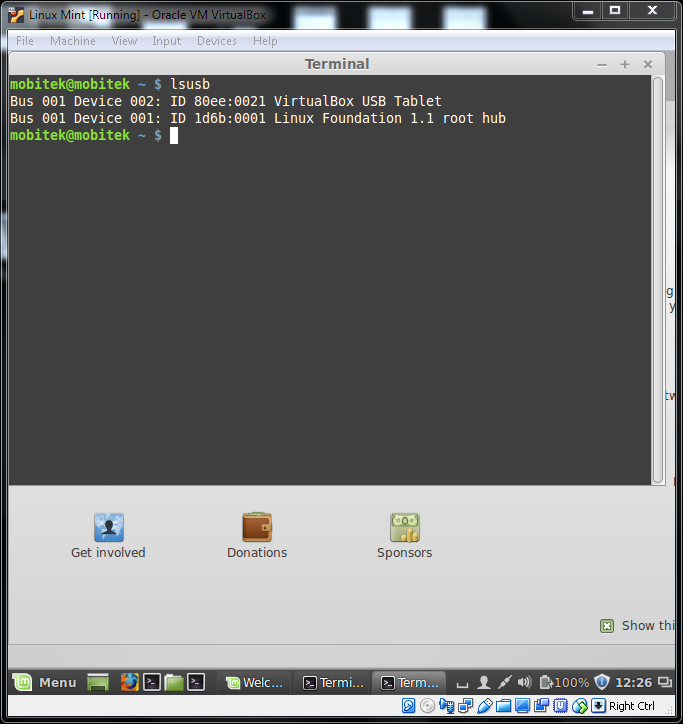
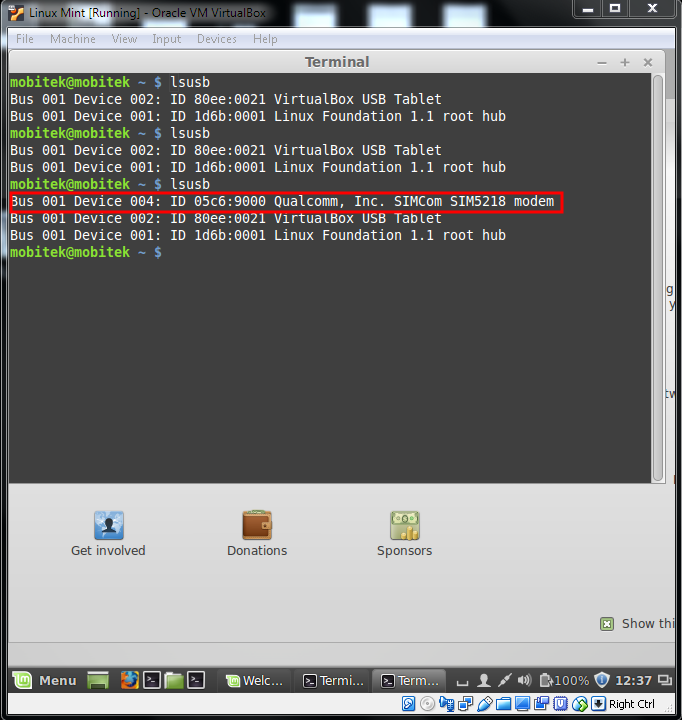
- Type “lsusb” in Terminal to check if the modem is connected

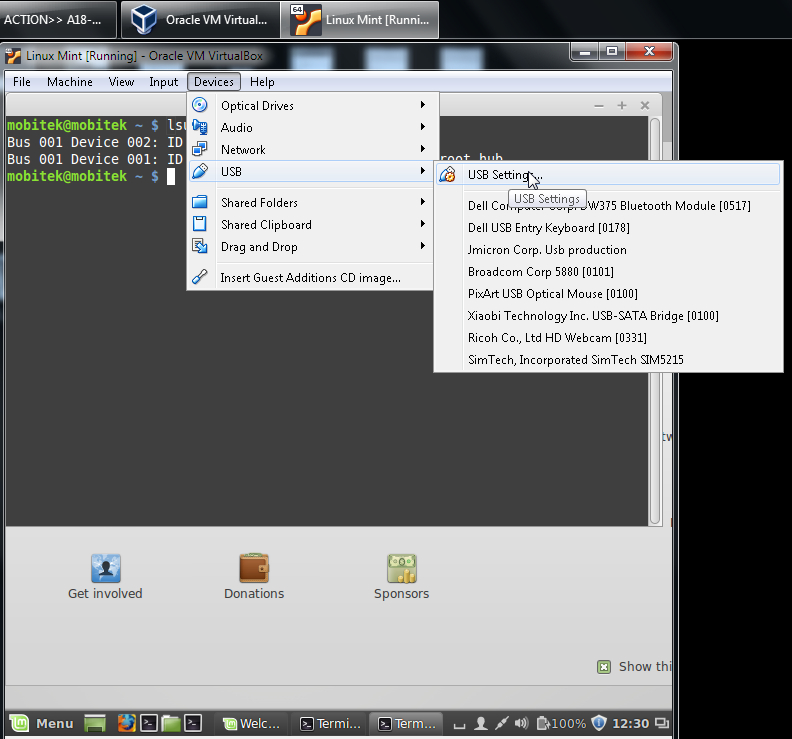
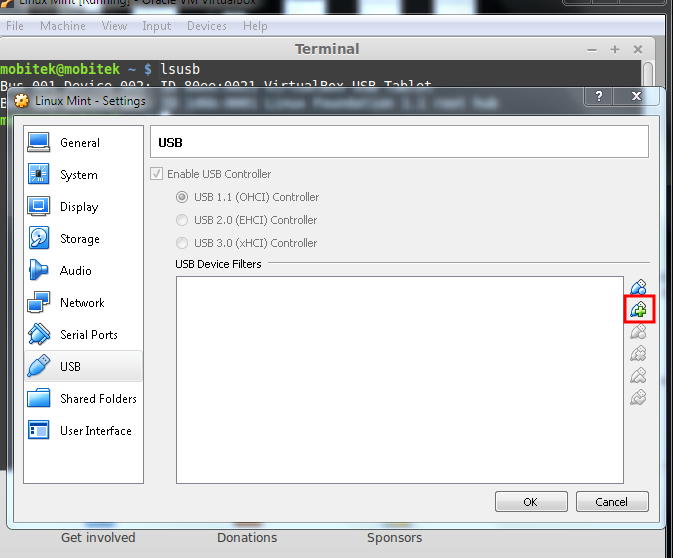
- If not goto USB Setting

- Click add

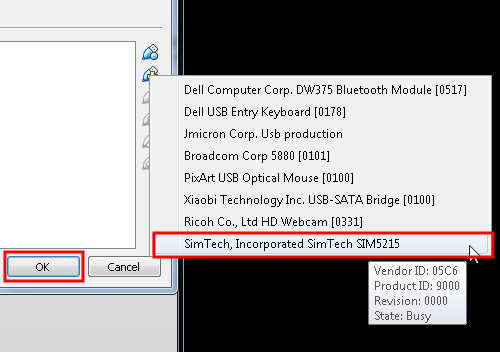
- Click SimTech and then click OK

- Type “lsusb” in Terminal for confirmation
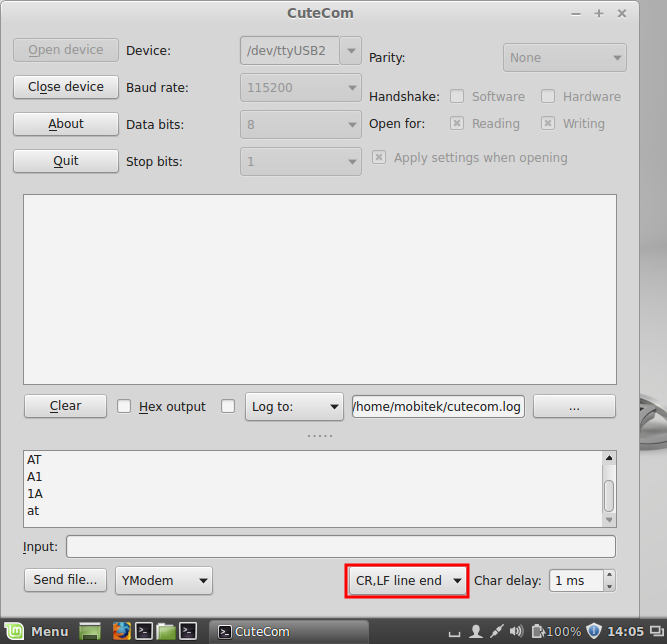
CUTECOM
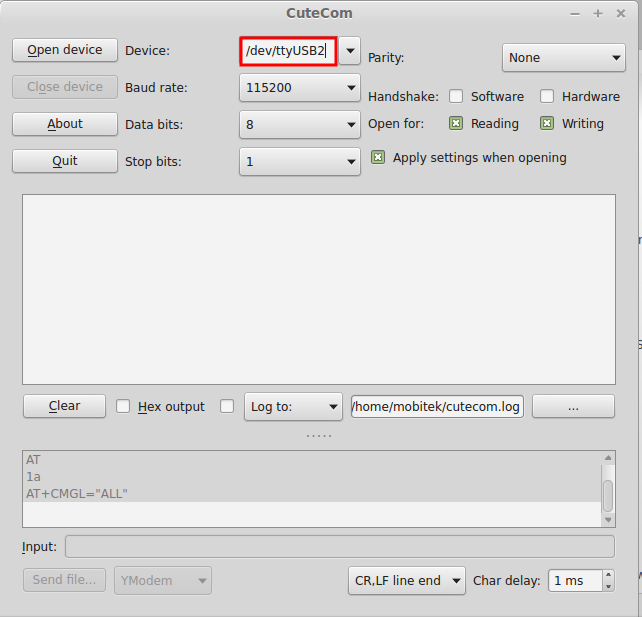
- Change to USB2

- Fix the mode to “CR,LF Line end”

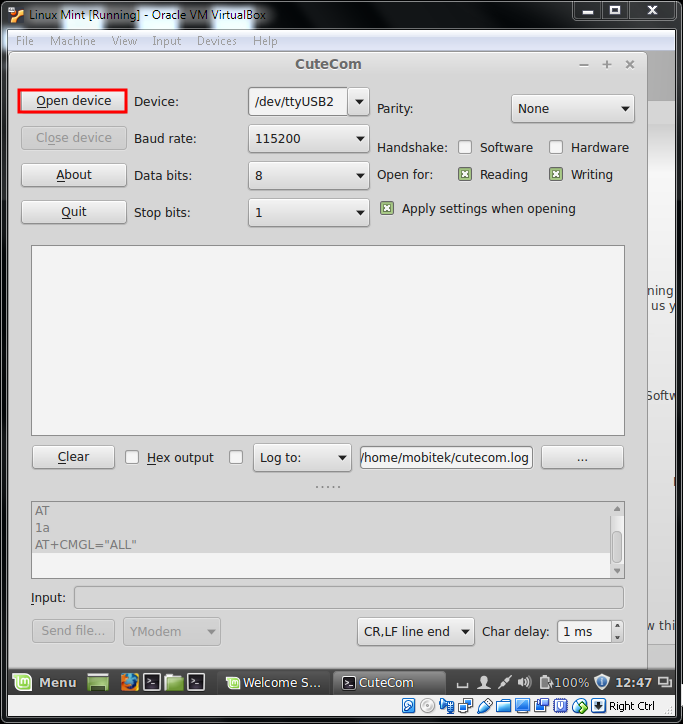
- Click Open device

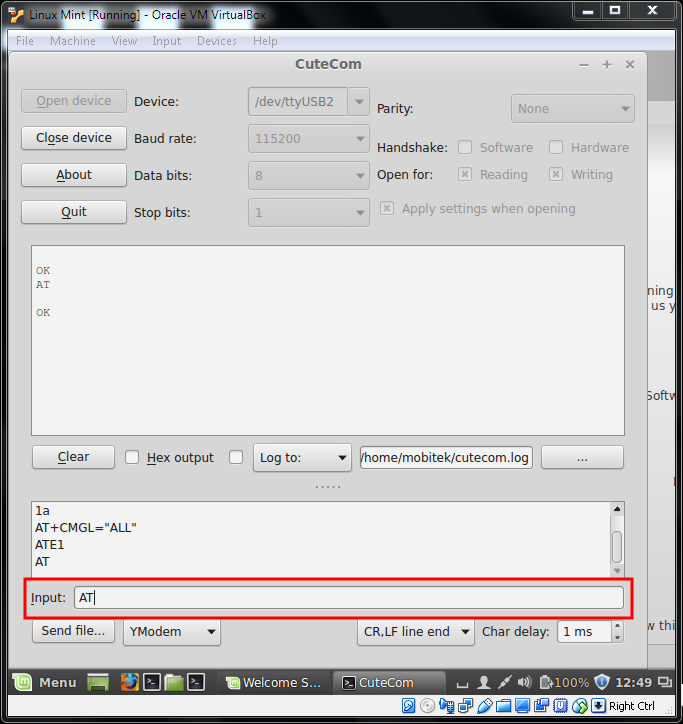
- Type command in this space

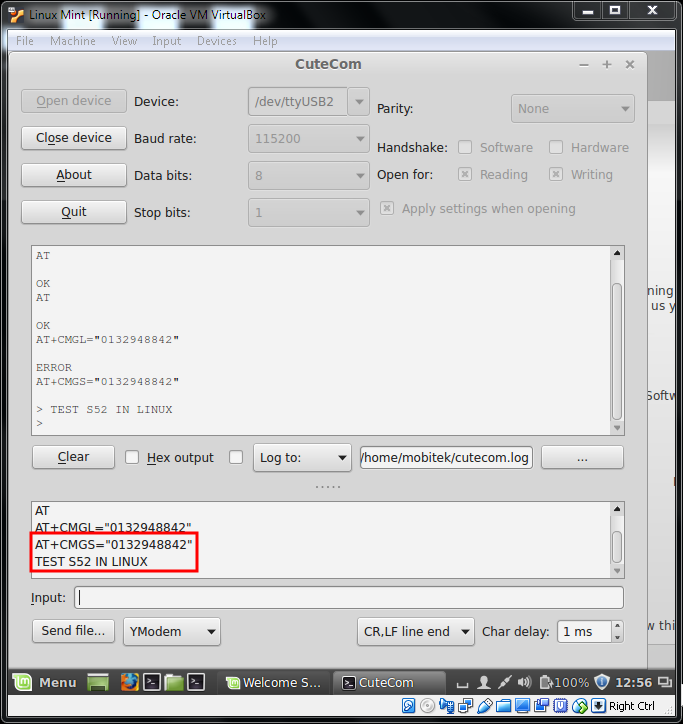
- Type (AT+CMGS=”SIM number”) then press enter

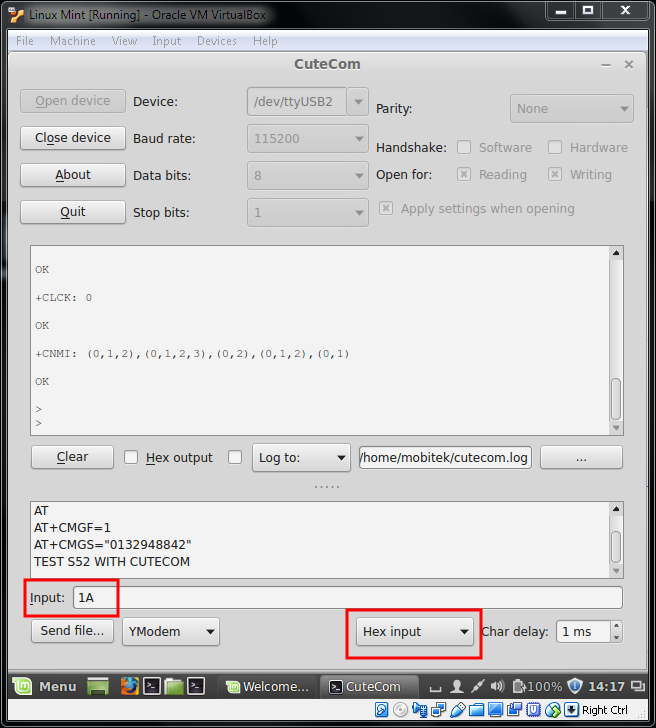
- Change mode to “Hex input” and type “1A” to send SMS, this is an alternative way for “CTRL Z”

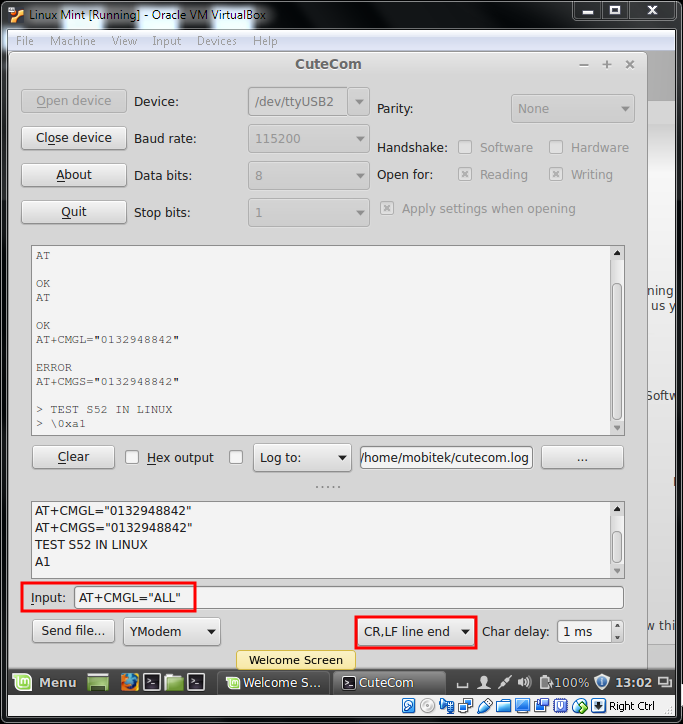
- Change the mode to “CR,LF Line end” and type the command to read SMS, AT+CMGL=”ALL”