- Connect modem to host OS.Open VirtualBox, go to the setting of your virtual machine.

- Go to Serial Ports and set the setting as below:
- Enable Serial Port.
- Set Port Number: (port number inside the guest OS)
- Port Mode: Host Device
- Path/Address: (port number of modem that is connected to host OS)
Note: Windows provides legacy names only for COM ports 1 through to 9. For all other COM ports you must use the full device naming convention under Windows. So if you decide to use COM10 instead of COM9, using COM10 at Path/Address won’t work. Instead you have to use “\\.\COM10”. (source: https://stackoverflow.com/questions/37728628/connection-through-com-port-between-host-and-guest-in-virtualbox)
Click OK

- Note: if this step is skipped, hyper terminal will have no response if connected to the “Sierra Wireless AT Command Port”
- Run the virtual machine.

- Go to device manager in VirtualBox to check the COM Port. In this example, the MOBITEK S80 Modem that is connected to the USB port (COM6) of host machine, the USB port is then mapped serial port (COM1) of VirtualBox.

- In VirtualBox, the modem is connected to COM1 which is the serial port .
- In the host machine, the same modem is connected to COM6 which is the USB port.
Author Archives: Taufiq
How to Recover Lost Partition in Hard Disk
Problem: partition(s) in external hard disk (using hard disk docking station) was lost due (cannot be seen), sometimes Windows will prompt for formatting the hard disk. This problem is caused by:-
- “safely remove” was not used to remove the external hard disk;
- hard disk corruption
Solution: there are various recovery tools available
TestDisk is the free and fast while the rest comes with limitations. In this tutorial, TestDisk will be used. The only disadvantage with TestDisk — using command line instead of GUI.
First of all, to recover the lost partition, the same hard disk docking station must be used. I have moved the external hard disk to another docking station and all the above recovery tools cannot detect the lost partition.
- run “testdisk_win.exe“
- select “Create”:-

- select the hard disk having lost partition:-

- if hard disk is formatted using Windows, then select “Intel”:-

- select “Analyse”:-

- select “Quick Search”:-

- after “Quick Search”, it will detect lost partitions in green (in this example there are 2 partitions):-
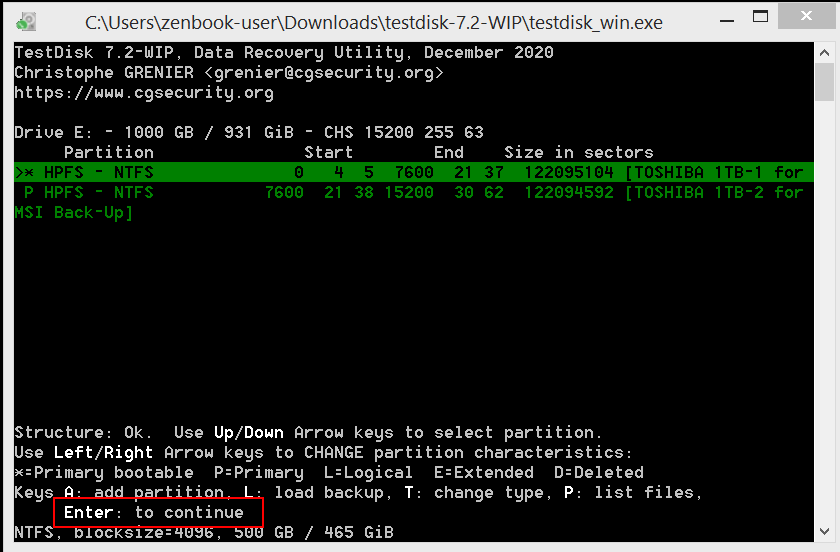
- select “Write” to recover the lost partitions:-

- type “Y” to write partition:-

- select “Ok” to reboot:-

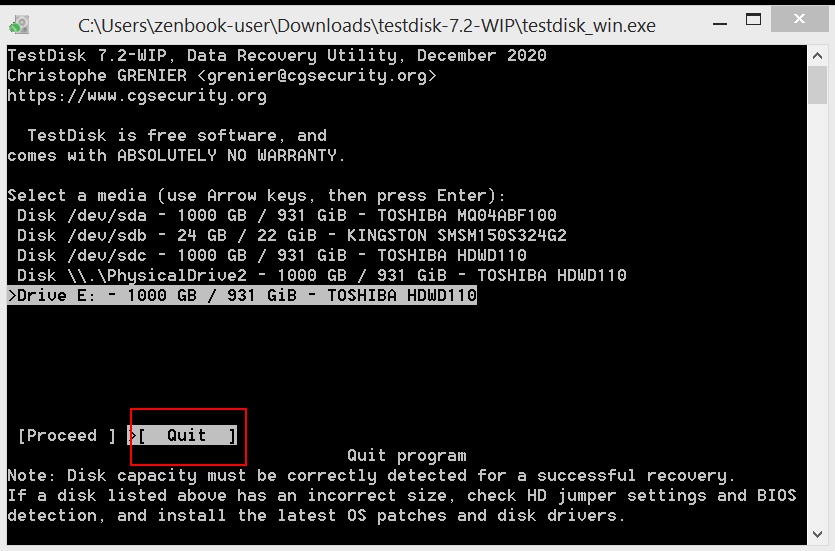
- select “Quit”:-
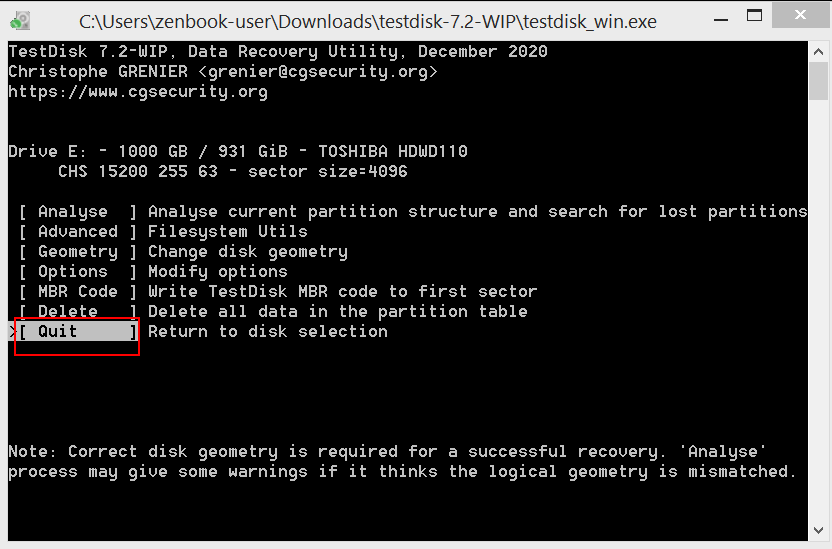
- select “Quit”:-
- After reboot the hard disk, the 2 lost partitions reappear:-

- for more information refer to http://www.cgsecurity.org/wiki/TestDisk_Step_By_Step#Quick_Search_for_partitions
How to Install USB Driver of MOBITEK S80 and Find the COM Port Number
Step 1: DO NOT connect USB cable or connect modem to PC/server.
Step 2: Install the USB driver first by clicking on ‘run’. USB driver can be downloaded from here — https://www.mobitek.my/download/USB Drivers/USB Driver for MOBITEK S80.zip

Step 3: Click on ‘next’.
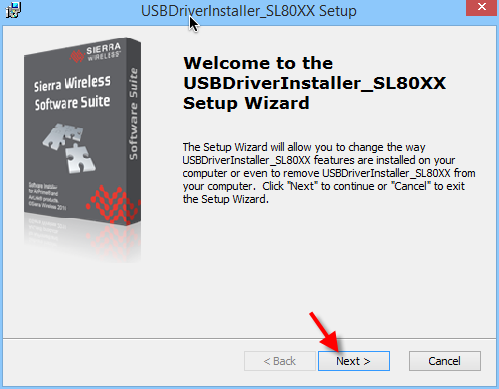
Step 4: Check the ‘I accept the terms in the License Agreement’ and click on ‘Next’.

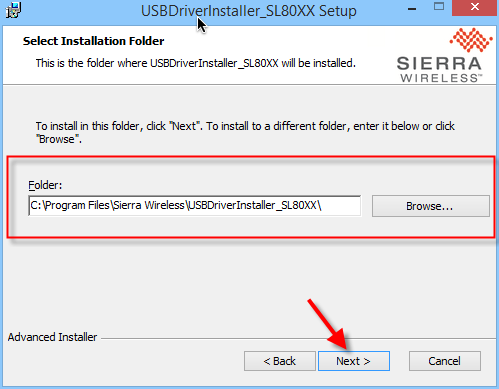
Step 5: Choose the installation folder or path, then click on ‘Next’.
Step 6: Click on ‘Install’.

Step 7: Make sure to restart the machine or computer in order to use the installed driver.

Step 8: After computer is restarted, connect the modem to the computer. In device manager, the connected modem is listed as ‘Sierra Wireless AT Command Port (UMTS)’. In this example, the modem is connected to COM port number 29.
