CONCLUSION:
- There is no AT command to remove “CNS Port”, “DM Port” and “NMEA Port”;

- These 3 COM ports can be disabled in “Device Manager” but cannot be removed;
- If “CNS Port” is disabled, modem will not able to send out SMS
CONCLUSION:
Problem: the USB Drivers for both FX30 and MOBITEK S80 cannot be installed in the same machine. Otherwise the below blue screen error will appear when trying to connect MOBITEK S80 3G Modem to the PC/machine.

Solutions: there are 3 solutions to choose:
Conclusion: Hotkey (AutoHotkey) can have a maximum of 1 character key (alphanumeric) only, e.g.
In order to use more that 1 character key, then refer to https://mobitek-system.com/blog/2020/06/autohotkey-how-to-define-2-alphabet-keys-as-hotkey/
Download and view — MOBITEK S80 Modem Quick Installation Guide
Conclusion: MOBITEK SMS Engine — Enterprise Edition starting from version 5.8 until 8.x supports TLS 1.2 .
| TEST DATE | SMS ENGINE VERSION | TLS 1.2 | SSL 2.0 | OS | MS SQL SERVER | ODBC DRIVER 64-BIT | ODBC DRIVER 32-BIT | .NET FRAMEWORK | TEST RESULT |
|---|---|---|---|---|---|---|---|---|---|
| 2020-05-14 | 8.3 | Enabled | Disabled by default | Windows Server 2012 64 bit | MS SQL Server 2017 Express | ODBC Driver 13 for SQL Server v. 2017.140.1000.169 | ODBC Driver 13 for SQL Server v. 2017.140.1000.169 | 4.7.2 | 16:50:30 SMS Engine Enterprise Edition service (8.3.0) started 16:50:35 Modem ID 8 : initialized |
| 2020-05-20 | 7.1 | Enabled | Disabled by default | Windows Server 2012 64 bit | MS SQL Server 2017 Express | ODBC Driver 13 for SQL Server v. 2017.140.1000.169 | ODBC Driver 13 for SQL Server v. 2017.140.1000.169 | 4.7.2 | 09:47:04 SMS Engine Enterprise Edition service (7.1.0) started 09:47:09 Modem ID 8 : initialized |
| 2020-05-20 | 8.3 | Enabled | Disabled by default | Windows Server 2012 64 bit | MS SQL Server 2017 Express | ODBC Driver 13 for SQL Server v. 2017.140.1000.169 | ODBC Driver 13 for SQL Server v. 2017.140.1000.169 | 4.7.2 | 10:29:17 SMS Engine Enterprise Edition service (8.3.0) started 10:29:22 Modem ID 8 : initialized 10:31:39 SMS Engine Enterprise Edition service (8.3.0) stopped |
| 2020-05-21 | 5.8 | Enabled | Disabled by adding DWORD: “Enabled” with value 0 in registry |
Windows Server 2012 64 bit | MS SQL Server 2017 Express | ODBC Driver 13 for SQL Server v. 2017.140.1000.169 | ODBC Driver 13 for SQL Server v. 2017.140.1000.169 | 4.6 | 16:10:25 SMS Engine Enterprise Edition service (version 5.8.1) started 16:10:29 Modem ID 8 : initialized 16:10:49 SMS Engine Enterprise Edition service (version 5.8.1) stopped |
AutoHotkey allows user to define a custom combination of two keys (except joystick buttons) by using ampersand (&) between them. As for example:
a & b::MsgBox Hello!!!
Hold down <a> key then press <b> key to trigger the message box.
But by using this way, key <a> will become a prefix key. In other words, it will causes key <a> to lose its original function when it is pressed, i.e. “a” will not appear in text box. To avoid this behaviour, one of the way is to apply the tilde prefix (~) to the key.
For example:
~a & b::MsgBox Hello!!!
Using tilde in front of keys will maintain the native function of the keys used. However, Special hotkeys that are substitutes for alt-tab always ignore the tilde prefix.
Source:
When using ReadAllText method to read a log file with a size of 21.83MB, it takes between 7 seconds (for powerful CPU) to 12 seconds (for weak CPU).
| SOLUTION | SOLVED? |
|---|---|
|
Failed |
| StreamReader.ReadLine
Source:
Dim file As New FileInfo("path\to\file")

Using reader As StreamReader = file.OpenText()
    While Not reader.EndOfStream
        Dim nextLine As String = reader.ReadLine()
        ProcessLine(nextLine)
    End While
End Using
|
NO
This method generates error maybe because the memory usage increase overtime due to many lines data read Or maybe because i don’t actually know the correct way to use this method |
| StreamReader.ReadBlock Source: Const MAX_BYTES As Integer = 1048576 * 5 '=10 MB Dim bytesRead(MAX_BYTES) As Char Dim numBytesRead As Integer Dim currentPos As Integer = 0 Dim strFileName As String Dim strm As System.IO.Stream Dim TextLine As String Dim FileDetail As IO.FileInfo OpenFileDialogMain.ShowDialog() strm = OpenFileDialogMain.OpenFile() strFileName = OpenFileDialogMain.FileName.ToString() Using reader As System.IO.TextReader = _ System.IO.File.OpenText(strFileName) numBytesRead = _ reader.ReadBlock(bytesRead, currentPos, MAX_BYTES) TextLine = reader.ReadLine() End Using txtEditor.Text = New String(bytesRead) txtEditor.Text += TextLine txtEditor.Text = txtEditor.Text & vbCrLf & Now
|
NO
This method can be used to fetch .log file but a bit slower than ReadAllText() method. Completion time to load the log file into textbox is approximately 11-12 seconds |
| File.ReadAllLines
Source: |
NO
This method opens a text file, reads all lines of the file into a string array, and then closes the file. To load the string array into the textbox will use the same method as ReadLine() which is using Looping |
| TEST | DELL-E6410 | MSI |
|---|---|---|
| StreamReader.Readline
How long does it take for Control Panel to load the log file |
No result because of error | No result because of error |
| StreamReader.ReadBlock
How long does it take for Control Panel to load the log file “X:\Support\Support Cases\264 (I19-2460-MACRO-ASP)\2020_1_14.log”, File size: 21.83MB |
11-12 seconds | 11-12 seconds |
| File.ReadAllLines
How long does it take for Control Panel to load the log file “X:\Support\Support Cases\264 (I19-2460-MACRO-ASP)\2020_1_14.log”, File size: 21.83MB |
No result because of error | No result because of error |
| What is the CPU? | Intel(R) Core(TM) i5 CPU M560 @ 2.67GHz | Intel(R) Core(TM) i5-4200 CPU @ 2.50GHz |
| What is the RAM? | 4.00 GB (3.43 usable) | 8.00 GB |
Conclusion: stick with ReadAllText method to read a log file.
This method mentioned in https://www.wintips.org/how-to-setup-usb-on-virtualbox-guest-oracle/ was used to test the USB driver of MOBITEK S80 3G Modem in the virtual machine (Windows Server 2012 64-bit)
After installing Extension Pack in VirtualBox, USB 2.0 and USB 3.0 shown in the USB list

When virtual machine was started, the “Sierra Wireless” device was shown in the list:-

The COM PORT (COM6) appeared in “Device Manager”:-

However, in Hyper Terminal the “AT-OK” test could not be performed because it seems like the Hyper Terminal only catch the physical COM PORT of the MOBITEK S80, but the connection is not actually established with the modem. Nothing can be typed in Hyper Terminal to test the connection.

The same problem happens in Linux Mint running in VirtualBox
Mobitek S80 that attached to Linux Mint running in VirtualBox can be detected when running the “dmesg | grep tty” command in Linux Mint’s Terminal

But each interface from “ttyUSB0” until “ttyUSB4” which MobitekS80 is attached to cannot be tested with AT command in CuteCom. CuteCom will be frozen when the AT command was entered.

Problem: If the the post with video attached is edited, even though I did not remove the video, the video will be automatically removed.
Solution: none.
Problem:
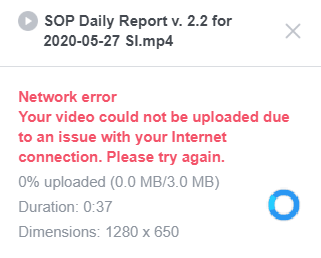

Solution: add another FB account as “Administrator” and able to solve the above roblem — able to access “Video library” and successfully upload video.
(T, please add here …)
Note: the report as been moved from http://survey.dosh.gov.my/laporanhariancovid19/ to https://notification.miti.gov.my, we have revised the script to automatically filled in the new report at this new post …