- Open Windows PowerShell and copy below command into it
# Create Keys for TLS 1.2 if not exist

new-item -path "HKLM:\SYSTEM\CurrentControlSet\Control\SecurityProviders\SCHANNEL\Protocols" -Name "TLS 1.2"

new-item -path "HKLM:\SYSTEM\CurrentControlSet\Control\SecurityProviders\SCHANNEL\Protocols\TLS 1.2" -Name "Server"

new-item -path "HKLM:\SYSTEM\CurrentControlSet\Control\SecurityProviders\SCHANNEL\Protocols\TLS 1.2" -Name "Client"

new-itemproperty -path "HKLM:\SYSTEM\CurrentControlSet\Control\SecurityProviders\SCHANNEL\Protocols\TLS 1.2\Client" -Name "Enabled" -Value 1

new-itemproperty -path "HKLM:\SYSTEM\CurrentControlSet\Control\SecurityProviders\SCHANNEL\Protocols\TLS 1.2\Client" -Name "DisabledByDefault" -Value 0

new-itemproperty -path "HKLM:\SYSTEM\CurrentControlSet\Control\SecurityProviders\SCHANNEL\Protocols\TLS 1.2\Server" -Name "Enabled" -Value 1

new-itemproperty -path "HKLM:\SYSTEM\CurrentControlSet\Control\SecurityProviders\SCHANNEL\Protocols\TLS 1.2\Server" -Name "DisabledByDefault" -Value 0
- Reboot server
- To check whether TLS 1.2 is configured, open Registry Editor and go to this path:
HKEY_LOCAL_MACHINE\SYSTEM\CurrentControlSet\Control\SecurityProviders\SCHANNEL\Protocols

in this picture, it shows that Windows has “SSL 2.0” and “TLS 1.2” security protocol installed.
Author Archives: Taufiq
(OBSOLETE) Control Panel for MobiGATE SMS Engine — Enterprise Edition version 2.6 is Released
List of Fixes in Version 2.6
- Engine cannot start because service is still stopping (after “Stop” button is clicked). CP shows “Stopped” but in fact service is showing “Stopping”;
- Engine cannot stop because service is still starting (after “Start” button is clicked). CP shows “Started” bt in fact service is showing “Starting”;
- “Modem Status” is tab “Modem 9 to 16” is not showing colours, it is showing “5” or “0” instead. Happens in MS SQL Server only (does not happen in MySQL);
- Error message when connecting the “modem.state” table – “Location: CheckModemStatusVersion2_MSSQL Error message: Login failed. The login is from an untrusted domain and cannot be used with Windows authentication”;
- Error message when connecting the “modem.state” table – “Location: CheckModemStatusVersion2_MSSQL Error message: Login failed. The login is from an untrusted domain and cannot be used with Integrated authentication”;
- Conversion from string “” to type ‘Double’ is not valid. Caused by null or empty value in “Modem_State.Status”;
- After stop monitoring, modem ID 9 to 16 still showing modem status.By right, there should be no colour status and should be all grey colour;
- Set the application to run as administrator automatically.
Download
Existing customers of MobiGATE with valid warranty period or with valid annual support programme could download version 2.6 from here … (https://www.mobitek.my/download/MOBITEK%20MOBIGATE/Setup%20–%20Control%20Panel%20v.%202.6.zip)
More Information
Comparison Between Role of db_owner with Roles of db_datareader & db_datawriter in MS SQL Server
- db_owner role should only be given to the administrator who responsible for the database because this role can DROP the database
- db_datareader and db_datawriter is the minimum access that should be given to normal user to do the basic SELECT, UPDATE, INSERT and DELETE operation to the database
| db_owner |
db_datareader |
db_datawriter |
|
|
|
Source:
How to Configure MS SQL Server Express to Use Windows Authentication
- Create an user account on the computer that act as a server, the username and password must used exactly like the account used in client computer
- In SQL Server Management Studio:
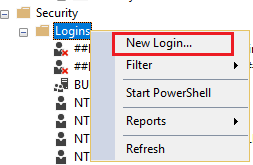
- Expand “Security” -> expand “Logins” -> “New Login”
- Click “General” -> select “Windows authentication” -> click “Search”

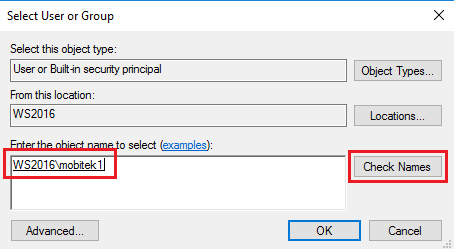
- Type the account name that has been created on server computer, click “Check Names”
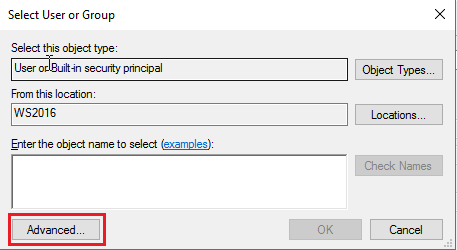
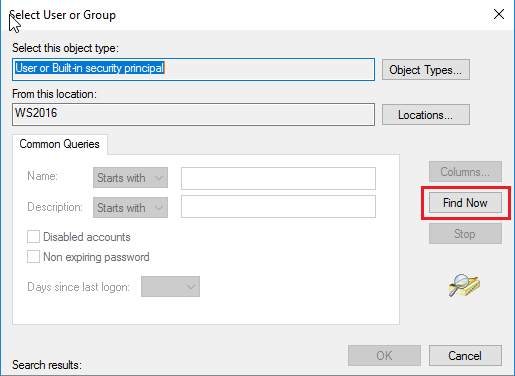
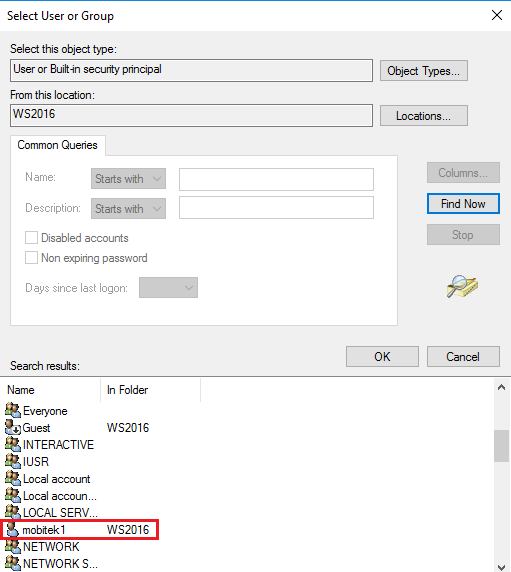
- Alternatively you can do this step by clicking “Advanced” button -> “Find Now” -> find the account name in the search results -> click “OK”
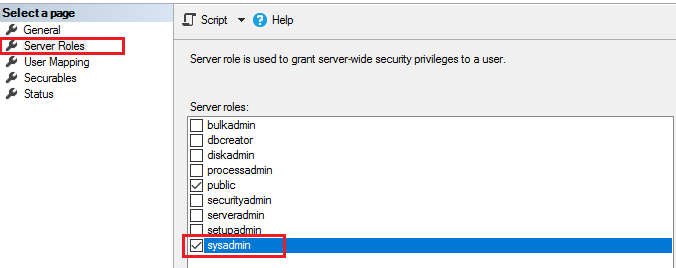
- Click “Server Roles” -> check for sysadmin
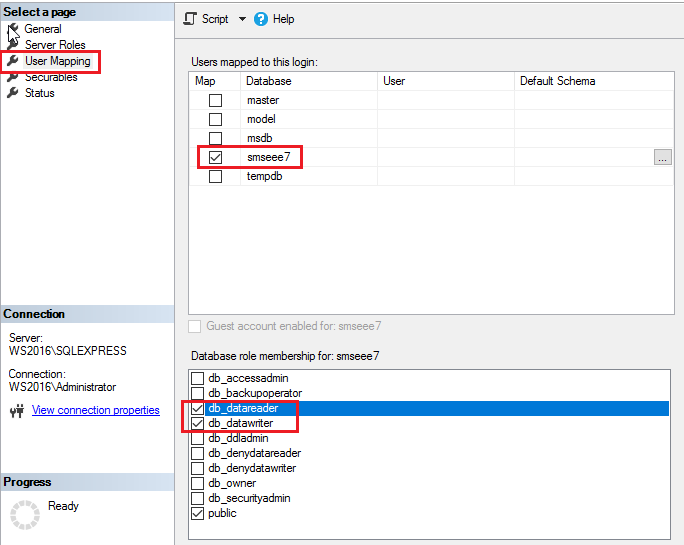
- Click “User Mapping” -> choose database -> check for db_datareader and db_datawriter
- Expand “Security” -> expand “Logins” -> “New Login”
Note: You do not need to enter the password as SQL Server will ask Windows to validate the user password. (source: https://www.virtual-dba.com/differences-windows-sql-server-authentication/)
How to View the Log of MS SQL Server Express to Check for Login Status
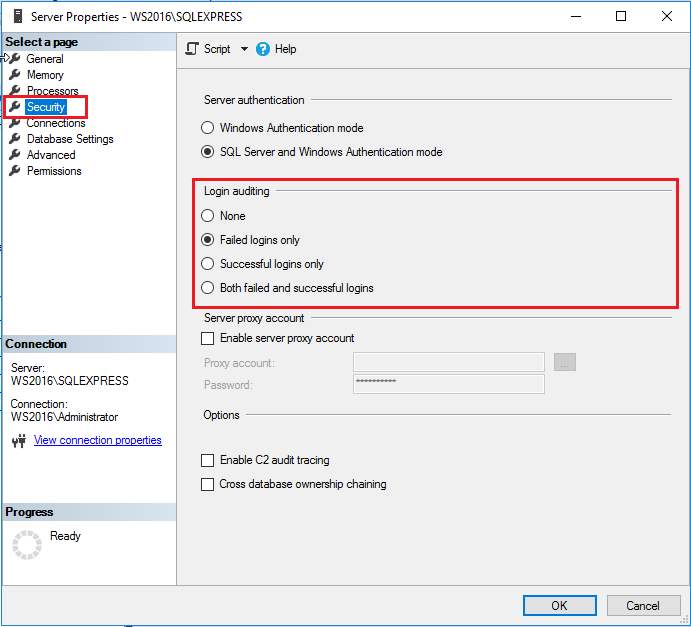
- You can choose what type of login activity that you want the SQL Server to log. By default, SQL Server will log the “Failed logins only” activity only. To choose the login activity, right-click at your “Server <instance name>” -> “Properties”. In Server Properties, click “Security” and choose the activity in Login auditing area:
- None
- Failed logins only
- Successful logins only
- Both failed and successful logins
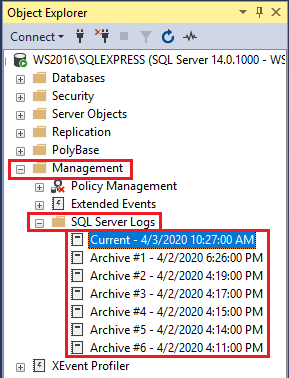
- To view the MS SQL Server log files, expand “Management” -> expand “SQL Server Logs“, click any log date that you want to view:
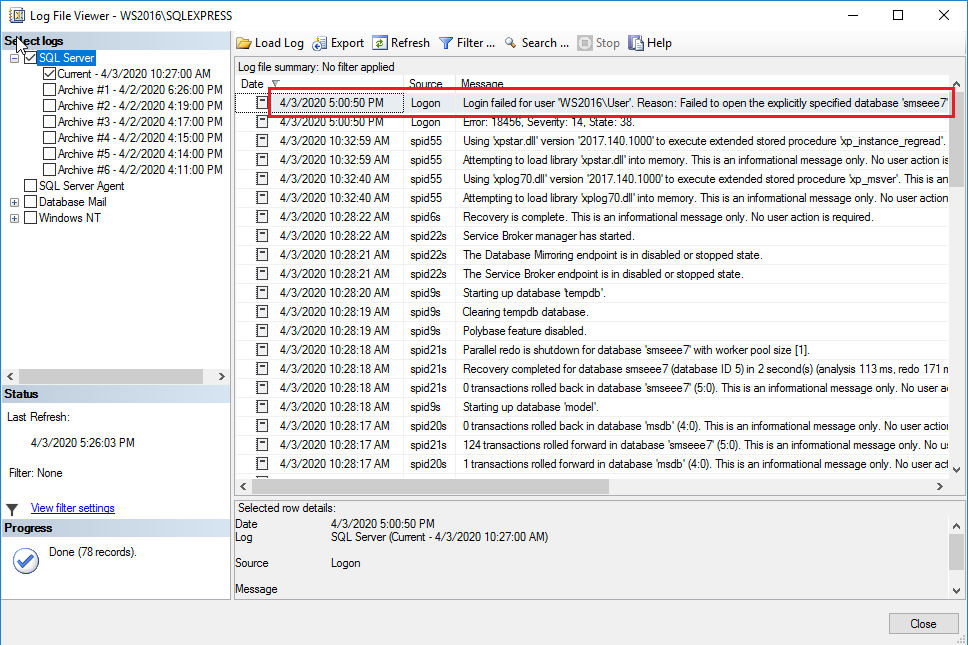
- All the login activities can be viewed in the Log file summary area:
How to Configure Windows Server and MS SQL Server Express to Allow Control Panel of MobiGATE to Remotely Connect
| SETTING | WHAT ERROR WILL APPEAR IF THE SETTING IS NOT DONE |
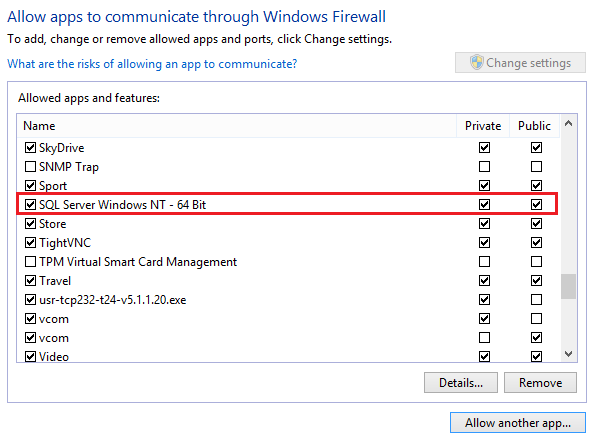
| Windows Firewall: allow “SQL Server Windows NT – 64 Bit”
|
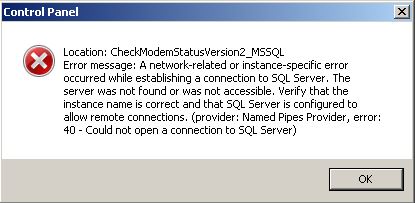
If firewall is not opened for SQL Sever then this error will appear:
“A network-related or instance-specific error occurred while establishing a connection to SQL Server. The server was not found or was not accessible. Verify that the instance name is correct and that SQL Server is configured to allow remote connections. (provider: Named Pipes Provider, error:40 – Could not open a connection to SQL Server) ” |
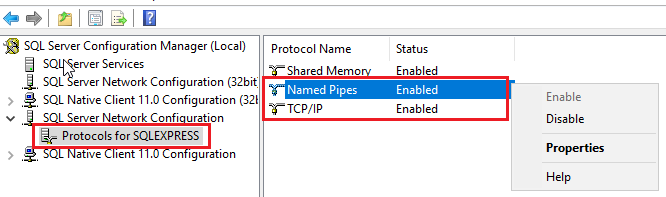
SQL Server Configuration Manager:
|
If “Named Pipes” and “TCP/IP” are not enabled in MS SQL Server then this error will appear:
“A network-related or instance-specific error occurred while establishing a connection to SQL Server. The server was not found or was not accessible. Verify that the instance name is correct and that SQL Server is configured to allow remote connections. (provider: Named Pipes Provider, error:40 – Could not open a connection to SQL Server) ” |
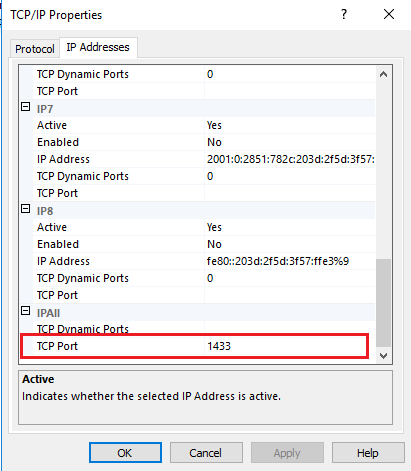
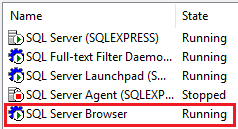
If the SQL Server is using instance e.g. “./SQLEXPRESS”:
|
If TCP/UDP Port no. 1434 is not opened, then this error will appear:
“A network-related or instance-specific error occurred while establishing a connection to SQL Server. The server was not found or was not accessible. Verify that the instance name is correct and that SQL Server is configured to allow remote connections. (provider: SQL Network Interfaces, error: 26 – Error Locating Server/Instance Specified) ” |
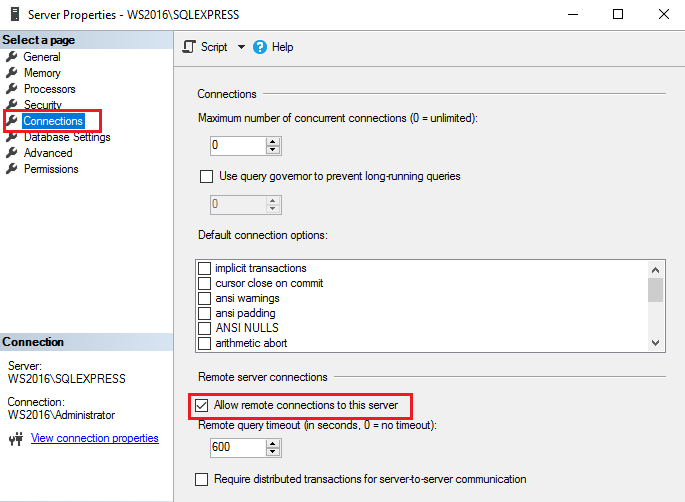
| Remote connection must be enabled to connect to databases remotely. Connect to SQL Server Instance in SSMS. Right click on SQL Server instance name in SSMS and choose Properties. You will get Server properties window. Click on Connections from left side pane and tick the check box on Allow remote connections to this server option from right side pane.
|

MORE INFORMATION
- https://blog.sqlauthority.com/2009/05/21/sql-server-fix-error-provider-named-pipes-provider-error-40-could-not-open-a-connection-to-sql-server-microsoft-sql-server-error/
- https://techyaz.com/sql-server/troubleshooting/fix-error-40-network-related-instance-specific-error-occurred-establishing-connection/
- https://stackoverflow.com/questions/18060667/why-am-i-getting-cannot-connect-to-server-a-network-related-or-instance-speci
Running Multiple Instances of BlueStacks
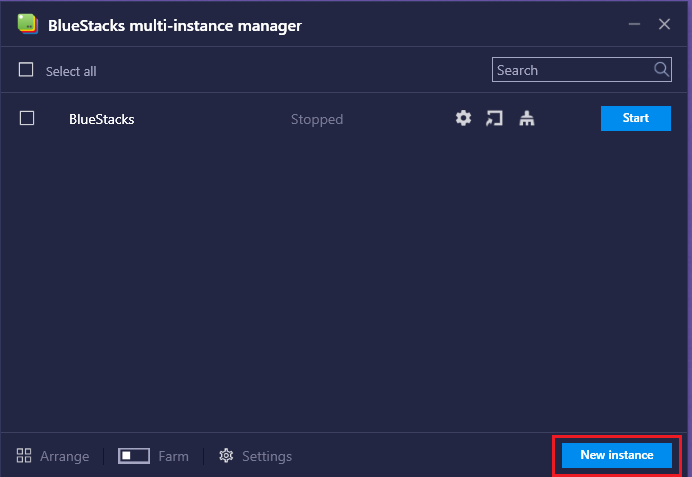
- Open BlueStacks multi-instance manager. Click “New Instance“.
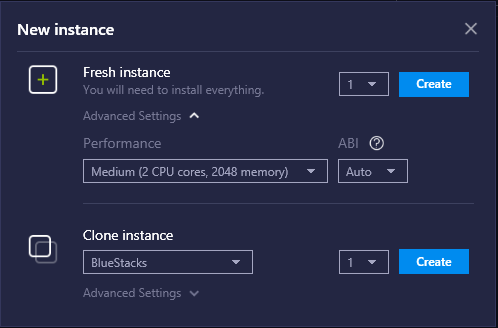
- Select which instance to create:
Fresh instance – instance with the new Google account (used to run multiple applications with different Google account. e.g. running Whatsapps with two different numbers).
Clone instance – instance with the same Google account. (used to run multiple applications with the same Google account. e.g. Running Whatsapp and Facebook at the same time).
- Click “Start” button to start that instance or create the shortcut to desktop and start via short cut as sometimes the instance cannot start directly from BlueStacks multi-instance manager.

Questions
- Can I run 2 instances of Bluestacks at the same time, 1 in “Big-Boss” account, another in “Office” account?
- No, only 1 user (either “Big-Boss” or “Office) can run multiple instances of Bluestacks.
- Can I run 2 instances Memu of at the same time, 1 in “Big-Boss” account, another in “Office” account?
- The same Memu application cannot running on different Windows accounts.
- But Memu can run on different windows account using 2 instances. It did work but both Memu instances running on 2 different google accounts.
- However, for Whatsapp, both Memu instances cannot use the same Whatsapp account.
How To Solve “USB device not recognized” or COM port Number Does Not Appear in Device Manager
Applies To:
Problem: Error message “USB device not recognized” appears or there is no COM port number in Device Manager. Also the red LED is on.
Solution: replace USB cable as it is faulty.
How to Set-Up MOBITEK S80 SMS Modem with WinPower UPS software
Applies to:
STEPS
- Connect your laptop/desktop to UPS and MOBITEK S80 Modem to laptop/desktop. Open Winpower UPS software. Go to System menu -> Act as Administrator and enter the password. The default password is “Administrator“. This step is important in order to configure Winpower software setting.
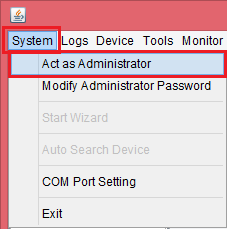

To change the administrator password (optional), go to System menu -> Modify Administrator Password and enter the new password for administrator.

- Go to System menu -> Auto Search Device to search for UPS device automatically.

Wait for the UPS to be searched.

When found, the UPS device will be shown in the list. Double-click on it to see the UPS device status.

- Go to Tools menu -> SMS Setting to configure the SMS notification for UPS events.

- In SMS Setting, set the Com Port for MOBITEK S80 Modem, the Baud Rate to “115200“, and the Format of phone number to “Without National Code“. Enter the phone number for the notification to be sent, click Add button and select the phone number in the list. After that select the abnormal event in the event list that you want to be notified for. Click Test button to test the SMS sent successfully or not. If successful, click OK button.

VB.Net MS SQL Connection String to Handle Windows Authentication and SQL Connection
The VB.Net code should be as follows:-
MSConn = New SqlConnection()
If sAUTHMODE = "WIN" Then
    MSConn.ConnectionString = "Data Source=" & sSERVER & ";Initial Catalog=" & sDATABASENAME & ";User ID=" & sUSERNAME & ";Password=" & sPASSWORD & ";Integrated Security=True"
ElseIf sAUTHMODE = "SQL" Then
    MSConn.ConnectionString = "Data Source=" & sSERVER & ";Initial Catalog=" & sDATABASENAME & ";User ID=" & sUSERNAME & ";Password=" & sPASSWORD & ";Integrated Security=False"
End If
Otherwise, one of these error messages will appear:-
- Login failed. The login is from an untrusted domain and cannot be used with Integrated authentication.
- Login failed. The login is from an untrusted domain and cannot be used with Windows authentication.