| OS | Screen Capture | JRE Version |
|---|---|---|
| Windows Server 2008 32-bit |  |
6.0.100 |
| Windows Server 2012 64-bit | 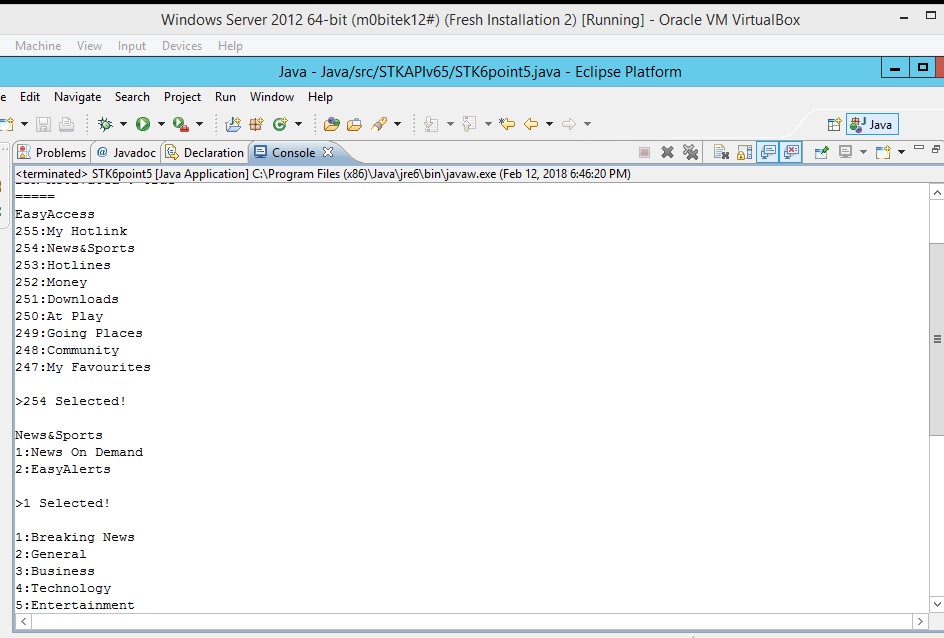 |
6.0.100 |
| Windows Server 2016 64-bit |  |
6.0.100 |
| Windows 10 64-bit |  |
6.0.100 |
Category Archives: Support
MOBITEK STK API v. 6.5 Supports Windows 10, Windows Server 2008 / 2012 / 2016
| OS | Screen Capture |
|---|---|
| Windows Server 2008 32-bit |  |
| Windows Server 2012 64-bit |  |
| Windows Server 2016 64-bit |  |
| Windows 10 64-bit |  |
How To Know the Last Shut Down Time Of Your Windows PC
Problem: PC/Server suddenly shuts down
Solution: If you want to know what was the exact last shut down time and start-up time of your computer, go to the Event Viewer -> Windows Log -> System and look for:-
- Event ID 1074: PC has been shut down or restarted
- Event ID 6006: PC has shut down
- Event ID 6009: PC has start-up
Here are the steps.
- If you are using Windows Vista or Windows 7, click the start icon and type Event Viewer in the search box. Event viewer program will appear. Click on it.
- Event Viewer window will open. Now on the left side of that window click on “Windows Logs”. Now on the right side, click on System.
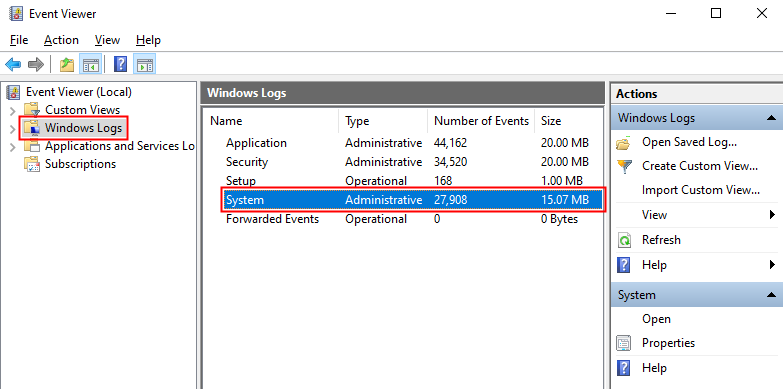
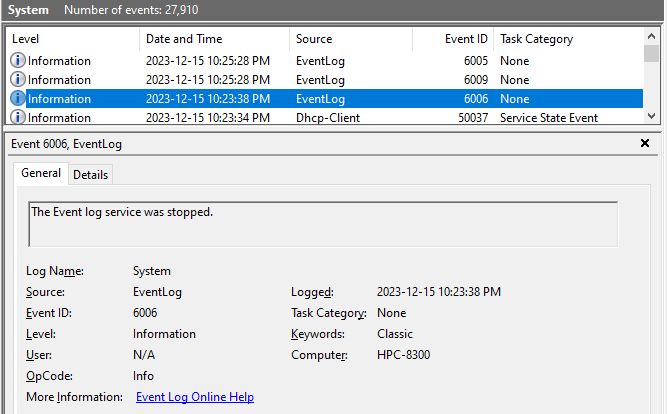
- All the system files will open on the right side. Now on the source column you have to find out Eventlog source having Event ID 6006 (6006 is an event ID for shutdown). You will find many Eventlog sources having event ID 6006. But you need to figure out source with the most recent date and time.Note: All the events are placed in descending order (latest time first) so the top event log with event ID 6006 will show the correct time and date of last PC shutdown (In this case the time is 1/10/2010 1:06:48 AM).
Source: https://www.guidingtech.com/432/last-shutdown-time-windows/
How to Send and Read SMS Using MOBITEK S80 Modem with SMS Express in AirCard Watcher
Note: SMS Express is compatible with Type S only; Type S-L is not compatible.
- To send message Click on the message icon
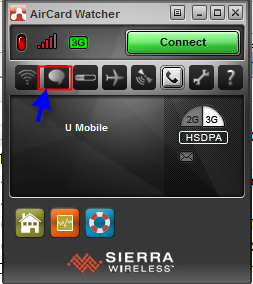
- This tab will appear and you need to click the “New”
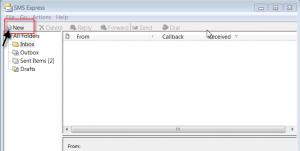
- Once you click new, this tab will appear you can key in the number and message.

- Then click send

- The sent message will be stored in the Sent Items

- To read message click on the inbox, it will show all the read and unread messages.

- The message you selected will be displayed here.


How to Configure AirCard Watcher
- To disable auto-start AirCard Watcher, set to “No”.

- To prevent MOBITEK S80 from shutting down when exiting AirCard Watcher, set to “Do nothing”.

- There is no setting to auto-start the connection to 3G network.
How to Make Voice Call Using MOBITEK S80 Modem and AirCard Watcher
Note: this feature is NOT supported by MOBITEK S80 Type S-L and Type E-L.
- To make a call connect the modem using USB cable to laptop and the modem and handset using serial cable.

- Click on the call icon on top the dialing pad will appear.

- Dial a number and click on the green colour call icon

How to Integrate MOBITEK S80 SMS Modem with Network Monitoring System

Here are 3 ways that your network monitoring software can send out SMS via our MOBITEK® S80 SMS Mode:-
- MOBITEK® CLISMS
- MOBITEK® SMS API
- MOBITEK® SMS Engine — Basic Edition


Location of VCOM’s Setting
Applies to these MOBITEK MobiGATE models:
- SG-B-8-L
- SG-B-8-L-W
- SG-B-4-L
- SG-B-4-L-W
VCOM stores information (IP address, COM port, port) in “C:\Program Files (x86)\VCOM\VCOM\73678076858386677977”

How to Solve VCOM “Progressing” Problem
Applies to: MOBITEK MobiGATE SMS Gateway model SG-B series and MOBITEK Q24 STK Modem Hub.
Problem: VCOM shows “Progressing” (pic) for more than 30 minutes after click on “add” button.

Solution: uninstall “VirtualBox Host-Only Ethernet Adapter”

Refer pictures below on how to uninstall “VirtualBox Host-Only Ethernet Adapter”.
- Right click on “VirtualBox Host-Only Ethernet Adapter”, then click uninstall

- Click OK

Note: after it is uninstalled, and VCOM is working, “VirtualBox Host-Only Ethernet Adapter” can be re-installed.
Refer pictures below on how to re-install “VirtualBox Host-Only Ethernet Adapter”.
- Run VirtualBox Installer as shown as “VirtualBox-5.1.28-117968-Win.exe”
- Click Run

- Click Next,

- Click Repair,

- Click Repair.

- After the installation finished, the “VirtualBox Host-Only Ethernet Adapter” will be appeared in Device Manager
Speed of Sending SMS Using MOBITEK MobiGATE
Using
- MOBITEK MobiGATE Model SG-B-8-L, SG-B-8-L-W,
- Maxis SIM Card;
- MOBITEK SMS Engine — Enterprise Edition
the average sending speed is 10 SMS per minute per modem. Therefore for MobiGATE with 8 modems, it can send out on average 80 SMS (10 x 8) per minute.

The config.xml is as follow
<SMSConfig>
<RETRY_SEND>3</RETRY_SEND>
<ROUTING>FALSE</ROUTING>
<MODEM_LIST>
<MODEM>
<ID>1</ID>
<PORT>61</PORT>
<ENABLED>TRUE</ENABLED>
<MODE>S</MODE>
<TARGET_PREFIX>*</TARGET_PREFIX>
</MODEM>
</MODEM_LIST>
<DATASOURCE>
<DBTYPE>MYSQL</DBTYPE>
<SERVER>localhost</SERVER>
<USERNAME>root</USERNAME>
<PASSWORD></PASSWORD>
<DATABASENAME>smsengine6</DATABASENAME> <AUTHMODE>WIN</AUTHMODE>
</DATASOURCE>
</SMSConfig>
 Loading...

 Reload document
  Open in new tab