Category Archives: Support

How to Build a Release Version of VB.Net Application and How to Publish VB.Net Application

Conclusion

  1. Using Microsoft Visual Basic 2008 Express to build (publish) an installer (setup.exe), there are many limitations:-
    1. unable to specify the path to install files; by default it install the exe file into “..\AppData\Local\Apps” folder
    2. no “Uninstall” shortcut/icon
  2. Therefore, we will not use Microsoft Visual Basic 2008 Express to build an installer file (setup.exe).

How to Build a Release Version

  1. Double-click on”My Project”.
  2. Go to “Compile” and set the “Build output path”.
  3. Goto “Build -> Configuration Manager”.
  4. Select “Release” and “Any CPU”.
  5. Goto “Build -> Build Type_Maker”.
  6. The build or release folder is located at the path that has been set in the “Build output path” which is “bin\”.
  7. The build application is “Type_Maker.exe”.


How to Publish VB.Net Application

Publish means to create a set-up file (installer).

  1. Go to “Build” -> “Configuration Manager”.
  2. Specify the “Active solution configuration” and “Active solution platform”. Close the Configuration Manager.
  3. Go to “Build” and “Build Type_Maker”.
  4. Go to “Solution Explorer” and double-click on “My Project”.
  5. Click “Publish” tab.
  6. In “Install Mode and Settings”, select “The application is available offline as well (launchable from Start menu)”.
  7. Click “Application Files…” and set the list of files that will be included in the installation.
  8. Click “Prerequisites…” and set as below:
  9. Click “Publish Wizard” button.
  10. Specify the location to publish the application. Click “Next”.
  11. Select “From a CD-ROM or DVD-ROM”. Click “Next”.
  12. Select “The application will not check for updates” and click “Next”.
  13. Click “Finish” to publish the application.
  14. After the publish completed, the saved folder will be opened automatically. Double-click on the “setup.exe” file to install the application and click “Install”.

Different Grid Type in PHPRunner

  1. The difference of grid type as shown in table below.
  2. There is no difference between “advance” and “simple” in terms of web UI. The difference is in the “Designer” tab of PHPRunner.
    GRID TYPE

    WEB UI
    horizontal grid
    vertical grid
    columns

Renaming Column Name will Affect PHPRunner

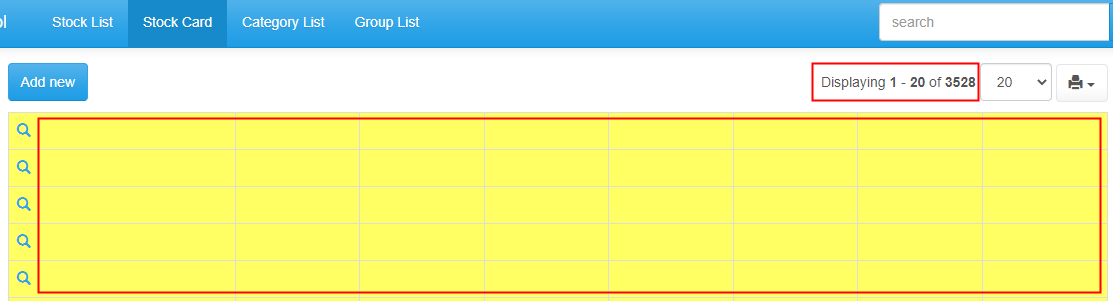
If column name is renamed via PHPMyAdmin or PHPRunner, the records will be missing from the list page (tellow table) despite there are 3528 records:-


The following solutions DOES NOT work:-

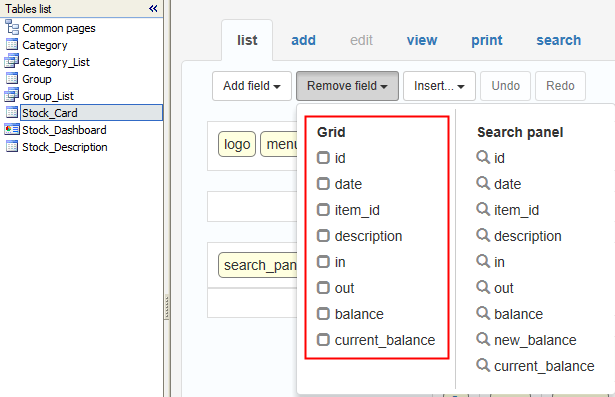
  1. Remove all fields in stock card’s list page and add them all again.
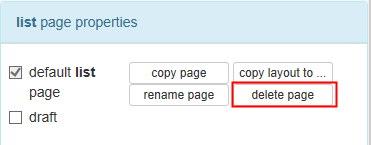
  2. Delete current list page and add a new list page.
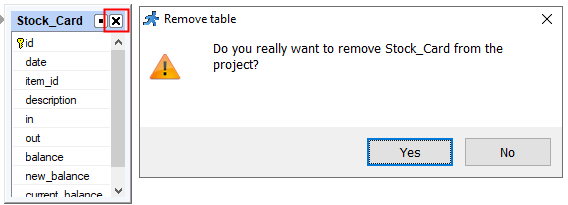
  3. Remove the table and add it again.


The only solution is to re-build the PHP project from scratch.

The possible root cause is the PHP project was built using old version (e.g. version 10.3) or trial version of PHPRunner. Then column name is renamed in the new version of PHPRunner, e.g. version 10.4.

How to Remove Space using SQL Statement

Problem: there are leading space and trailing space in the records.

  • leading space
  • trailing space


Solution: to remove leading space, e.g. ” EKONOR-25M”, use

UPDATE `Stock_Card-20220218` SET `Item_ID`=TRIM(`Item_ID`) WHERE `Item_ID` LIKE '% ';
BEFORE AFTER


Solution: to remove trailing space, e.g. “EKONOR-25M “, SQL statement (“Trim”, “Rtrim”, “Replace”) CANNOT be used. The only way is to delete it manually.

How to Upgrade or Downgrade the Firmware of MOBITEK Q25 4G Modem

Steps

  1. Run “QFlash v5.1”.
  2. Select the COM port number of “Quectel USB DM Port” (must use the USB port because serial port does not have “Quectel USB DM Port”).

  3. Set Baud Rate to 460800.
  4. Load Firmware Files.

  5. Upgrade firmware.

  6. Unplug the USB cable and plug it back. Use “AT+CMGR” or “ATI” to check the firmware version.


Download QFlash version 5.1


QFlash version 5.1 User’s Guide

Loader Loading...
EAD Logo Taking too long?

Reload Reload document
| Open Open in new tab