Using phpMyAdmin is better to add new columns because:
- new column in PHPRunner can only be added after the last column of the table. No option to re-arrange it

- in phpMyAdmin, column can be added after or before any column and also can be re-arranged

Using phpMyAdmin is better to add new columns because:
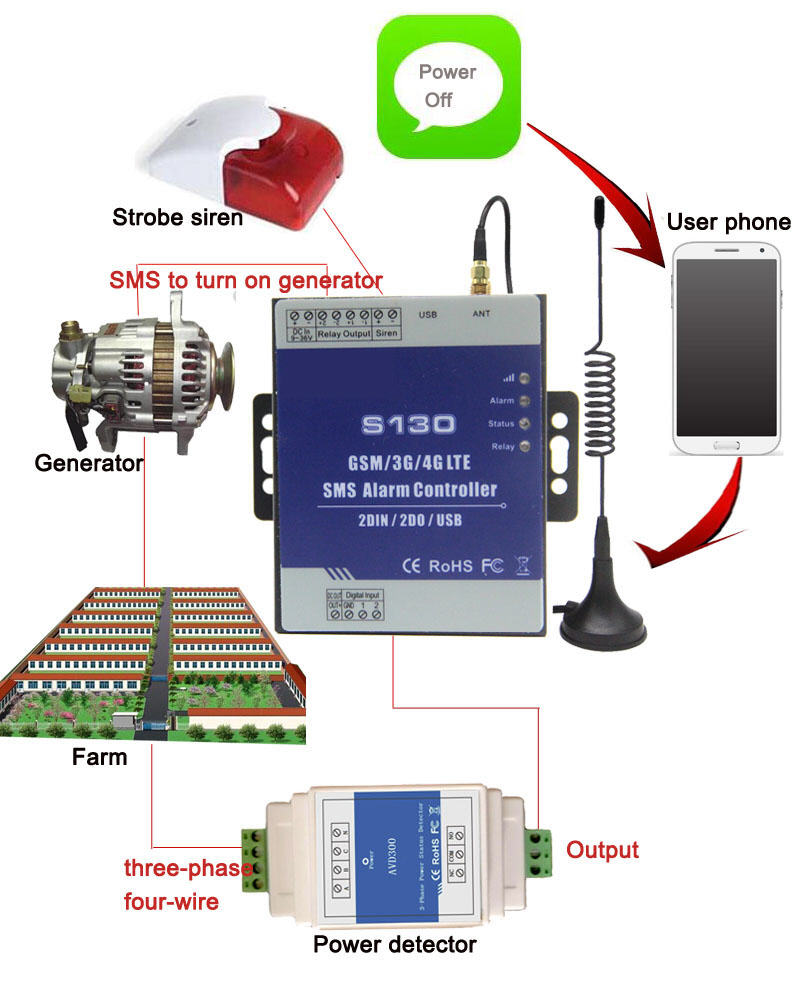
We are pleased to inform you that MOBITEK SMS Controller supports 4G Network.
MOBITEK® SMS Controller is a very simple device which can be used for authorized door access, controlling gates, switching of remote equipments, car parking systems. SMS Controller can be used in places which require turning ON/OFF your system, machines, and equipments remotely with a SMS text from your mobile phone and protect your assets.
For more information, please visit https://www.mobitek.my/main/product/mobitek-sms-controller/
For more information about IoT, please visit https://mobitek-system.com/blog/category/iot/
| DESCRIPTION | AT COMMAND |
Configure Parameters of a TCP/IP ContextAT+QICSGP=<contextID>,<context_type>,<APN>,<username>,<password>, <authentication> |
AT+QICSGP=1,1,”yoodo”,””,””,0 OK |
Activate a PDP ContextAT+QIACT=<contextID> |
AT+QIACT=1 OK AT+QIACT? +QIACT: 1,1,1,”10.32.47.42″ OK |
Configure SSL Type//Set the SSL type for SMTP. AT+QSMTPCFG=”ssltype”,<ssltype> |
WITHOUT SSL
AT+QSMTPCFG=”ssltype”,0
WITH SSL AT+QSMTPCFG=”ssltype”,1 AT+QSMTPCFG=”sslctxid”,1 AT+QSSLCFG=”ciphersuite”,1,0xffff AT+QSSLCFG=”seclevel”,1,0 AT+QSSLCFG=”sslversion”,1,1 |
Configure Parameters for SMTP Server//Set the PDP context ID. AT+QSMTPCFG=”contextid”,<contextID> //Set the IP address or domain name and port of SMTP server. AT+QSMTPCFG=”smtpserver”,<srvaddr>,<srvport> //Set username and password. AT+QSMTPCFG=”account”,<username>,<password> //Set sender name and sender address. AT+QSMTPCFG=”sender”,<sender_name>,<sender_email> |
AT+QSMTPCFG=”contextid”,1 OK AT+QSMTPCFG=”smtpserver”,”smtp.example.com”,587 OK AT+QSMTPCFG=”account”,”*username*”,”$password$” OK AT+QSMTPCFG=”sender”,”MOBITEK”,”add-new-post@feed.mobitek.my” OK |
Add or Delete RecipientsAT+QSMTPDST=<mode>,<type>,<emailaddr> Parameter:
|
AT+QSMTPDST=1,1,”sales@abc.my” OK AT+QSMTPDST=1,2,”marketing-director@abc.com” OK AT+QSMTPDST? +QSMTPDST: 1,”sales@abc.my” +QSMTPDST: 2,”marketing-director@abc.com” OK |
Edit the Subject of an EmailAT+QSMTPSUB=<charset>,<subject> Parameter:
|
AT+QSMTPSUB=0,”TEST SMTP USING Q25″ OK AT+QSMTPSUB? +QSMTPSUB: 0,”TEST SMTP USING Q25″ OK |
Edit the Body of an EmailAT+QSMTPBODY=<charset>,<body_length>,<input_time> Parameter:
|
AT+QSMTPBODY=0,50,60 CONNECT +QSMTPBODY: 37 OK |
Send an EmailAT+QSMTPPUT=<timeout> Parameter:
|
AT+QSMTPPUT=300 OK +QSMTPPUT: 0,0 |
Clear the Content of an EmailAT+QSMTPCLR |
AT+QSMTPCLR OK |
Deactivate a PDP ContextAT+QIACT=<contextID> |
AT+QIDEACT=1 OK |
| SETTING of MOSQUITTO MQTT SERVER VERSION 2.0.14 | SCREEN SHOT |
In “C:\Program Files\mosquitto”, open “mosquitto.conf” and add:
|

|
| Stop “Mosquitto Broker” in “Services” |  |
Open command prompt as administrator and enter:
|
|
| SETTING of TP-LINK Wireless Router Archer C1200 | SCREEN SHOT | REMARK |
Open admin panel (192.168.1.1). Go to “Advanced” -> “NAT Forwarding” -> “Virtual Servers”, add:
|
|
Connect MQTT Explorer or Q25 using the router’s Public IP:
or using DNS
|
| DESCRIPTION | AT COMMAND |
Configure Parameters of a TCP/IP ContextAT+QICSGP=<contextID>,<context_type>,<APN>,<username>,<password>, <authentication> |
AT+QICSGP=1,1,”yoodo”,””,””,1 OK |
Activate a PDP ContextAT+QIACT=<contextID> |
AT+QIACT=1 OK AT+QIACT? |
Configure receiving mode when data is received from serverAT+QMTCFG=“recv/mode”,<client_idx>,<msg_recv_mode>, <msg_len_enable> |
AT+QMTCFG=”recv/mode”,0 +QMTCFG: “recv/mode”,0,0 OK |
Open a network for MQTT clientAT+QMTOPEN=<client_idx>,“<host_name>”,<port> |
AT+QMTOPEN=0,”175.*.*.*”,1883 OK +QMTOPEN: 0,0 AT+QMTOPEN? +QMTOPEN: 0,”175.*.*.*”,1883 OK |
Connect a client to MQTT ServerAT+QMTCONN=<client_idx>,“<clientID>”,“<username>”,“<password>” |
AT+QMTCONN=0,”Q25″,””,”” OK +QMTCONN: 0,0,0 AT+QMTCONN? +QMTCONN: 0,3 OK |
Publish messagesAT+QMTPUBEX=<client_idx>,<msgID>,<qos>,<retain>,“<topic>”,<msg_length> |
AT+QMTPUBEX=0,0,0,0, “Test”,30 > Q25 publish from Hyper Terminal OK +QMTPUBEX: 0,0,0 |
Subscribe to TopicsAT+QMTSUB=<client_idx>,<msgID>,“<topic1>”,<qos1>[,“<topic2>”,<qos2>…] |
AT+QMTSUB=0,1, “Test”,0 OK +QMTSUB: 0,1,0,0 +QMTRECV: 0,0, “Test”, “Publish from MQTT Explorer in HPC-8300” |
Disconnect a client to MQTT ServerAT+QMTDISC=<client_idx> |
AT+QMTDISC=0 OK |
Close a network for MQTT clientAT+QMTCLOSE=<client_idx> |
AT+QMTCLOSE=0 OK |
Deactivate a PDP ContextAT+QIDEACT=<contextID> |
AT+QIDEACT=1 OK |
| DESCRIPTION | AT COMMAND |
Configure Parameters of a TCP/IP ContextAT+QICSGP=<contextID>,<context_type>,<APN>,<username>,<password>, <authentication> Parameter:
|
AT+QICSGP=1,1,”yoodo”,””,””,1 OK |
Activate a PDP ContextAT+QIACT=<contextID> |
AT+QIACT=1
AT+QIACT? |
Configure receiving mode when data is received from serverAT+QMTCFG=“recv/mode”,<client_idx>,<msg_recv_mode>, <msg_len_enable> Parameter:
|
AT+QMTCFG=“recv/mode”,0,0,1
+QMTCFG: “recv/mode”,0,1 OK |
Open a network for MQTT clientAT+QMTOPEN=<client_idx>,“<host_name>”,<port> Parameter:
|
AT+QMTOPEN=0,”mqtt.favoriot.com”,1883 OK +QMTOPEN: 0,0 AT+QMTOPEN? +QMTOPEN: 0,”mqtt.favoriot.com”,1883 OK |
Connect a client to MQTT ServerAT+QMTCONN=<client_idx>,“<clientID>”,“<username>”,“<password>” Parameter:
|
AT+QMTCONN=0,”Q25″, “***”, “***” OK +QMTCONN: 0,0,0 |
Publish messagesAT+QMTPUBEX=<client_idx>,<msgID>,<qos>,<retain>,“<topic>”,<msg_length> Parameter:
|
AT+QMTPUBEX=0,0,0,0, “XYoUfrDZ8mzvHNKJAtkLIvVBOw23dGnb/v2/streams”,30 > Q25 send from Hyper Terminal OK +QMTPUBEX: 0,0,0 |
Subscribe to TopicsAT+QMTSUB=<client_idx>,<msgID>,“<topic1>”,<qos1>[,“<topic2>”,<qos2>…] Parameter:
|
AT+QMTSUB=0,0, “XYoUfrDZ8mzvHNKJAtkLIvVBOw23dGnb/v2/streams”,0 OK +QMTSUB: 0,0,0,0 +QMTRECV: 0,0, “XYoUfrDZ8mzvHNKJAtkLIvVBOw23dGnb/v2/streams”,38, “Publish from MQTT Explorer in HPC-8300″ +QMTRECV: 0,0,”XYoUfrDZ8mzvHNKJAtkLIvVBOw23dGnb/v2/streams”,46, “Publish from MQTT Explorer in Taufiq’s desktop” |
Close a network for MQTT clientAT+QMTCLOSE=<client_idx> Parameter:
|
AT+QMTCLOSE=0
OK |


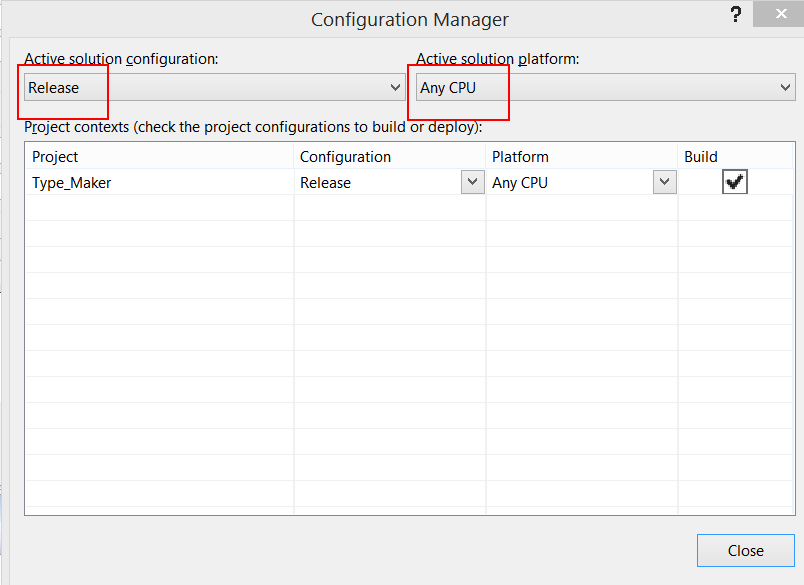
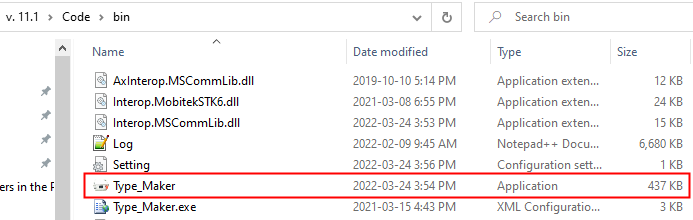
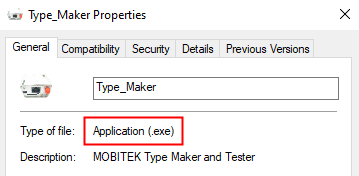
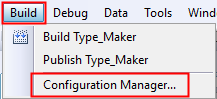
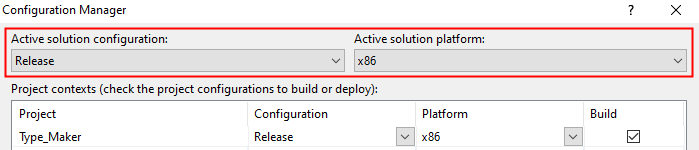
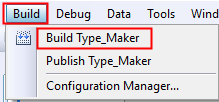
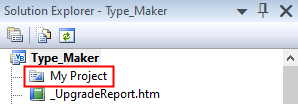
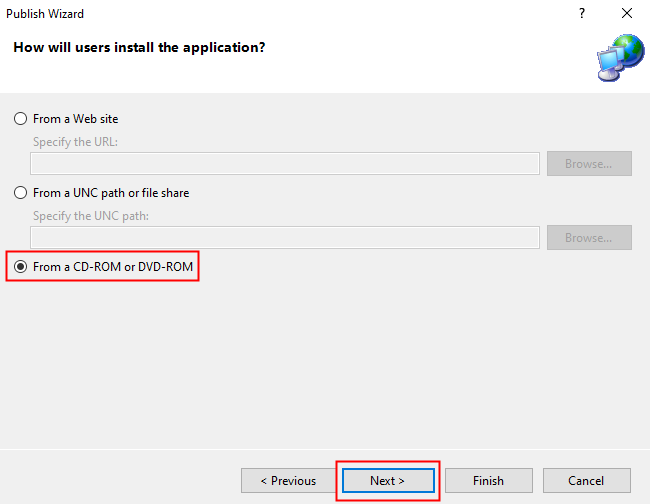
How to Build a Release Version
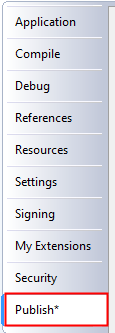
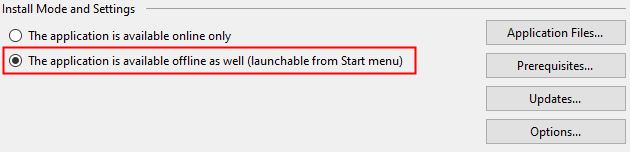
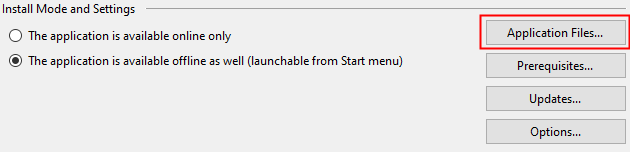
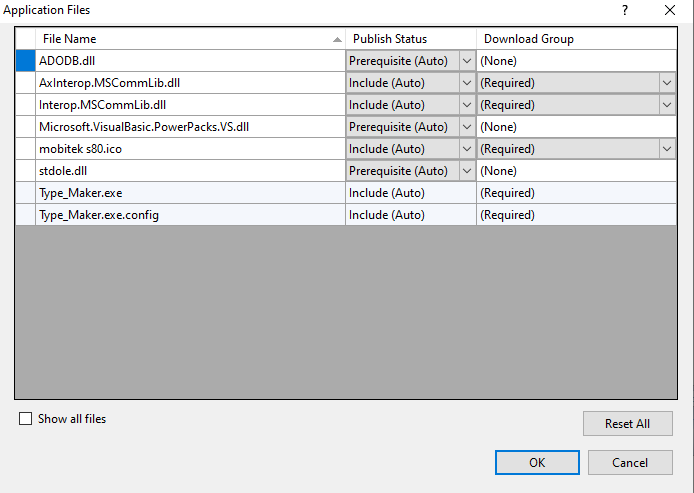
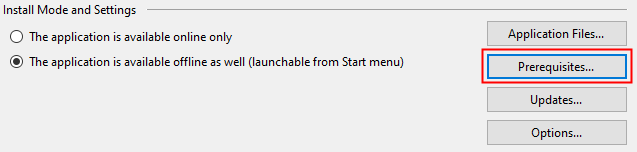
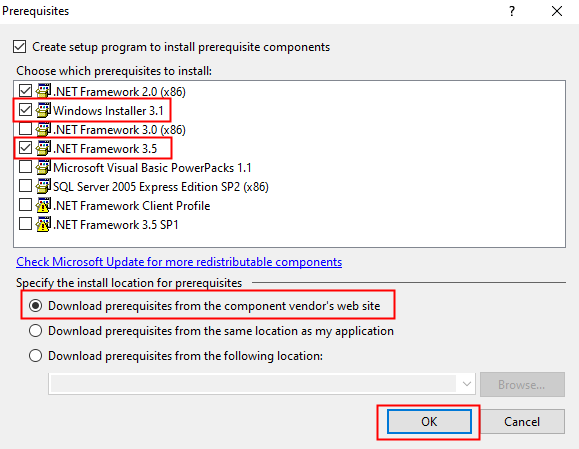
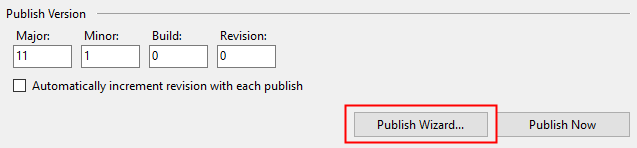
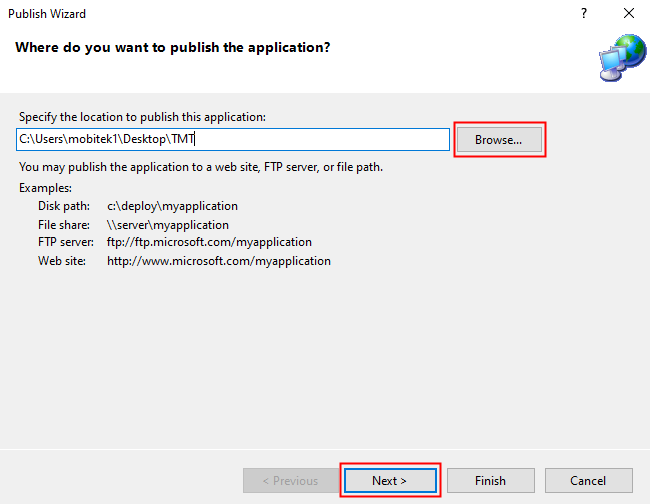
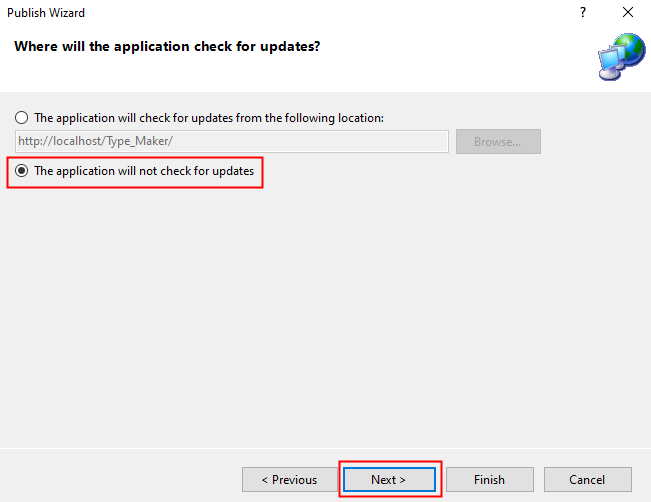
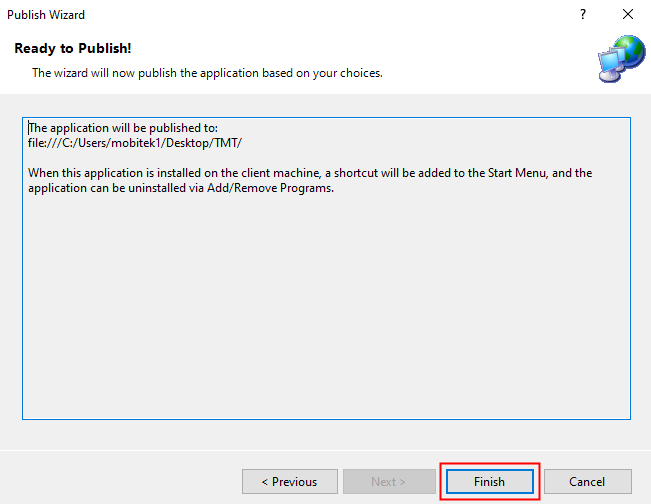
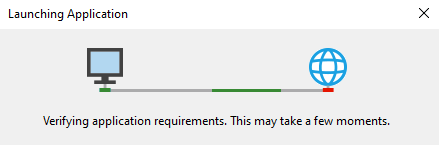
How to Publish VB.Net ApplicationPublish means to create a set-up file (installer).
|
Version 7.2: Newly released, developed with a different and new API.
MOBITEK® SMS Engine is provided for free with MOBITEK® Q25 4G Modem, Type S-L or Type M.
MOBITEK® SMS Engine — Basic Edition is able to work in Windows Server 2003, 2008, 2010 R2, 2016, 2019 32-bit & 64-bit.

| GRID TYPE
|
WEB UI |
| horizontal grid |  |
| vertical grid | 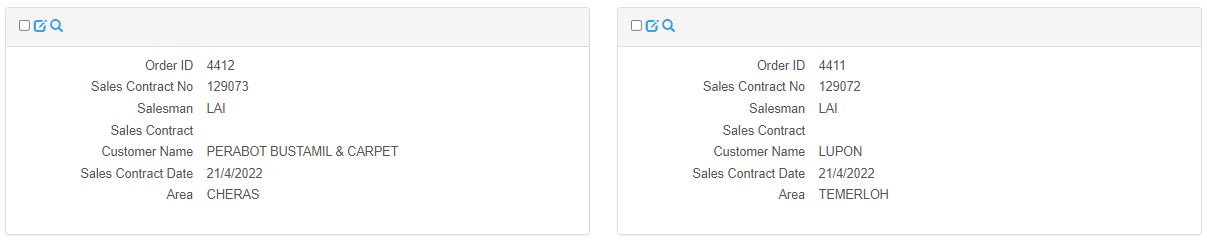 |
| columns | 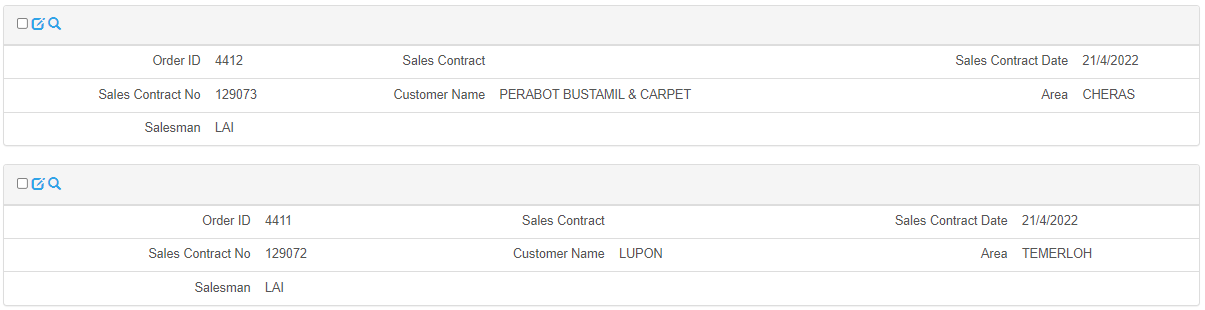 |
Problem: MOBITEK Q24 USB driver v. 3.8.40 is no longer supported. “Device Manager” in Windows 10 will show this error message “PL2303HXA PHASED OUT SINCE 2012. PLEASE CONTACT YOUR SUPPLIER.”
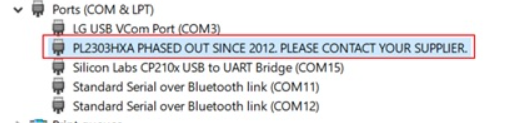
Applies to: MOBITEK Q24 Modem
Solution: use version — v.3.3.0.1 or older versions. Get the older version from